Managing Project Metadata
Note: Only Global Admins have the ability to manage Project Metadata fields within Ediphi.
As part of our ongoing efforts to improve the data of projects, we’ve introduced a new way for Admins to create and manage Project Metadata for their company’s environment in Ediphi. Below is a step-by-step guide to help you through the workflow.
Project Metadata can be found in the Admin dropdown, at the bottom of the list.

In this article
- Creating a Metadata Field
- Types of Metadata Fields
- Editing a Metadata Field
- Deleting a Metadata Field
- Best Practices
Creating a Metadata Field
-
Within the Project Metadata page, click the New Field button located on the top right.
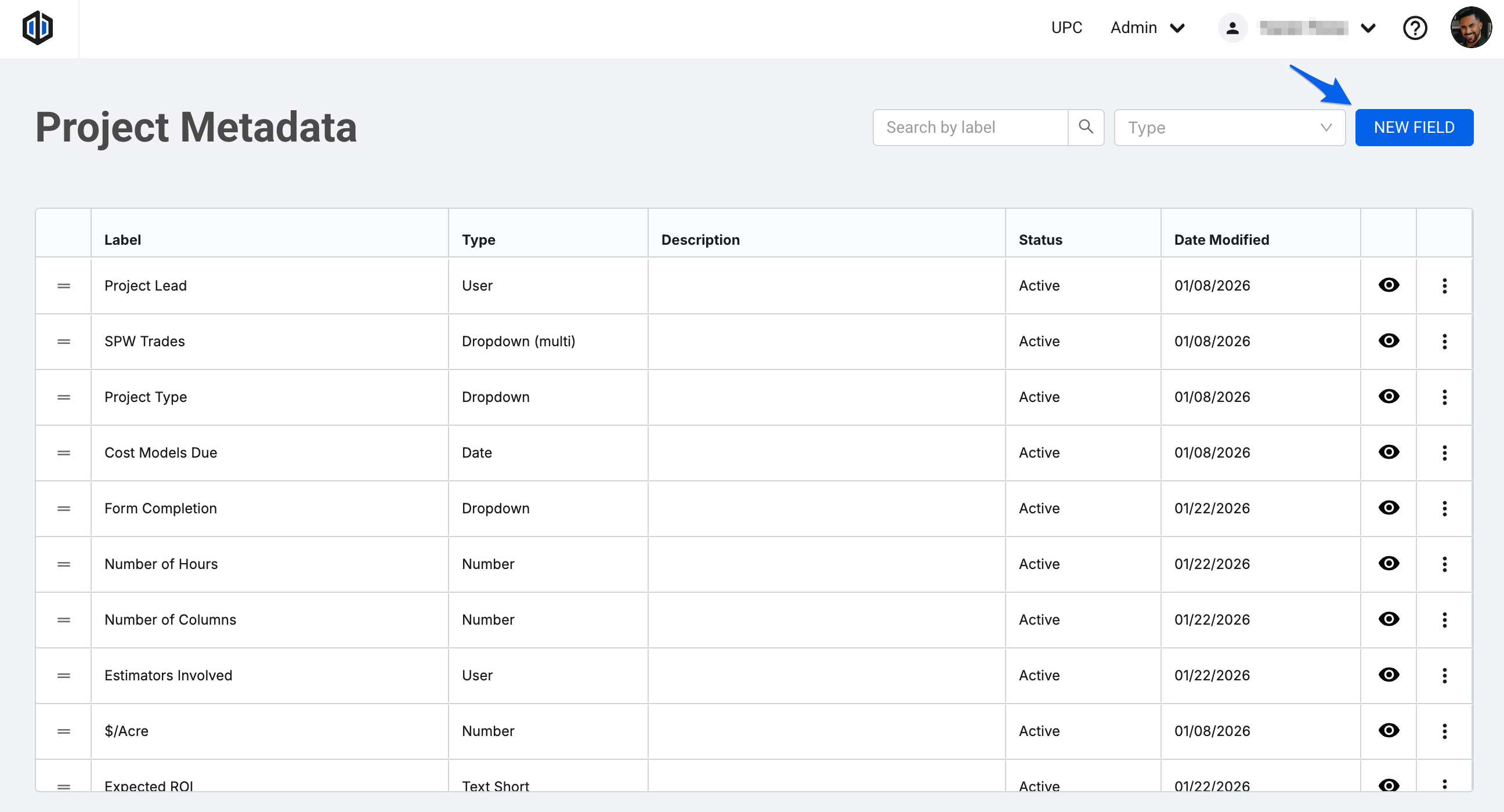
- A modal will appear on the right, where you’ll be able to input a Field Label (required), a Field Type (required), and a brief Description of said field.

Pro Tip: If selecting the Dropdown or User Field Types, you’ll have the option to allow multiple selections for this field.

- Once you’ve input the information, click Create.
Note: The order in which you set your Project Metadata fields within the list will also be reflected at the time users access the project creation modal.
Types of Metadata Fields
Date
Users will be able to select a date from a calendar.

Dropdown
Users will see a dropdown with all the Options created within the field. Ability to enable multiple selections.

Number
Users will only be able to input numerical values in this field.

Text Long
Users will be able to input text, with no limit.

Text Short
Users will be able to input text, with a limit of 255 characters.

User
Users will be able to select from a dropdown that is populated with all the users within the environment. Ability to enable multiple selections.

Editing a Metadata Field
- Within the Project Metadata page, click the More Menu button (ellipsis) of the respective field you’d like to edit. Select Edit.

- A modal will appear where you’ll have the option to modify all fields except Field Type or Allow multiple selections (if applicable).

Note: For the Dropdown field type, once an option within has data input in a project, you will no longer have the ability to delete it (unless that option is cleared out across all projects). You can always modify the name as needed.
- Once the edits are made, click Save.
Pro Tip: The Description of a Project Metadata field will display within the project creation modal as a tooltip.

Deleting a Metadata Field
- Within the Project Metadata page, click the More Menu button (ellipsis) of the respective field you’d like to remove. Select Delete.

- A confirmation modal will appear to ensure you want to proceed, as this action cannot be undone. Click Delete.

Important: Once a Project Metadata field has data input in a project within the platform, you will no longer have the option to delete it (unless all data from the field is cleared out across all projects). You can always modify the name and description as needed, or hide it.

Best Practices
To get the most value out of Project Metadata, we recommend the following best practices:
Keep fields purposeful
Only create metadata fields that support reporting, filtering, or decision-making. Too many fields can make project creation feel cluttered and reduce data quality.
Use consistent naming conventions
Choose clear, descriptive field names and stick to consistent terminology. This makes fields easier to understand and helps ensure users enter data consistently. We also recommend using Descriptions to clearly outline the ask of each field.
Prefer Dropdowns over Text when possible
When the values are known ahead of time, Dropdown fields help standardize data and improve filtering accuracy compared to free-text fields.
Be mindful of single vs. multi-select
Use single-select fields when only one value should apply to a project. Reserve multi-select fields for cases where multiple values are truly expected.
Leverage Number and Date fields for filtering
Number and Date fields are especially powerful for filtering and benchmarking. Use them when you plan to search by ranges or specific values in the future.
Communicate changes to your team
If metadata fields are added, hidden, or removed, let your team know. This helps avoid confusion and ensures users understand how and when to use each field.
Review fields periodically
As workflows evolve, some metadata fields may become outdated. Periodically reviewing and cleaning up (hiding) unused fields helps keep your data relevant and easy to manage.
If you have any questions, feel free to contact our support team, and we'll be happy to help!