Value Management
Value Management (VM) Decisions (formerly known as Alternates) is a feature in Ediphi that provides flexibility side by side with an estimate by allowing users to explore different choices for materials, methods, or components. VM Decisions makes it easy to compare total costs or individual line items and facilitate team discussions without impacting your base bid estimate until you're ready to bring accepted changes in. To support this process, you can open the Value Management section within Estimates to create and manage your VM Decisions. This allows you to keep your options open without impacting the Base Bid. When you're ready, accept a VM Decision to apply its line items and costs automatically.
Here are our main areas of focus with Value Management:
- Streamlined Workflow: Creating and managing alternates is faster and more intuitive with Value Management. This workflow simplifies the process by bringing alternates out of the estimate and into the decision lifecycle, allowing you to create an alternate and add line items while generating a complete option log, reducing unnecessary friction.
- Value Management Organization: Value Management (VM) Decisions (formerly known as Alternates) are organized by status and other key metrics, giving you a clear, structured view for team discussions and decision-making. Quickly identify what needs attention, prioritize effectively, and move forward with confidence.
- Focused Estimating Views: Estimators can view alternates as a dedicated mini-estimate, providing a clear picture of the full cost impact for any proposed scope change. This update also makes it easy to have focused conversations around options, right where the work is happening.
- One Platform: Value Management eliminates the Excel grind by bringing Value Engineering options directly into Ediphi. No more buried alternates, duplicated manual effort, or cross-referencing data across siloed spreadsheets, so your team can manage every cost decision, alternate, and VM workflow in one place.
Here is a visual representation of the hierarchy within our Value Management workflow:
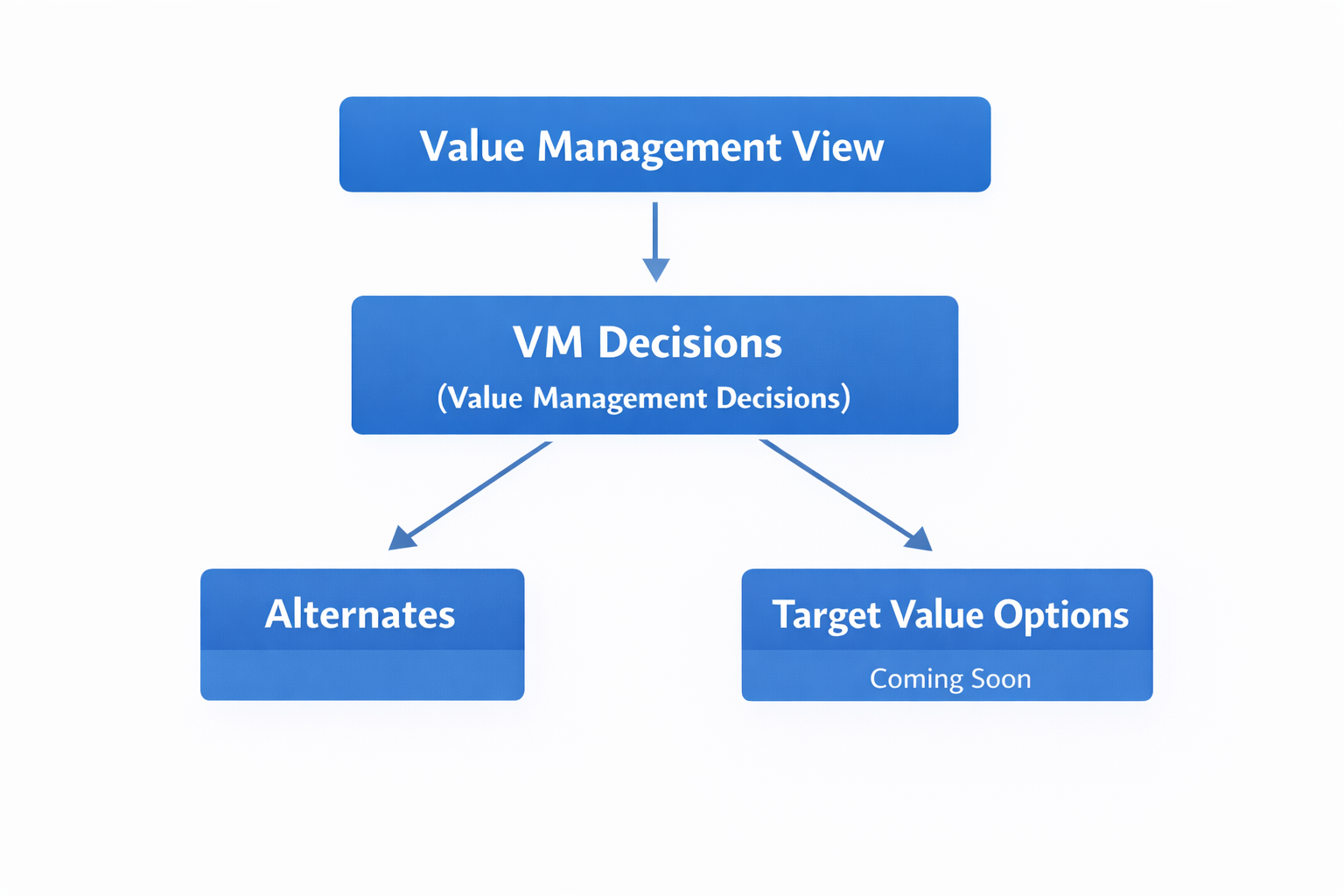
In this article:
- How to Create VM Decisions
- How to Edit VM Decisions
- How to Delete VM Decisions
- How to Duplicate VM Decisions
- How to Use and Manage VM Decisions
- FAQs
How to Create VM Decisions
-
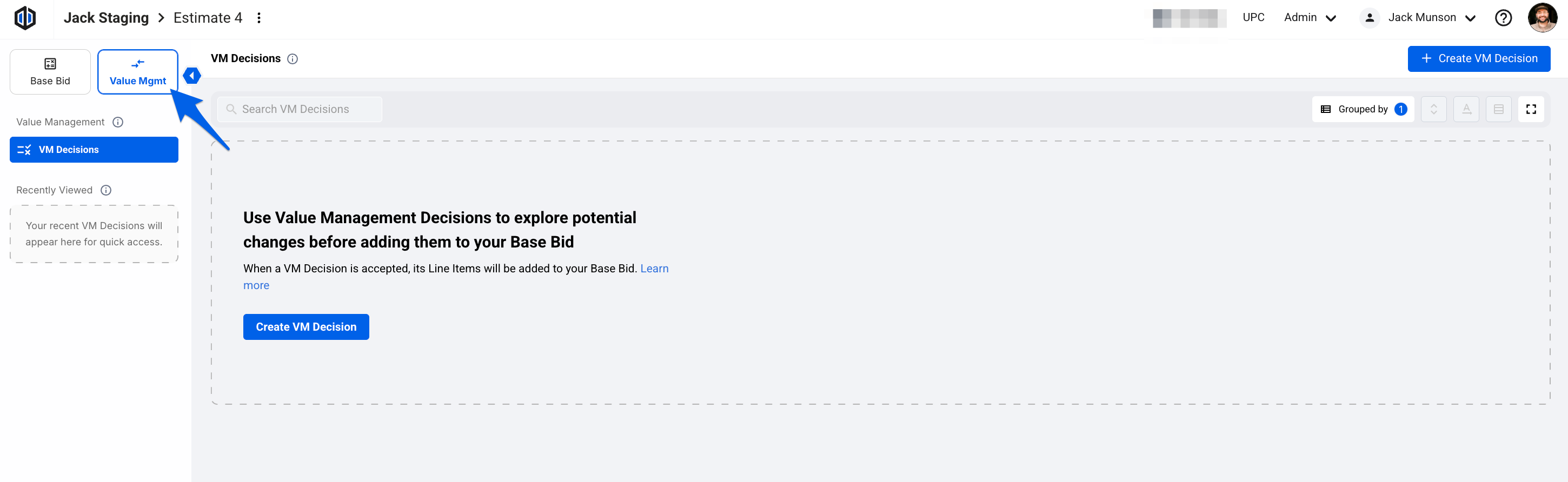
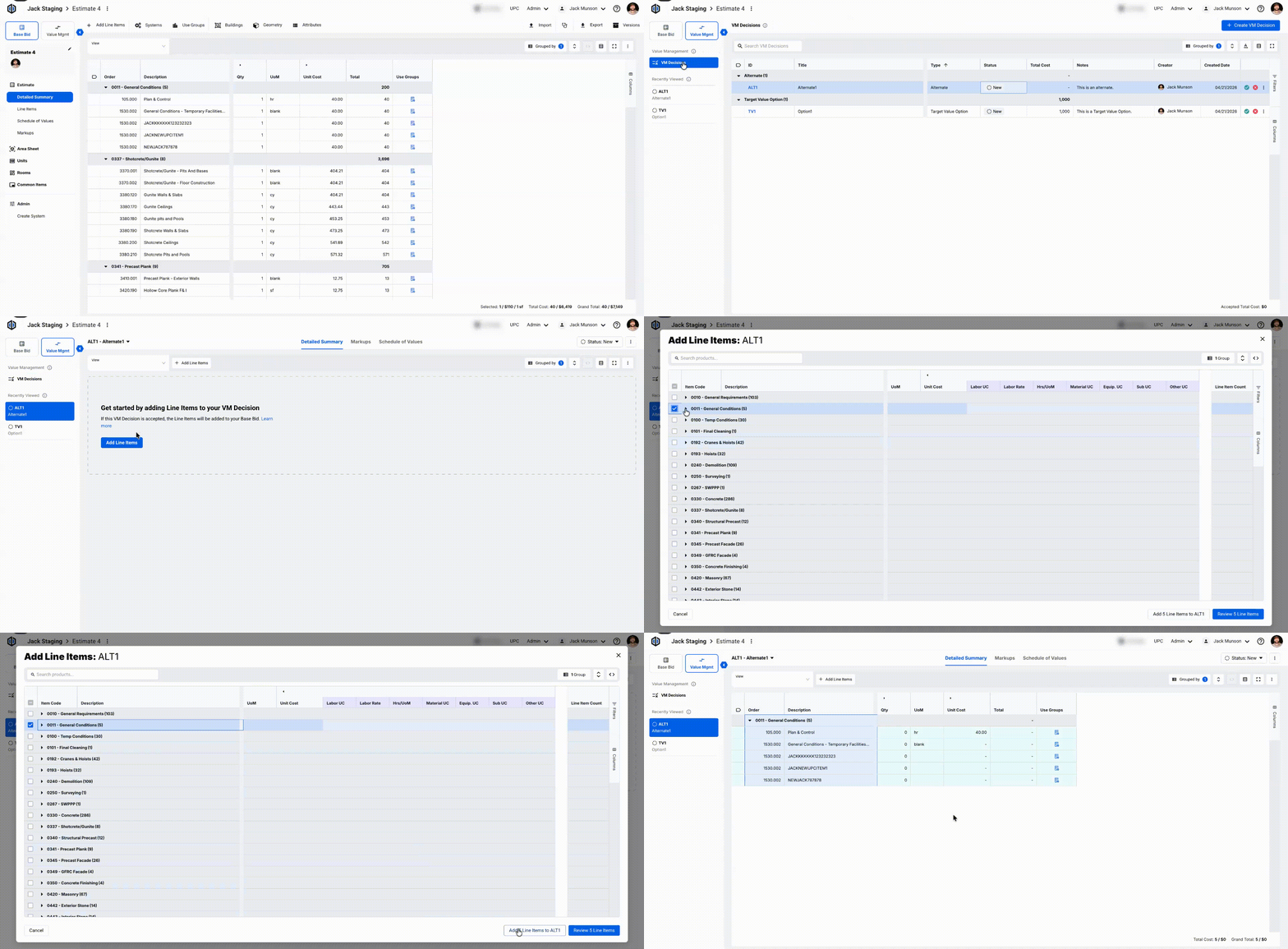
Select Value Mgmt in the Side Panel.
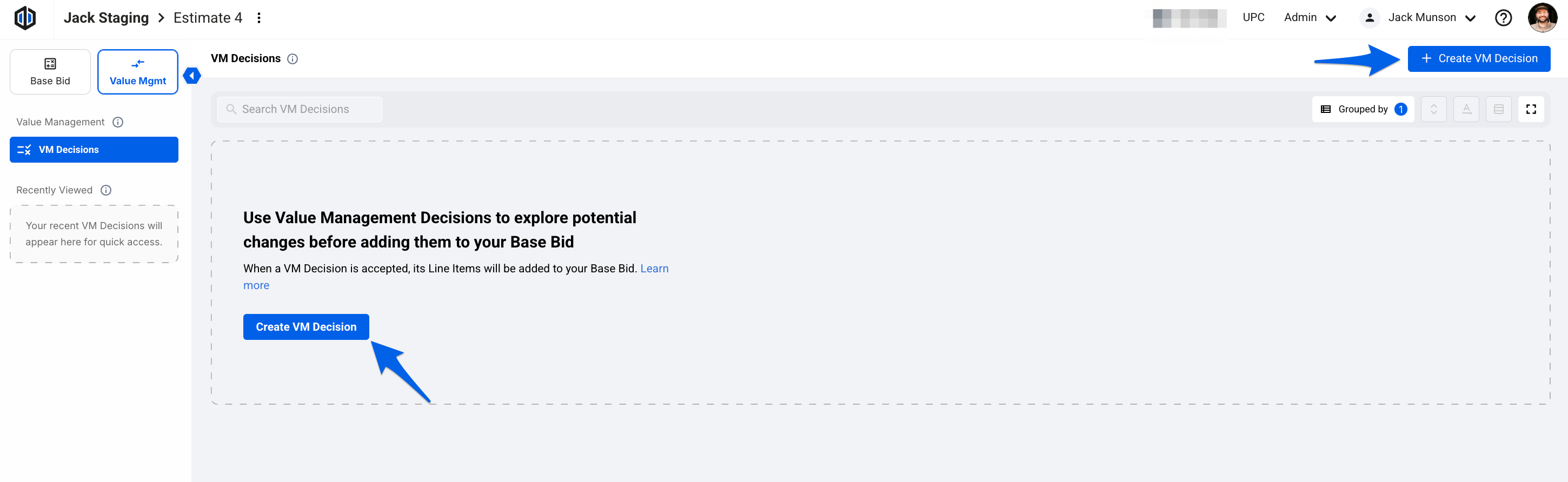
- Click on Create VM Decision.
-
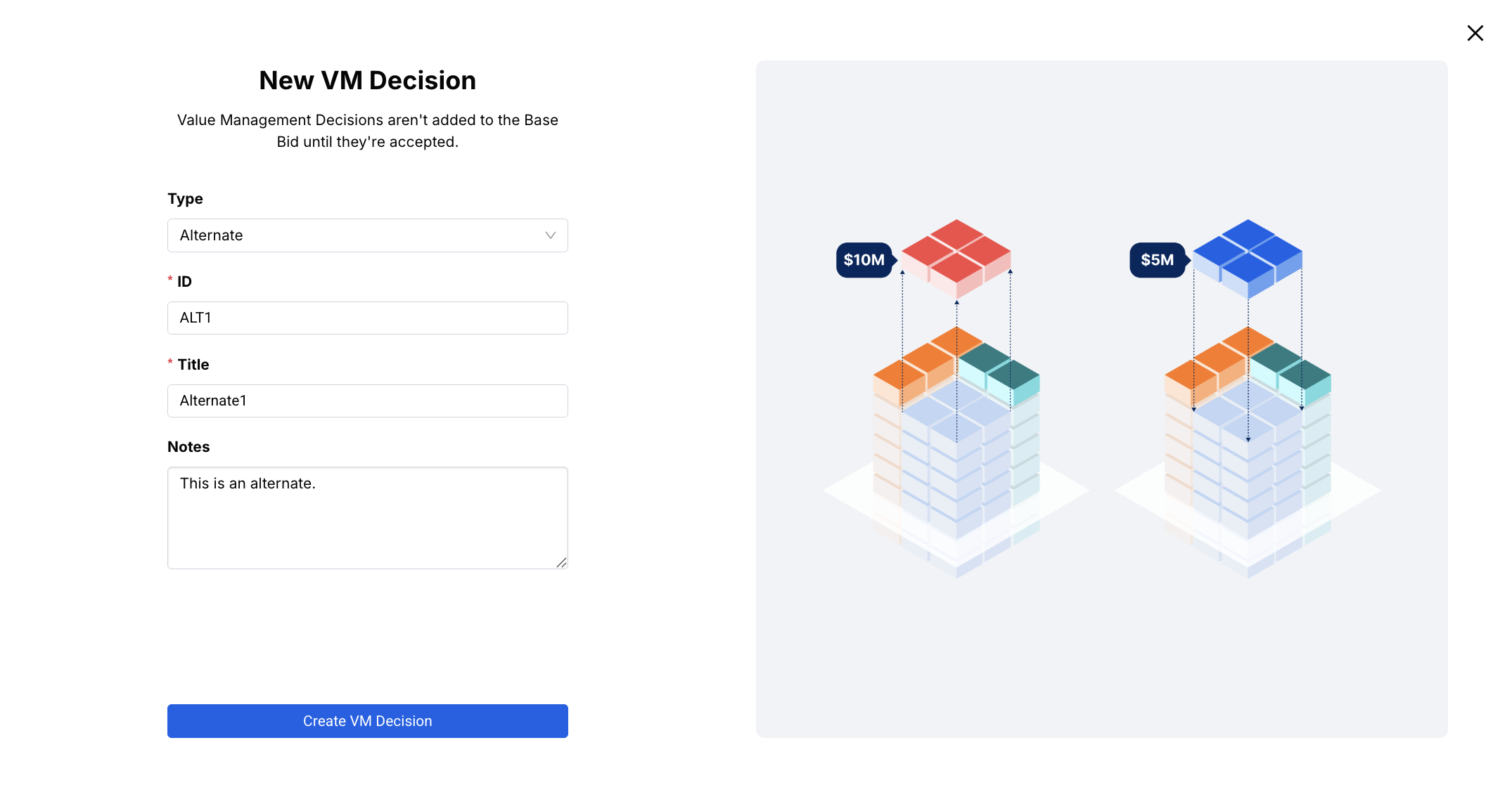
You’ll be prompted to select the Type (Alternate or Target Value Option), enter a VM Decision ID, Title, and any optional Notes. Once done, click Create VM Decision.
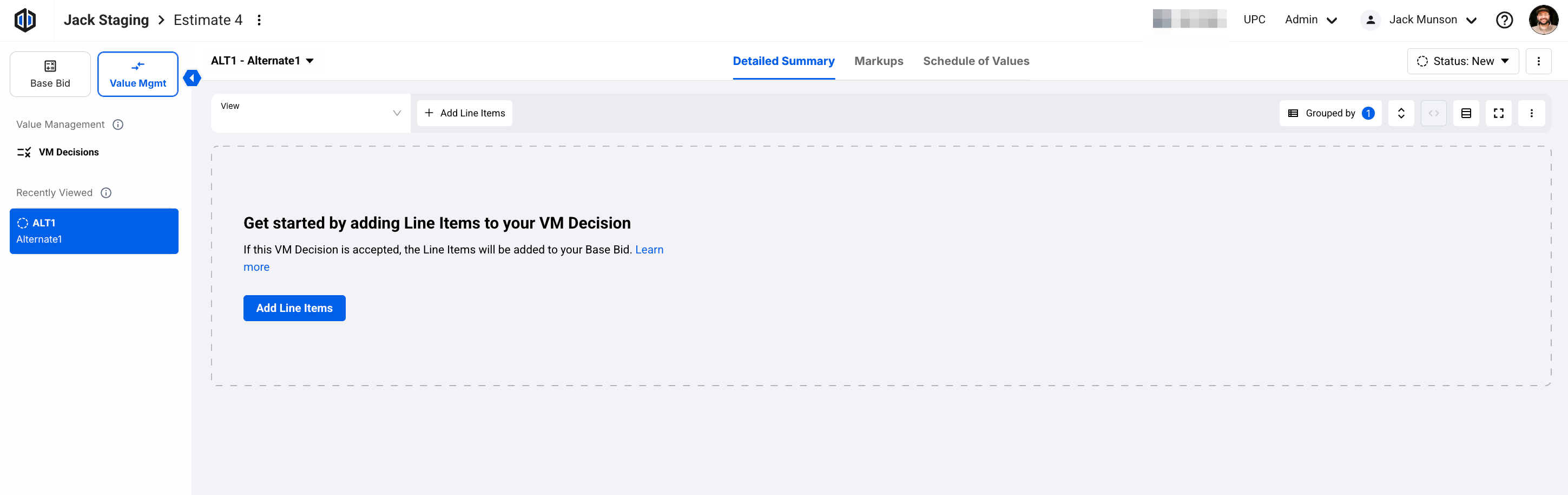
- Once a VM Decision is created, you'll land on its Detailed Summary page. From here, you can manage the VM Decision by adding line items, applying markups, and/or viewing the Schedule of Values.
Note: You can create a VM Decision from the Base Bid as well. After adding line items to your Base Bid, right-click one or multiple line items, then select Create VM Decision from Line Items. The New VM Decision modal will appear, and once you have everything filled out, click on Create VM Decision.

How to Edit VM Decisions
-
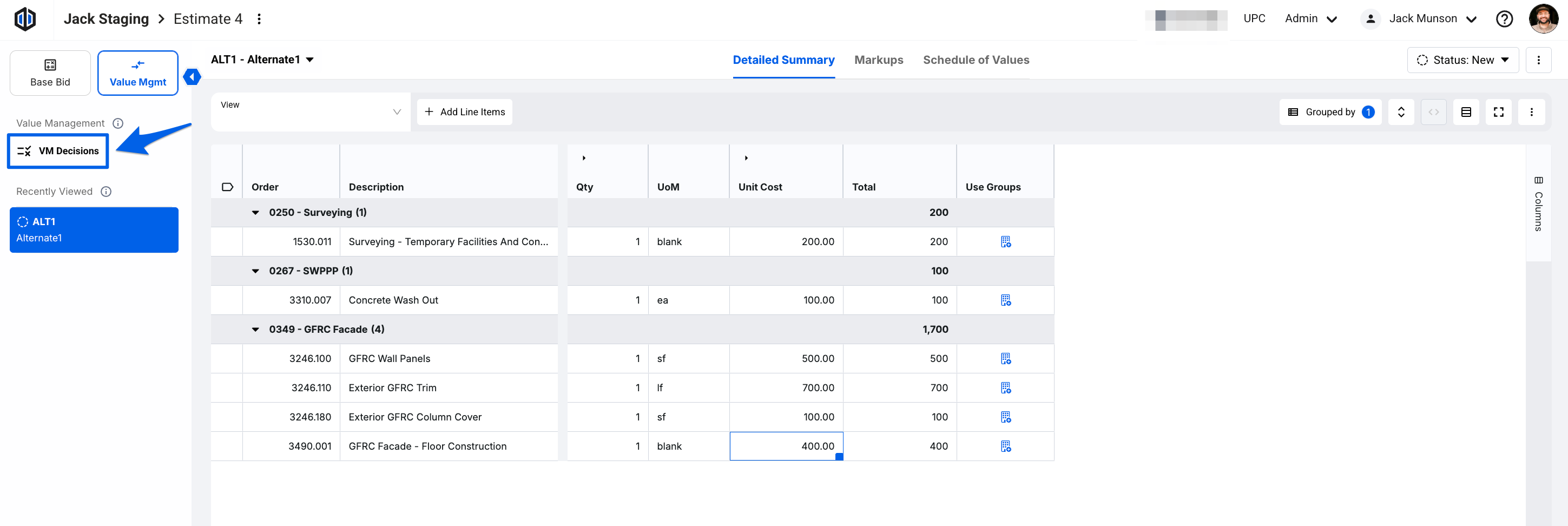
Navigate to the Side Panel and click on VM Decisions.
-
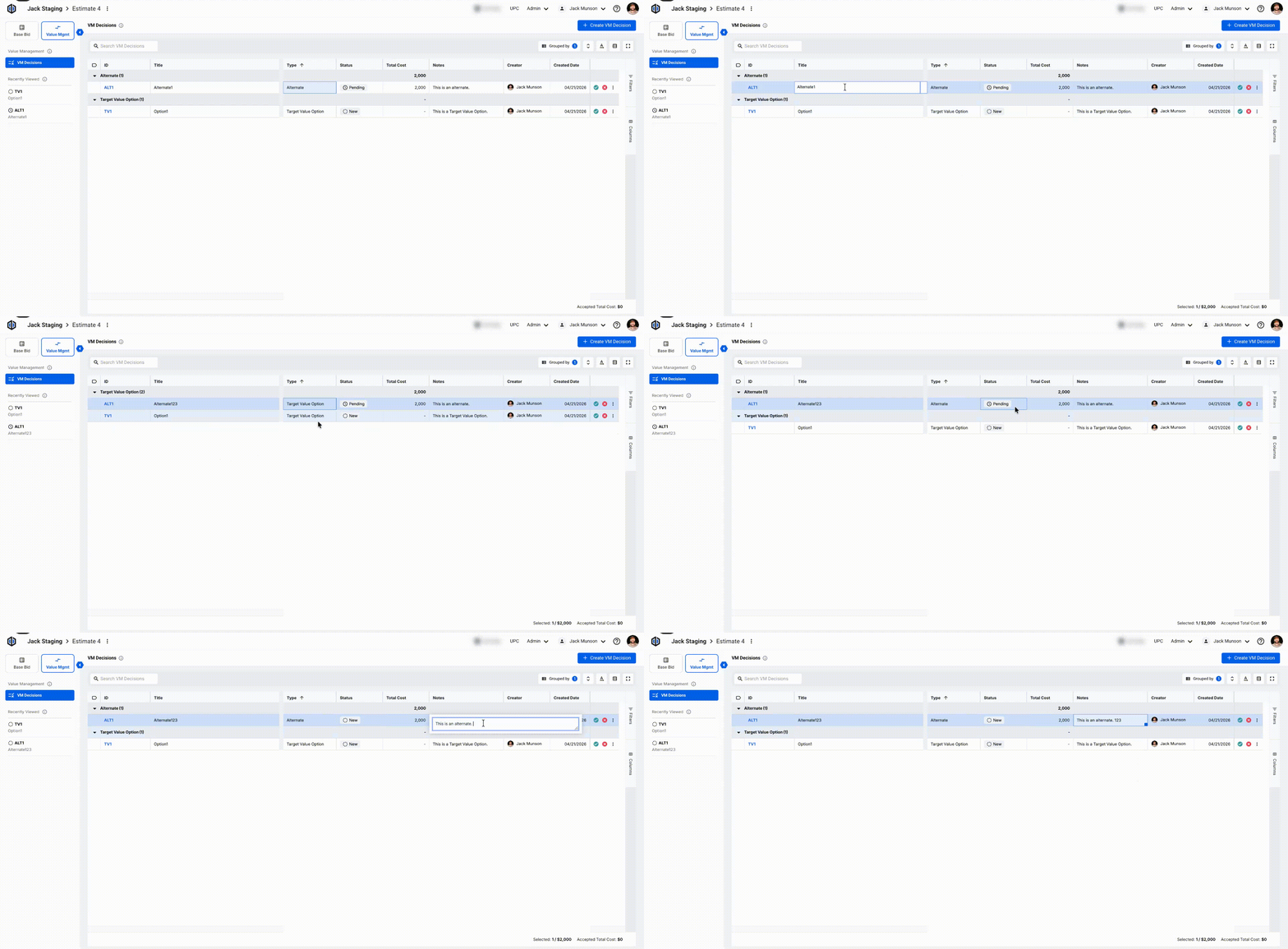
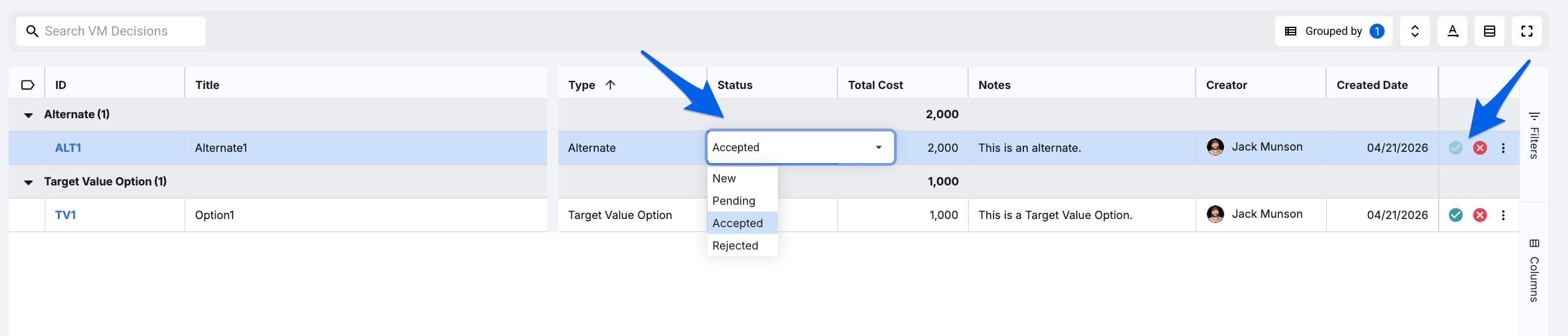
You will land on a list view for all of your VM Decisions. Double-click into the cells for Title, Type, Status, and Notes to edit them in the list view.
-
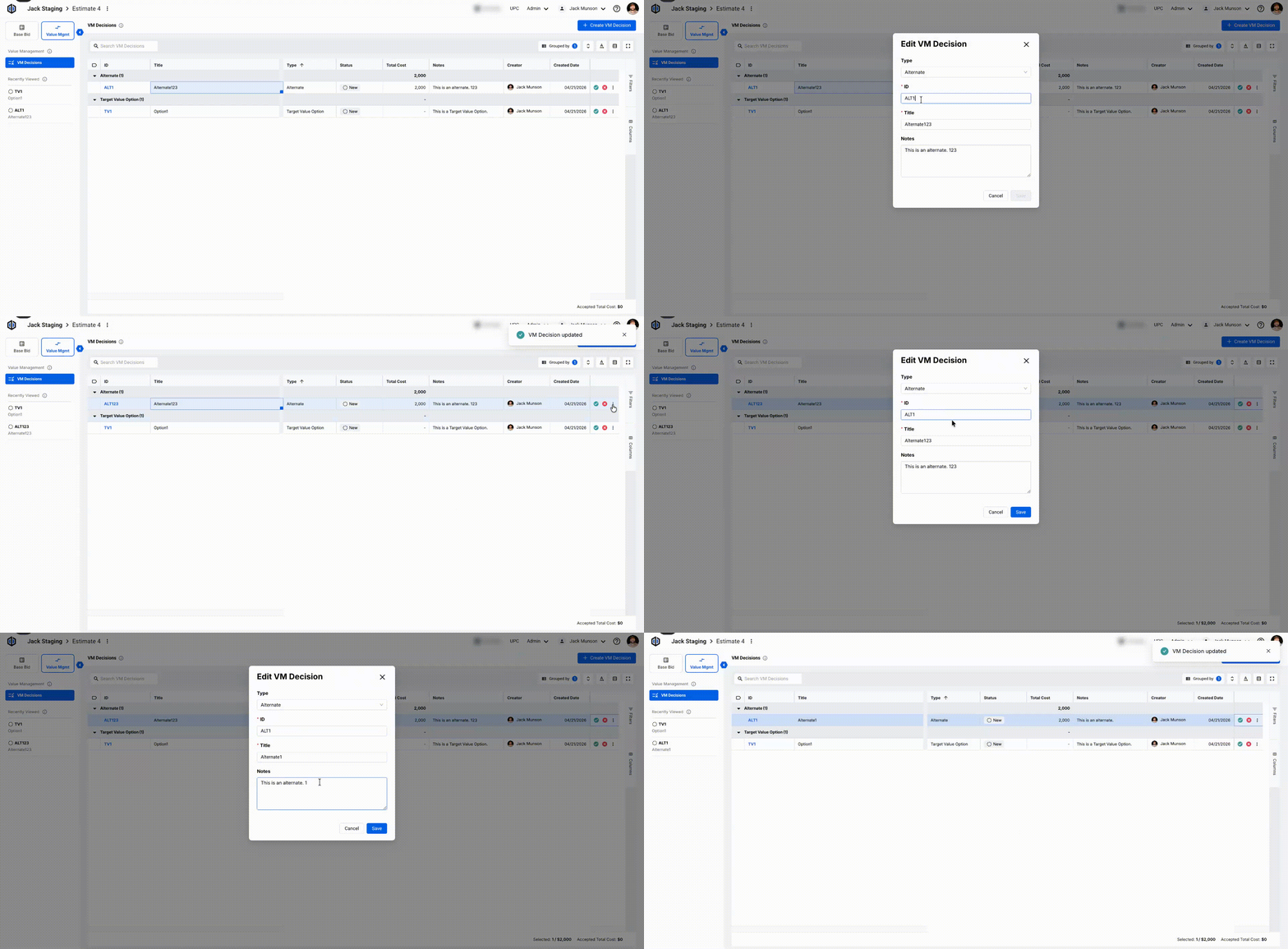
If you need to edit the ID or any of the other fields, right-click the VM Decision or select the 3 dots (ellipses) and click on Edit VM Decision.
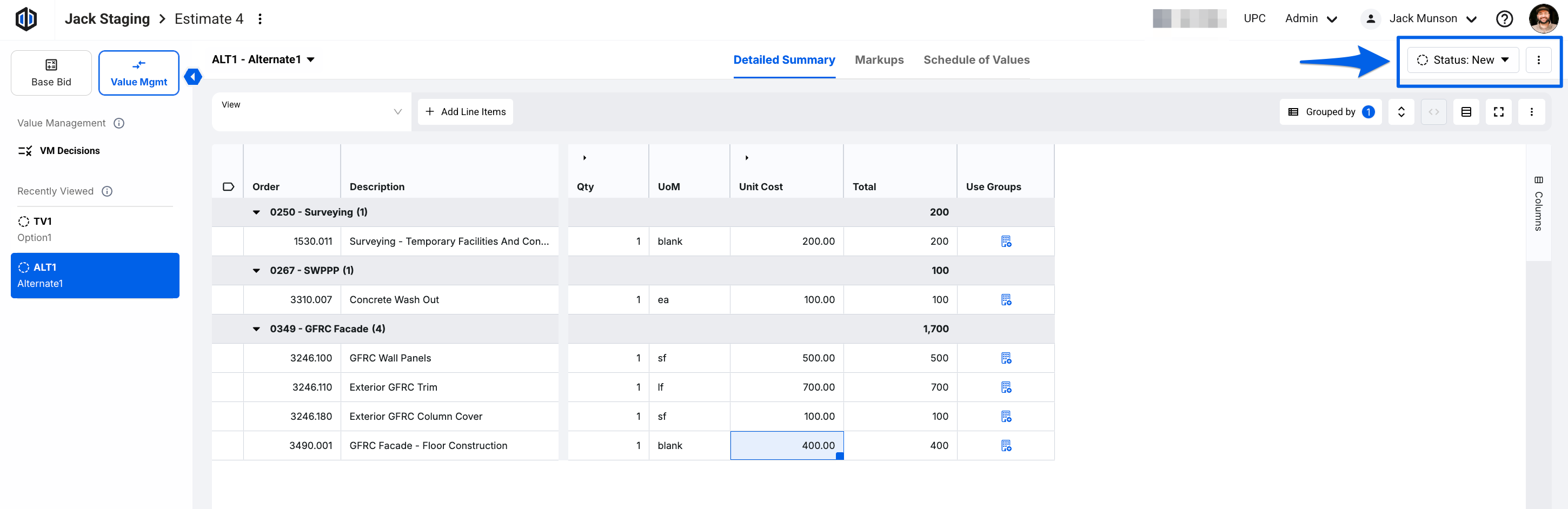
Pro Tip: You have the option to edit the status and information from within the VM Decision via the top-right options:
How to Delete VM Decisions
-
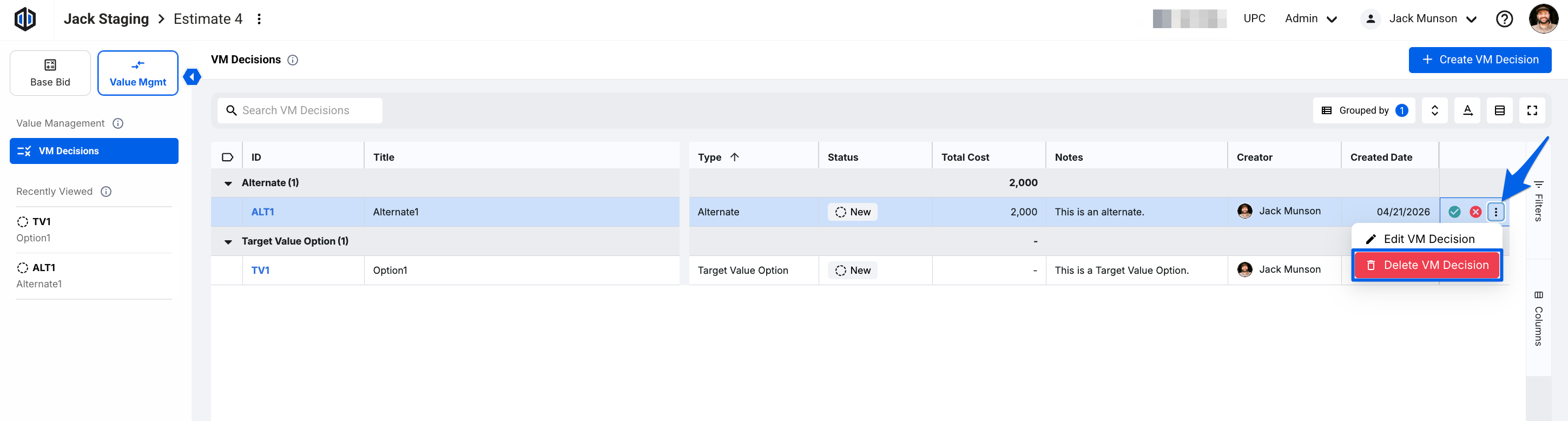
In the VM Decisions list view, right-click or select the 3 dots (ellipses) and select Delete VM Decision.
- A modal will appear confirming if you would like to continue with the deletion. Click Delete.
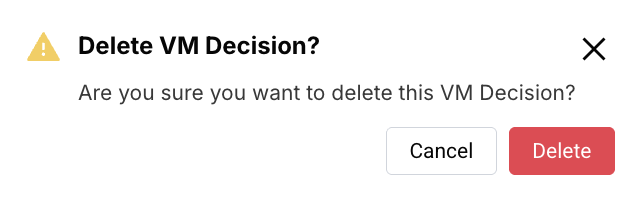
Note: Please be aware that deleting a VM Decision will delete all line items associated with the VM Decision. This action is permanent and cannot be undone.
How to Duplicate VM Decisions
-
In the VM Decisions list view, right-click or select the 3 dots (ellipses) and select Duplicate VM Decision.
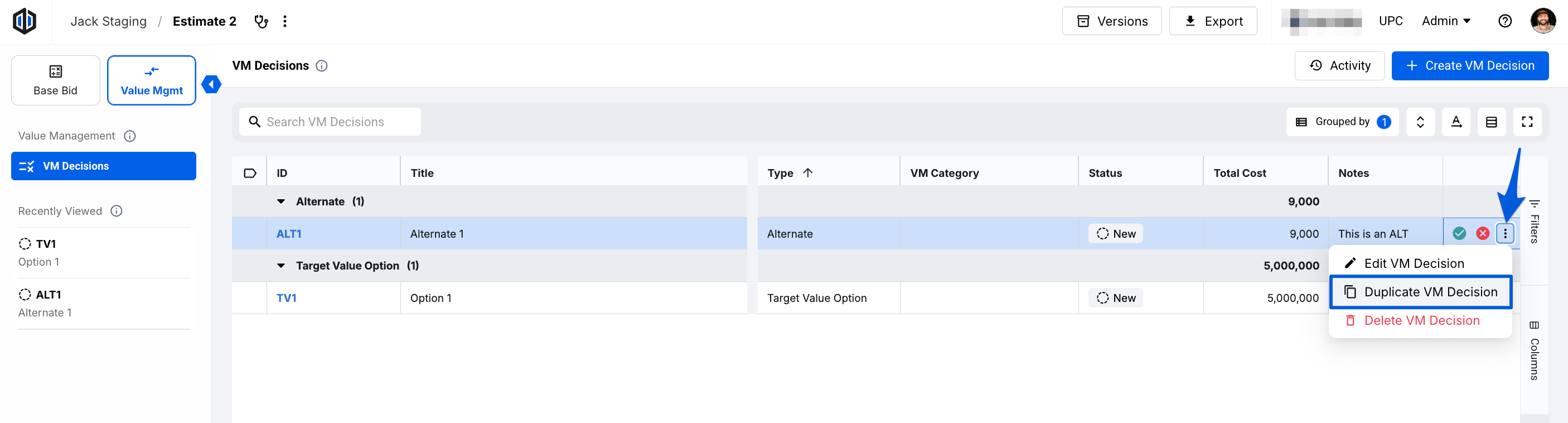
- A pop-up will appear, prompting you to select a Type and fill in ID, Title, VM Category, and Notes. Click Save.

How to Use and Manage VM Decisions
- Select Value Mgmt in the Side Panel.
- Click on VM Decisions to pull up your Alternates and Target Value Options list.
- Click the ID of any VM Decision you would like to work on.
- If you haven't already, the platform will prompt you to Add Line Items in the Detailed Summary tab of the VM Decision.
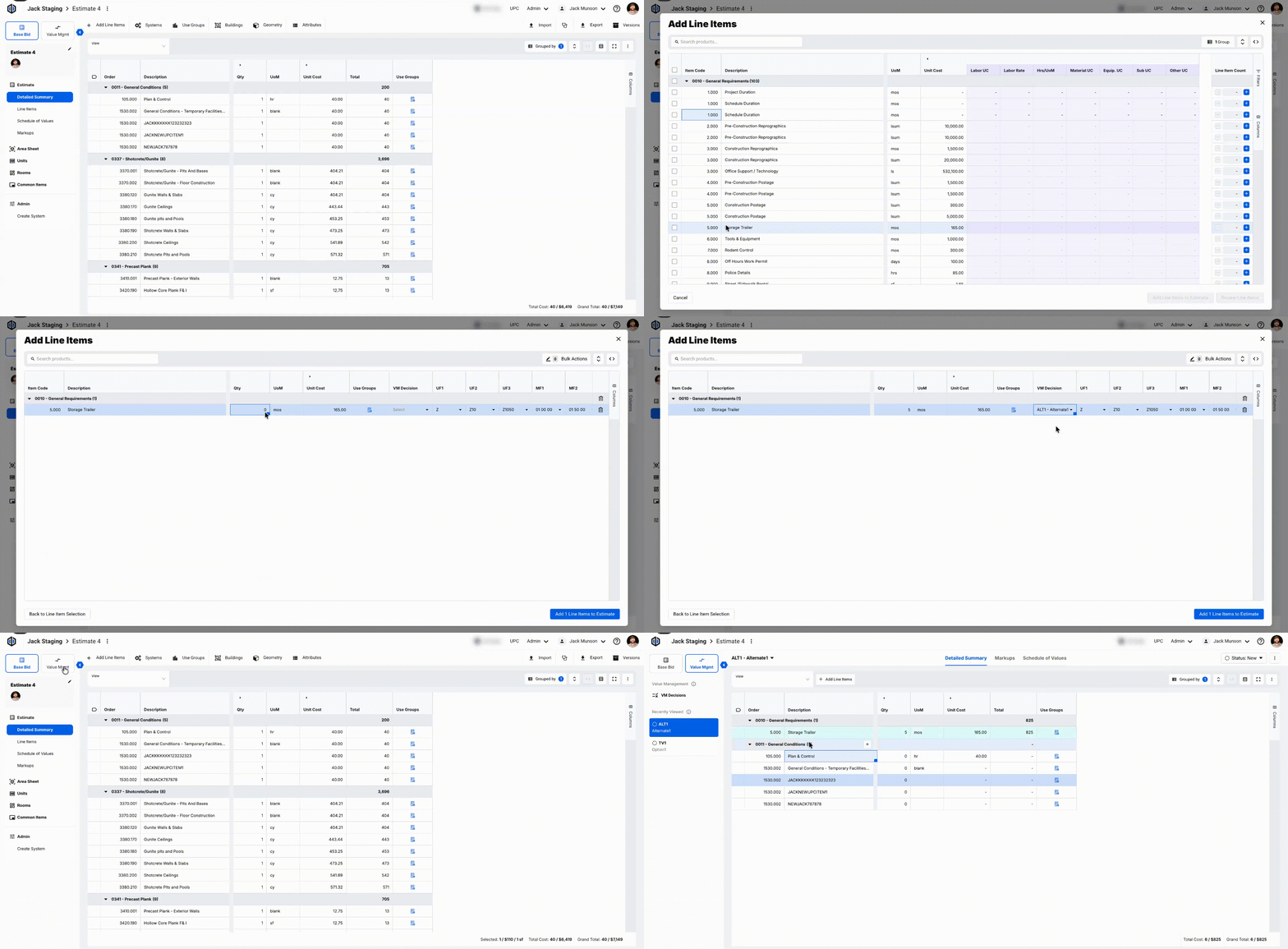
Note: Within the Base Bid section of your estimate, you can assign VM Decisions to your selected line items. Simply click on Review Line Items after selecting line items to add. In the Review Line Items screen, you will see a VM Decisions column. Select the appropriate VM Decisions, then click on Add Line Items to Estimate.
The column will not be available if you do not have any VM Decisions in the Value Management section.
- Once you’re done adding the relevant line items to your VM Decisions, go back to the list view to adjust the status. If you choose to accept a VM Decision, this will then push its respective line items to the Base Bid.
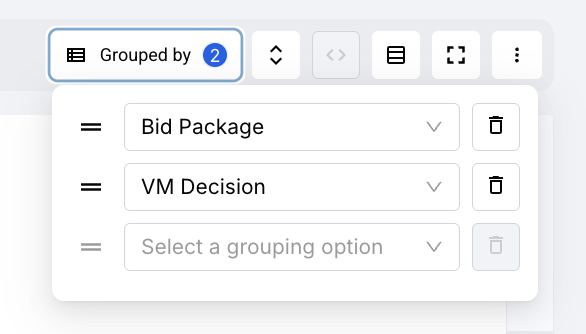
Pro Tip: To confirm the line items are pushed into the Base Bid, open to the Detailed Summary tab, then Group By Bid Package (or your company’s standard Sort Field), then VM Decision. You will see the accepted VM Decision line items under the appropriate Bid Packages.
Managing VM Categories
VM Categories live at the project level, so each project has its own. You can create and manage them from either the project settings or the VM Decision list:
Project Settings
- From the Overview page or within an estimate via Project Actions, select the 3 dots (ellipses).
-
Click on Manage VM Categories.
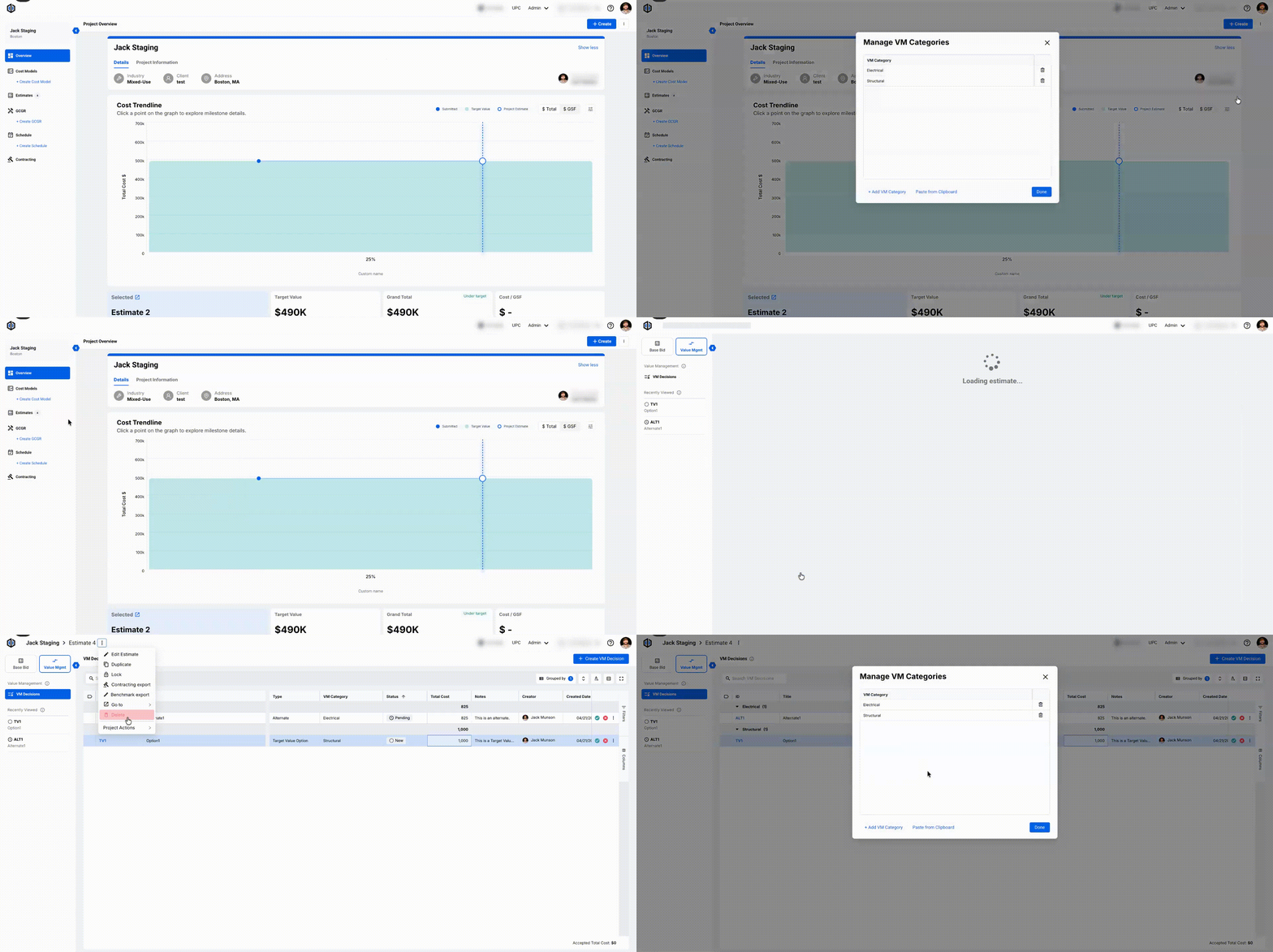
- Select + Add VM Category.
- Type the Category name and click Save.
VM Decisions List
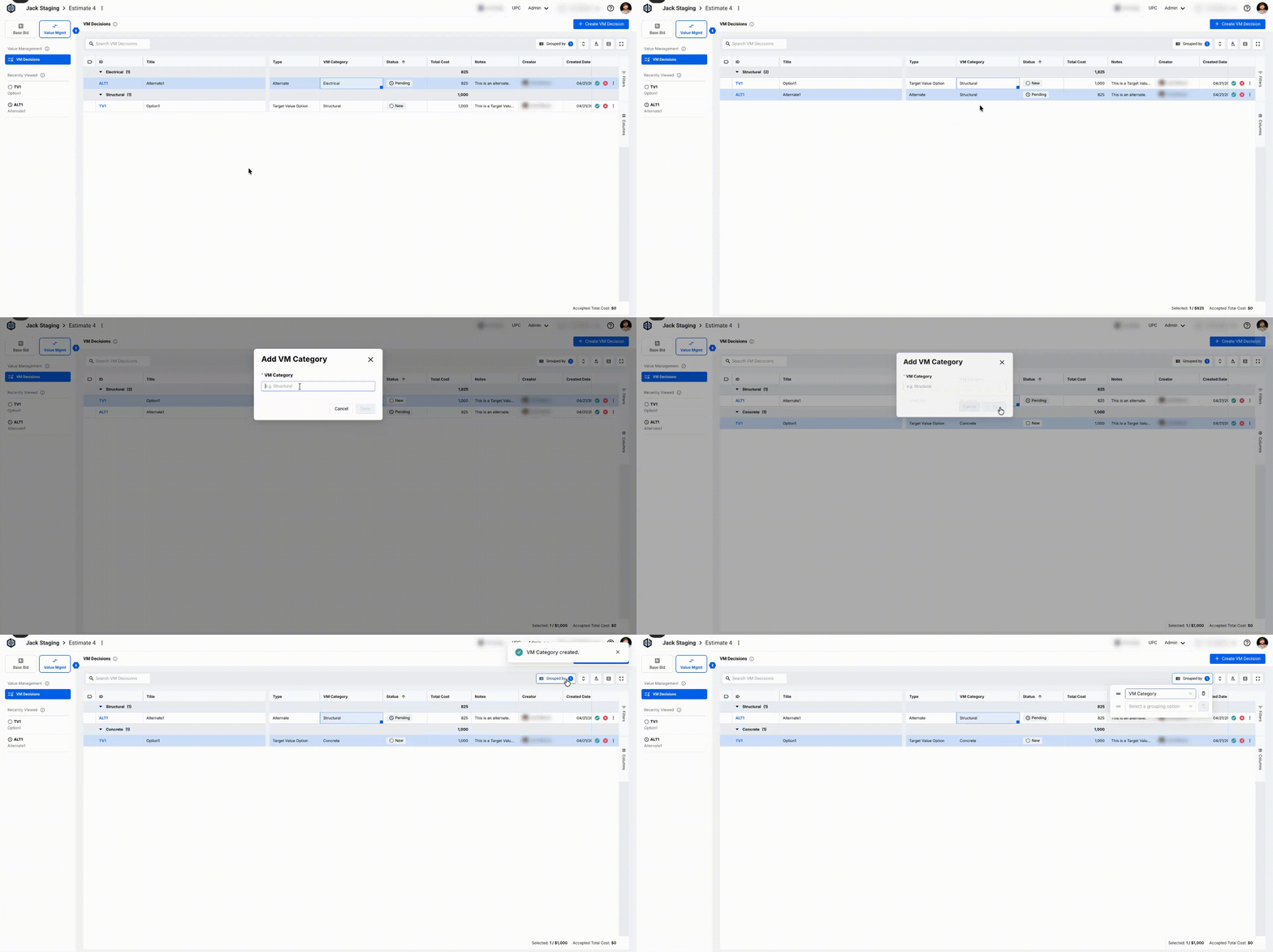
- Open the VM Decisions list under the Value Mgmt section.
- Under the VM Category column, double-click into the cell aligned with a VM Decision.
- Here, you can link the VM Decision to an existing VM Category or create a new one.
- To create a new VM Category, select + Add VM Category in the dropdown.
- Type the Category name and click Save.
-
You can now group and filter by VM Categories for accurate VM Decision reviews.
Showing New and Pending VM Line Items in Base Bid
Note: By default, all VM Line Items, regardless of status, will show in the Base Bid Line Items tab.
You have the ability to show/hide New and Pending VM Line Items within Units, Rooms, and Common Items. Here are two paths to trigger this experience:
- Creating a VM Decision from existing Units, Rooms, or Common Walls/Areas.
- Assigning Units, Rooms, or Common Walls/Areas line items to VM Decisions.
Creating a VM Decision from existing Units, Rooms, or Common Walls/Areas:
- Open the Base Bid Line Items tab and locate a line item sourced from Units, Rooms, or Common Items.
-
Right-click the line item(s) and select Create VM Decision from Line Item.
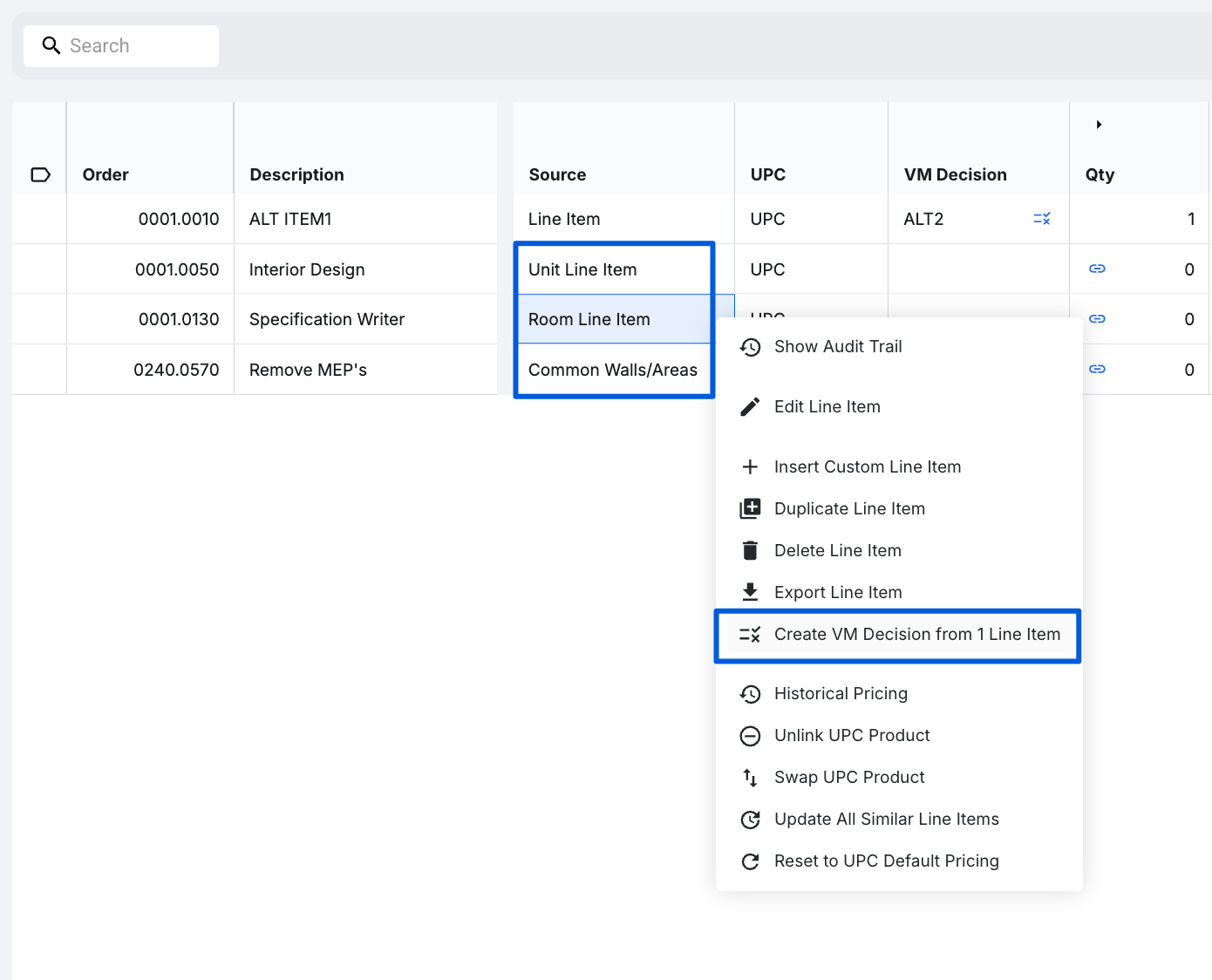
- Create the VM Decision and edit the name of the line items for reference.
- In the VM Decisions list view, keep the status as New or change to Pending.
- Navigate to the Base Bid and open the Units, Rooms, or Common Items section where this VM Item originated from.
- Open the Line Items tab and select the 3 dots (ellipses), then click on the toggle to Show New and Pending VM Line Items.
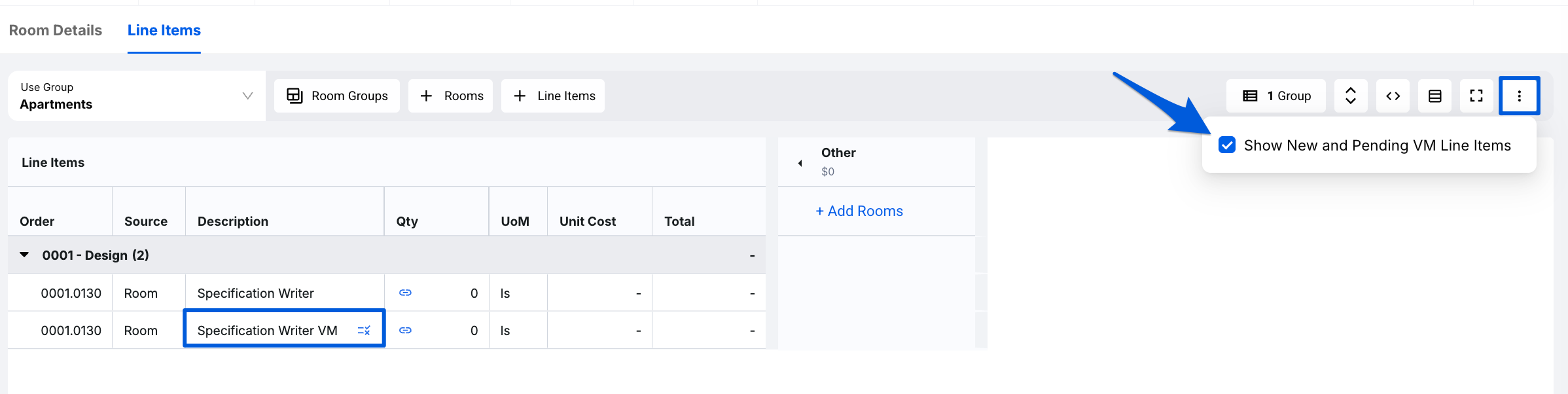
Assigning Units, Rooms, or Common Walls/Areas Line Items to VM Decisions:
- Open the Base Bid Line Items tab and locate a line item sourced from Units, Rooms, or Common Items.
-
Assign a VM Decision to a line item(s) by either right-clicking to edit or using the in-cell editing under the VM Decision column.
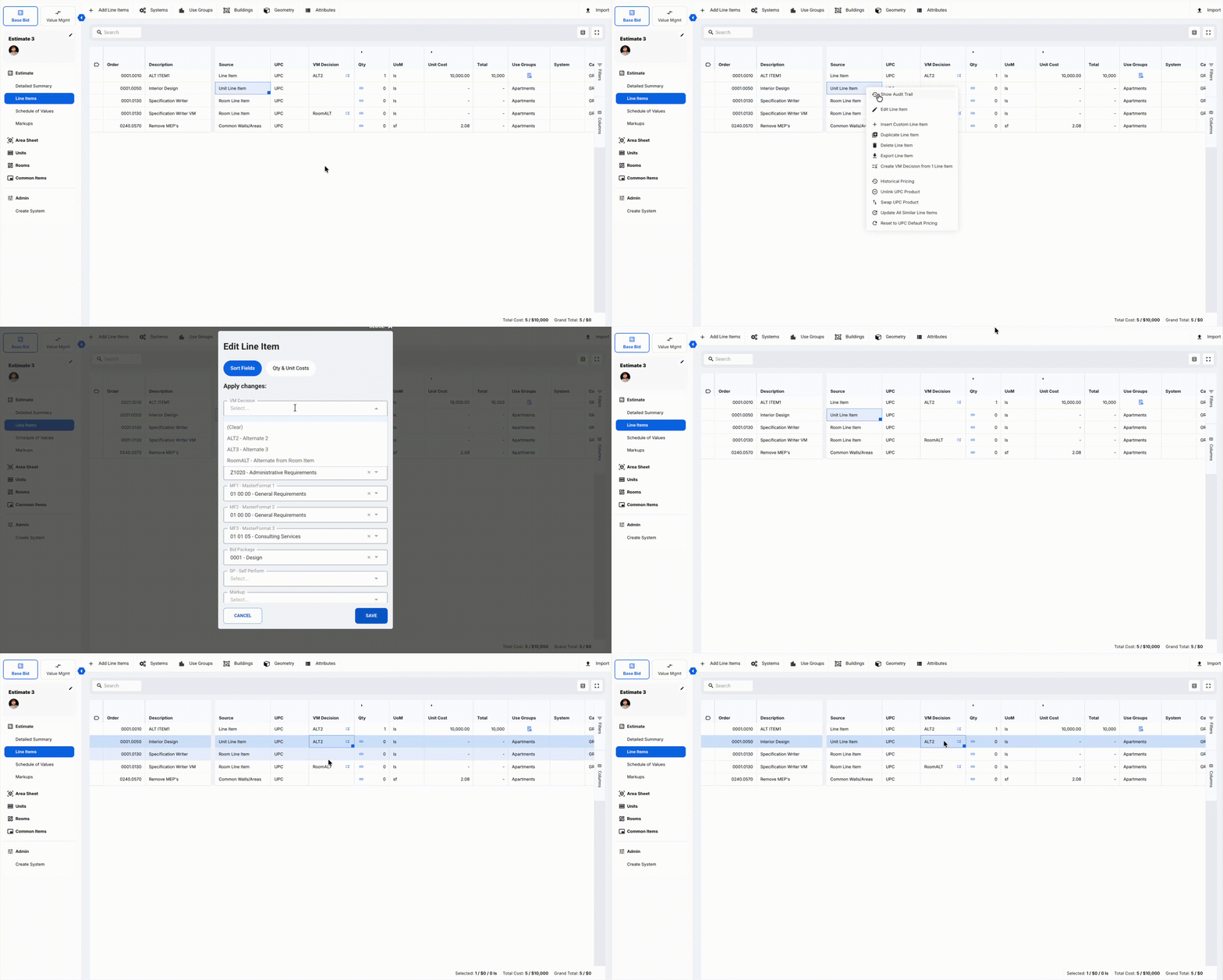
- Navigate to Units, Rooms, or Common Items where this VM Item originated from.
- Open the Line Items tab and select the 3 dots (ellipses), then click on the toggle to Show New and Pending VM Line Items.

VM Decision Activity
Within the VM Decisions list view, you can access an Activity Log for all VM Decisions. This will show:
- Who created a VM Decision, the name, and the time of creation.
- Who changed the Status of a VM Decision, and the time it was changed.
- Who edited Notes for a specific VM Decision, and the time of the edit.
- Hover over the Notes text in the Activity Log to show Old vs New Notes.
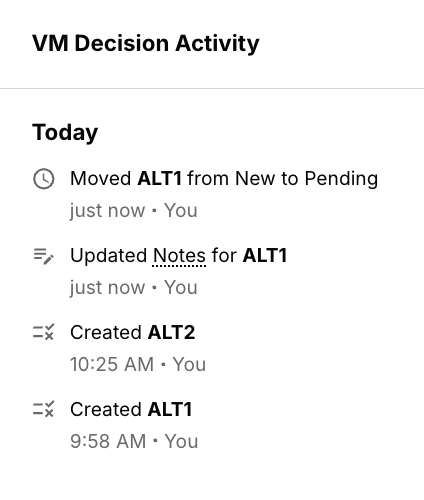
Note: The Activity Log only shows changes made after this feature was released. Activity from before this feature will not appear.
Formulas in VM Decisions
Formulas that reference certain values can impact your Base Bid costs.
If you're using a VM Decision to pull in line items based on Category or Sort Codes values, accepting that VM Decision into the Base Bid can cause unintended cost changes. This happens because the formula recalculates using the newly added line items as part of its input, creating a circular dependency where the Base Bid affects the formula and the formula affects the Base Bid.
For example, if you create a VM Decision that pulls all Concrete Sort Code line items and accept it into the Base Bid, those new items become part of the Concrete Sort Code total, which changes the values of all other Concrete line items that were already in the Base Bid.

Exporting VM Decisions List
Within the VM Decisions List, you have the ability to export this view to Excel.
- Select Value Mgmt in the Side Panel.
- Click VM Decisions to open your Alternates and Target Value Options list.
- Customize the columns and groupings to match what you want in the exported file.
- Click the Export icon in the top right menu bar.
Note: The export mirrors your current view exactly. Whatever columns, groupings, and filters you have set on the VM Decisions List will carry over to the exported file.

FAQs
- Where are my Alternates?
Your Alternates have moved to the Value Management section. This is now your central hub for managing VM Decisions (previously called Alternates), making it more organized and easier to use than ever.
- Will my Saved Views transfer between VM Decisions and the Base Bid?
Yes, they will! Saved Views will be accessible in the Base Bid and your VM Decisions. It is built this way to make views easier to manage across your estimate.
- Can I change the VM Decision creator?
No, the Creator field is auto-filled from the user who creates the VM Decision.
- Can I bulk edit the status of multiple VM Decisions simultaneously?
Bulk editing is limited to the Title, Notes, Color, and VM Category columns using the Fill Down/Up feature. The Status and Type columns must be edited individually.
- Are accepted VM markups included when viewing Base Bid markups?
No, you currently have to manually add VM markups to your Base Bid. We are working to introduce this functionality in a later release.
- Do Custom VM Markups affect my Base Bid Markups?
No, they will not affect your Base Bid markups as they will remain separate. Please check out our Custom Markups in Value Management article to learn more.
- How are VM Decisions handled in formulas?
Please refer to our How Value Management Decisions are Filtered in Formulas article to learn how VM Decisions are affected via formulas.
- Can a VM Decision be revised after it has been accepted?
Yes! An accepted Value Management (VM) Decision can be revised while it is incorporated into the Base Bid. Any updates made to the VM Decision will retroactively update the Base Bid as well, so it is important to proceed carefully to ensure accuracy on both sides.
- Can I navigate from the Base Bid to my VM Decision without having to open the Value Mgmt section manually every time?
Yes you can! In the Base Bid, either in Detailed Summary or Line Items, navigate to the VM Decisions column. Here you will see an icon within the cell for items linked to a VM Decision. Once selected, this will bring you to the VM Decision associated to that line item.
- Can I create a VM Decision from the Base Bid?
Yes! After adding line items to your Base Bid, right-click one or multiple line items, then select Create VM Decision from Line Items. The New VM Decision modal will appear and once you have everything filled out, click on Create VM Decision.
- What is the Deduct option for when duplicating a line item or creating a VM Decision from the Base Bid?
We provide two options for how to handle the quantity of a line item when duplicating to a VM Decision or creating a VM Decision from the Base Bid. First option is to keep the same quantity and calculations as the selected line items. The second option is to cancel out the quantity (QTY) of the selected line items that will get pushed over to a VM Decision. Instead of a straight duplicate of 1, the deduct formula will push this over to a VM Decision as -1 (negative 1).
- I cannot create a deduct line item from a Unit, Room, Common Item, or Assembly. Is this a bug?
This is intended behavior. Deduct options are not available for non-standard line items such as line items from other VM Decisions, Room Line Items, Unit Line Items, Common Areas, Common Walls, or Assemblies.
If you have any questions, feel free to contact our support team, and we'll be happy to help!