Managing Positions
Note: Only Global Admins have the ability to manage Positions within Ediphi.
In Ediphi, Admins can easily manage their company's Positions database, keeping all job titles for GCGRs up to date. By managing Positions in the Admin tool, you can streamline the Staffing workflow within the GCGRs module.
In this article
- How Positions are Used in Ediphi
- How to Create Positions
- How to Edit Positions
- How to Delete Positions
How Positions are Used in Ediphi
In Ediphi, positions (also referred to as job titles) are managed through the Staffing tab within the GCGRs module.
Behind the scenes, the Positions list in the Admin tool acts as your company’s central database for all job titles in GCGRs. If you’re ever wondering where your job titles come from, this is the source.
How to Create Positions
To add a Position to the database, follow these steps:
Manually Create Positions
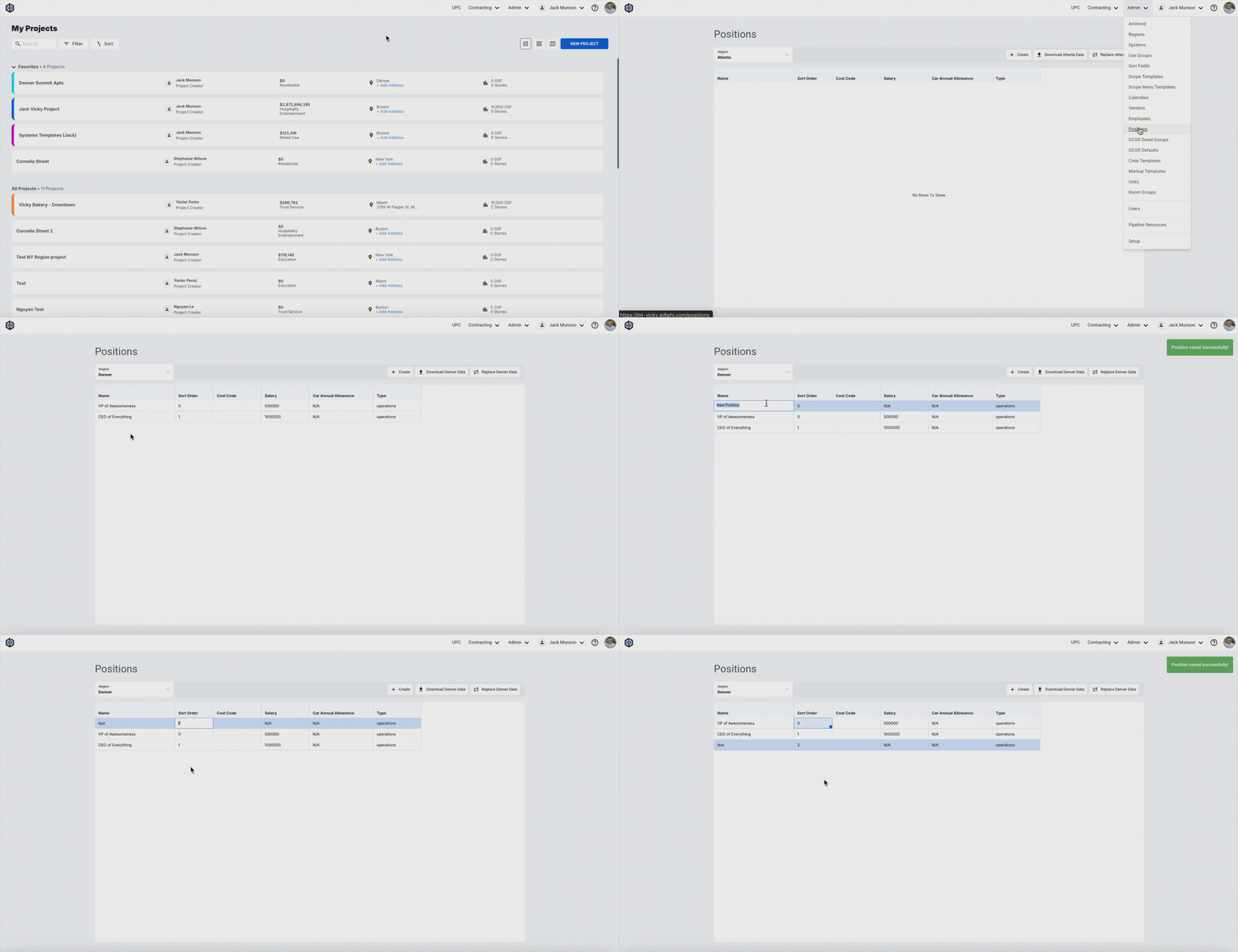
- Under the Admin dropdown located at the top-right of your screen, click on Positions.
- Select the Region you would like to create positions for, then click Create.
-
Double-click into each cell to edit the data.
Create Positions in Bulk
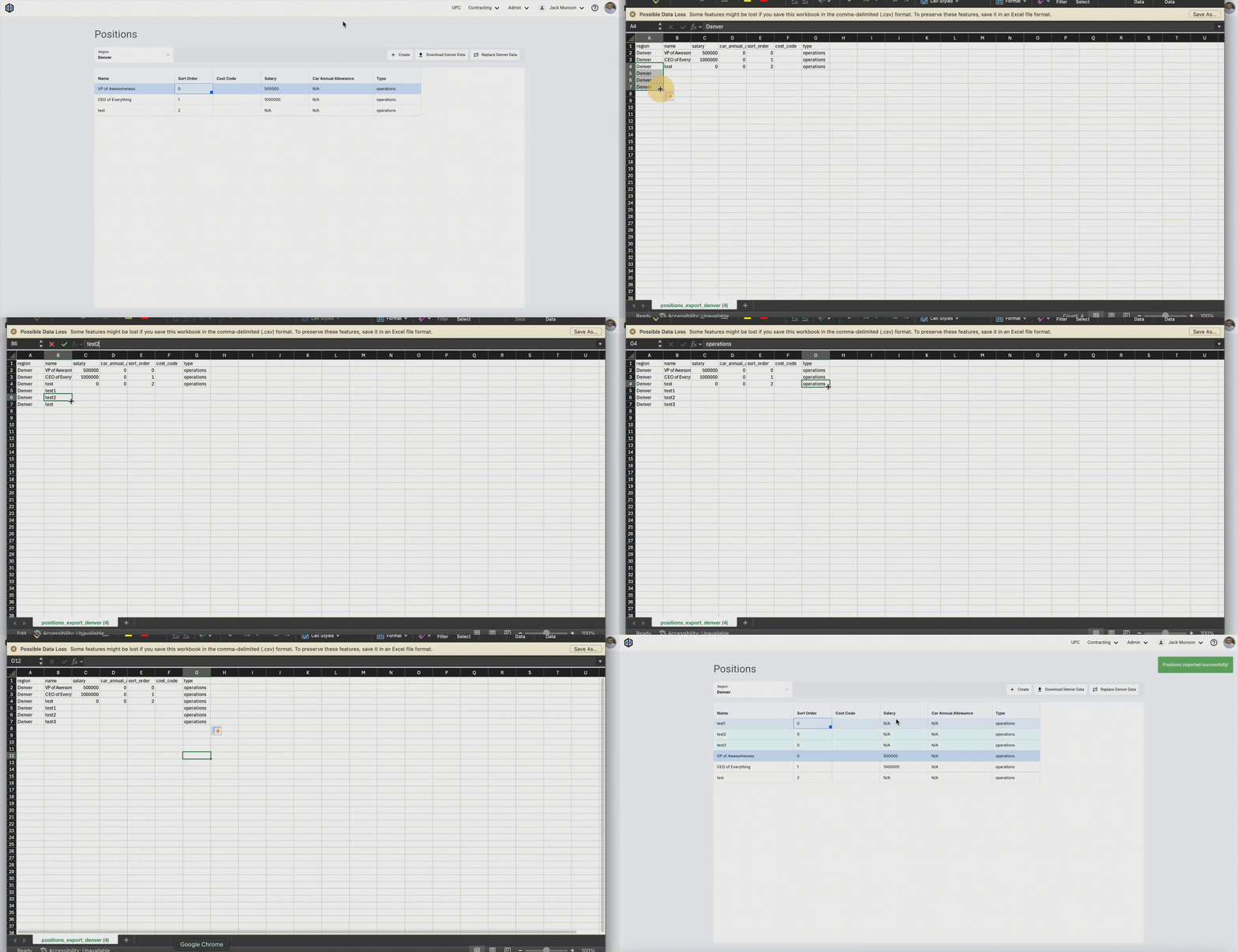
- Click on the Download [Region] Data button at the top of the screen to download a CSV file.
- In this file, list all Positions and and their respective data under each column for that Region. Save the file.
- To upload that file, click on the Replace [Region] Data button at the top of the screen, and either drag the file into the gray area, or click to find the file to upload.
-
Navigate to the GCGRs module to view your newly added Positions.
Note: The Replace [Region] Data button will override existing positions, so make sure all positions are in the file before uploading.
Note: You must include Name and Region columns, and every row's region must match the selected region in order for the file to be successful. Not including a Name or Region column will result in failure to upload, as well as entering a different Region than the one selected.
How to Edit Positions
If you ever need to edit Positions, here's how:
- Under the Admin dropdown located at the top-right of your screen, click on Positions.
- Select the Region you would like to edit positions for.
- Double-click into each cell to edit the data, or select the Download [Region] Data button for bulk edits in a CSV file.
How to Delete Positions
If you ever need to delete a Position, here's how:
Manually Delete Positions
- Under the Admin dropdown located at the top-right of your screen, click on Positions.
- Select the Region you would like to delete Positions under.
-
Right-click the Position, and select Delete.
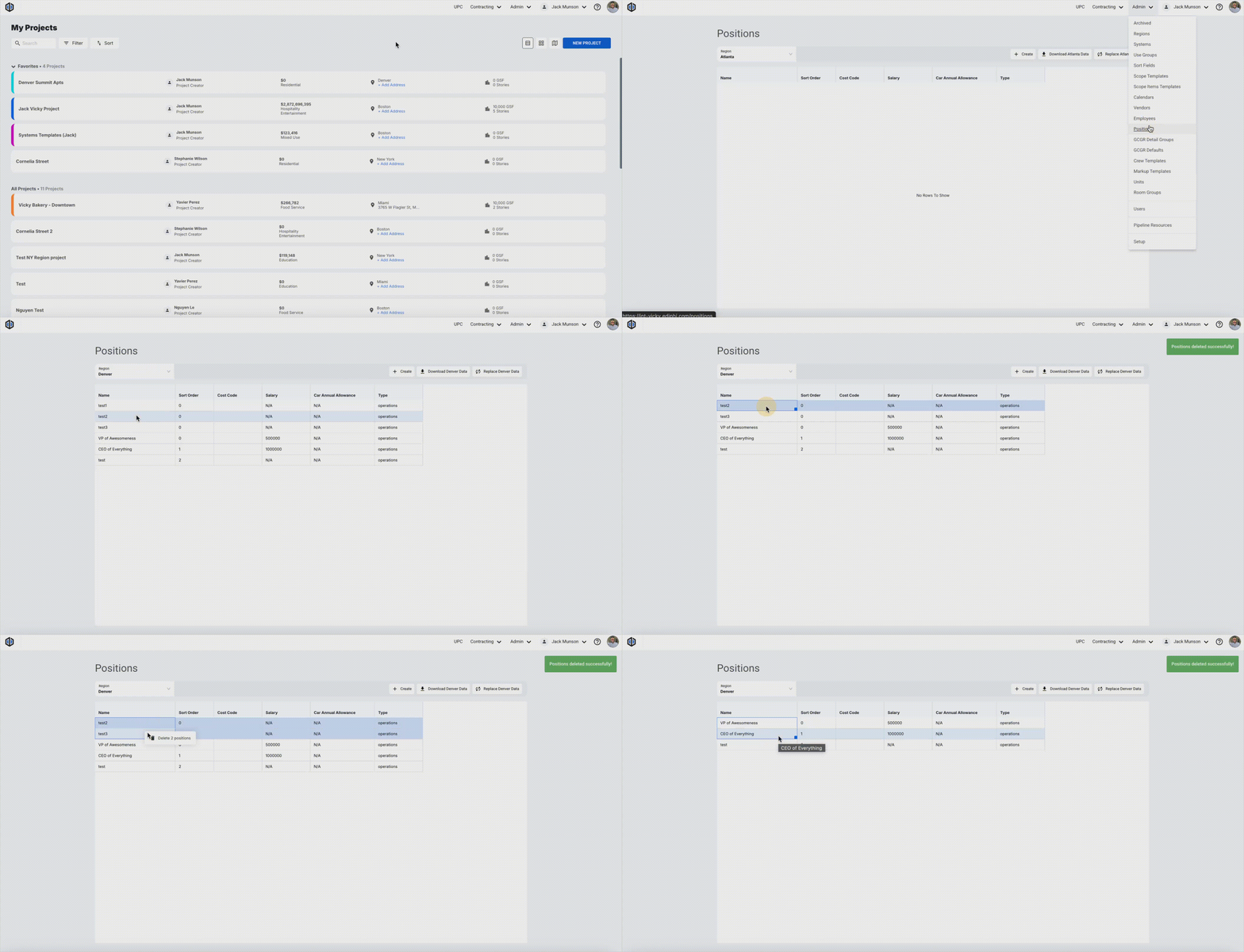
Pro Tip: Use the SHIFT or CTRL/CMD keys to multi-select Positions for bulk deleting.
Delete Positions in Bulk
- Click Download [Region] Data to export a CSV file.
- Within the file, remove the positions you need deleted, then save the file.
- To upload that file, click on the Replace [Region] Data button at the top of the screen, and either drag the file into the gray area, or click to find the file to upload.
Note: Another way to delete an Employee is by unchecking the Active checkbox in the Edit Position modal and clicking Save.
Note: Select All Regions from the dropdown menu to download or replace Positions data from all Regions in your environment.

If you have any further questions, feel free to contact our support team, and we'll be happy to help!