Managing GCGR Defaults
Note: Only Global Admins have the ability to manage GCGR Defaults within Ediphi.
In Ediphi, you can pre-configure default settings for GCGRs to streamline your workflows. There are three main defaults you can customize: Default Properties, Default GR Labor Categories, and GR Labor Types. This article will guide you through managing each GCGR default setting step by step.
In this article:
How are GCGR Defaults Used in Ediphi
- Default Properties
- Default Properties are the allowances you can define for each GCGR. These fields are located in the GCGR creation/edit screen as well as the Staffing tab under Rates.
- Default GR Labor Categories
- Default GR Labor Categories (also known as Crew Categories in the GR Labor tab of GCGRs), are configured in the Admin menu. Once set, these categories will be used on new GCGRs going forward.
- GR Labor Types
- GR Labor Types are tied to Crew Rates that are assigned in the GR Labor tab of GCGRs. You can select certain GR Labor Types in the Define Crew window.
Default Properties
Below are the steps on how to manage Default Properties for GCGRs:
Manually Edit Default Properties
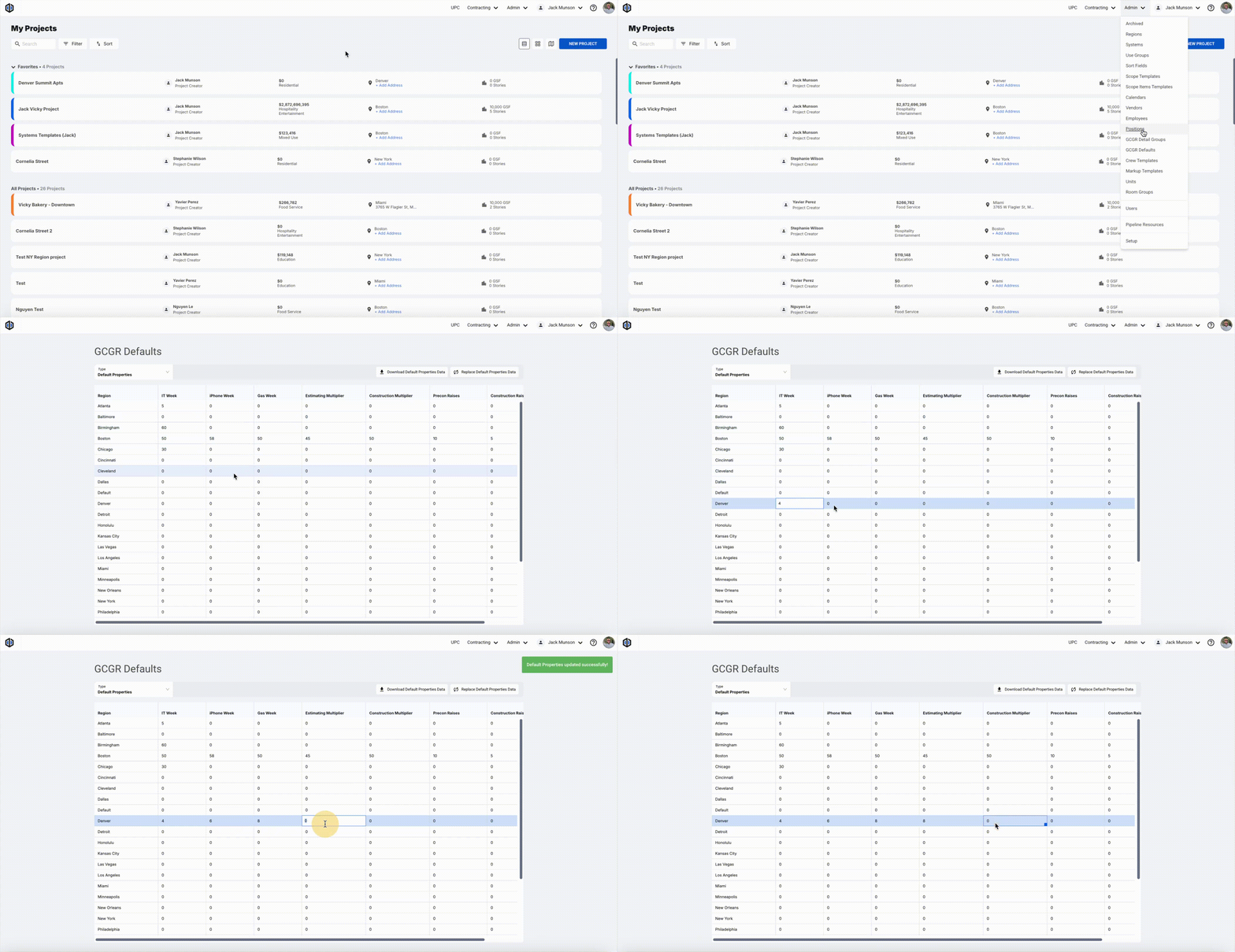
- Under the Admin dropdown located at the top-right of your screen, click on GCGR Defaults.
- Select the Default Properties Type in the dropdown.
-
The grid is categorized by Region. Fill out all cells that are applicable for each region.
Edit Default Properties in Bulk
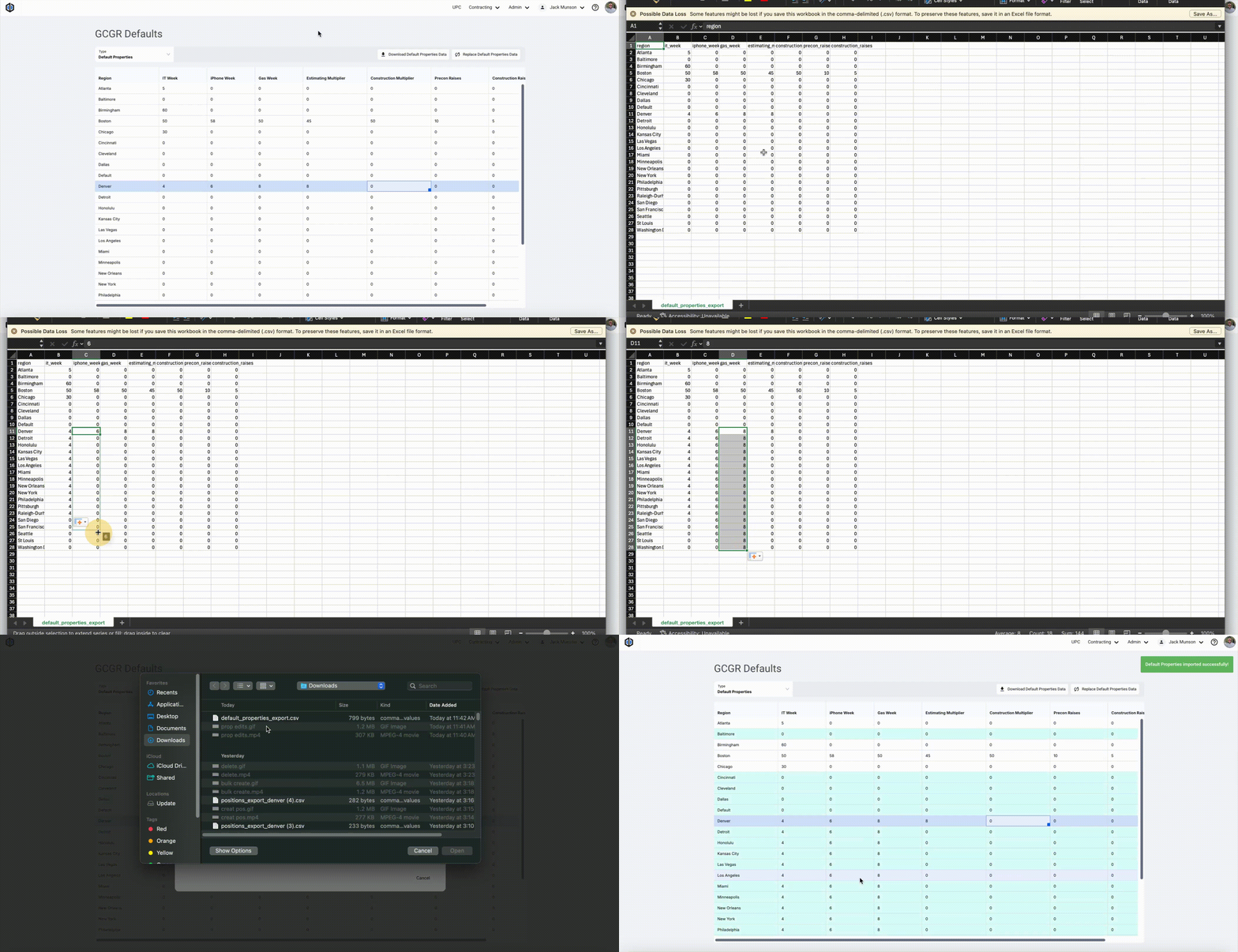
- Click on Download Default Properties Data to export a CSV file.
- In this file, fill out all cells required per region. Save the file.
-
Click on Replace Default Properties Data to upload the file, and either drag the file into the gray area, or click to select the file to upload.
Default GR Labor Categories
Below are the steps on how to manage Default GR Labor Categories for GCGRs:
Manually Edit GR Labor Categories
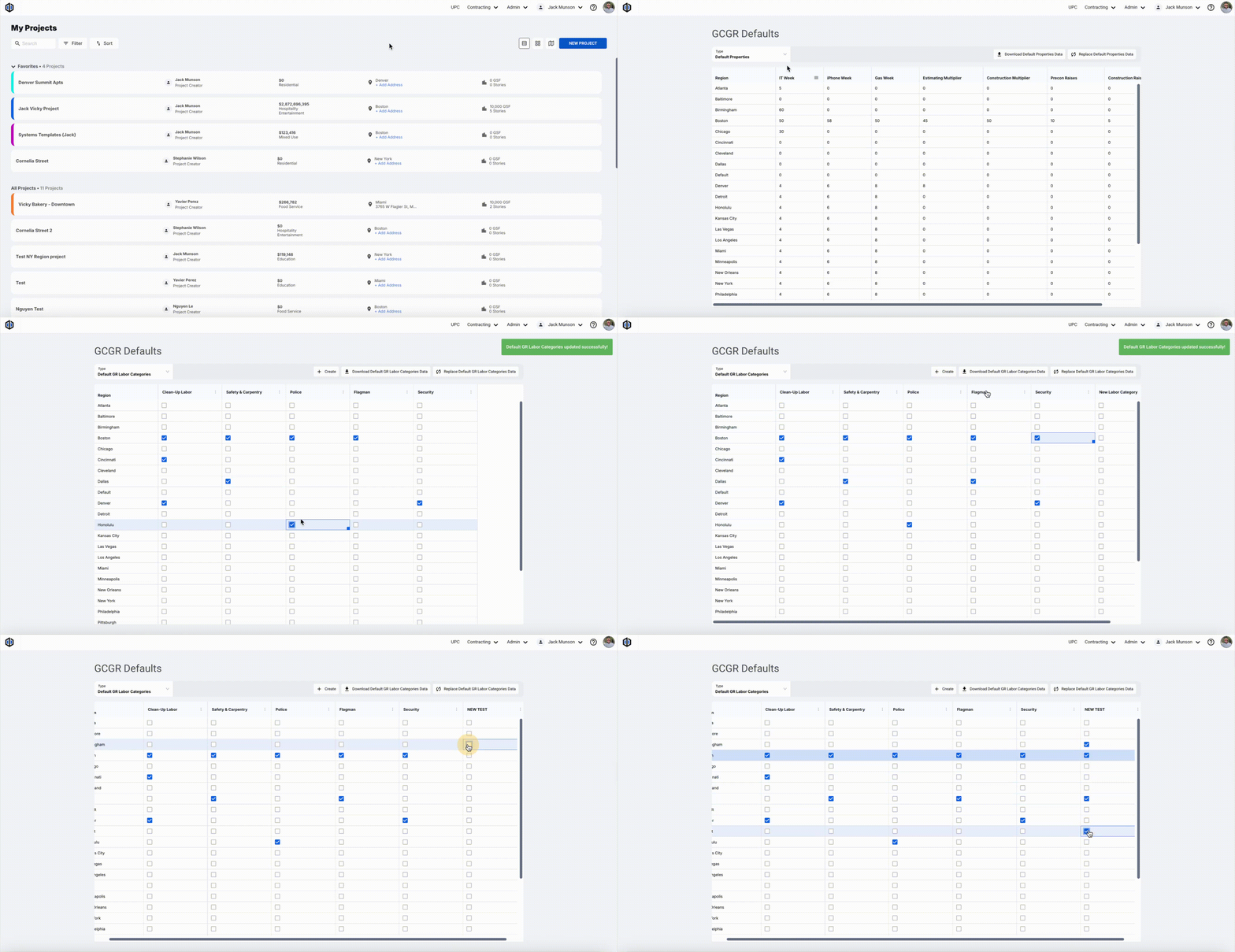
- Under the Admin dropdown located at the top-right of your screen, click on GCGR Defaults.
- Select the Default GR Labor Categories Type in the dropdown.
- The grid is categorized by Region. Select the checkbox for each category next to specific regions where applicable.
- If you would like to add a new default GR Labor Category, click Create.
-
Scroll to find the column with the new category, double-click to rename it, and select the checkbox for that category next to each region where applicable.
Edit GR Labor Categories in Bulk
- Click on Download Default GR Labor Categories Data to export a CSV file.
- In this file, enter 0 for "no" or a 1 for "yes" for each region, then save the file.
- To upload the file, click on Replace Default GR Labor Categories Data and either drag the file into the gray area, or click to select the file to upload.

Delete GR Labor Categories
- Under the Admin dropdown located at the top-right of your screen, click on GCGR Defaults.
- Select the Default GR Labor Categories from the Type dropdown.
- Select the 3 vertical dots (ellipsis) on the category you'd like to delete. Click Delete Category.

Note: Default GR Labor Categories are not applied retroactively. Any changes made in the Admin menu will only appear on new GCGRs going forward.
GR Labor Types
Here are the steps on how to manage GR Labor Types for GCGRs:
How to Create GR Labor Types:
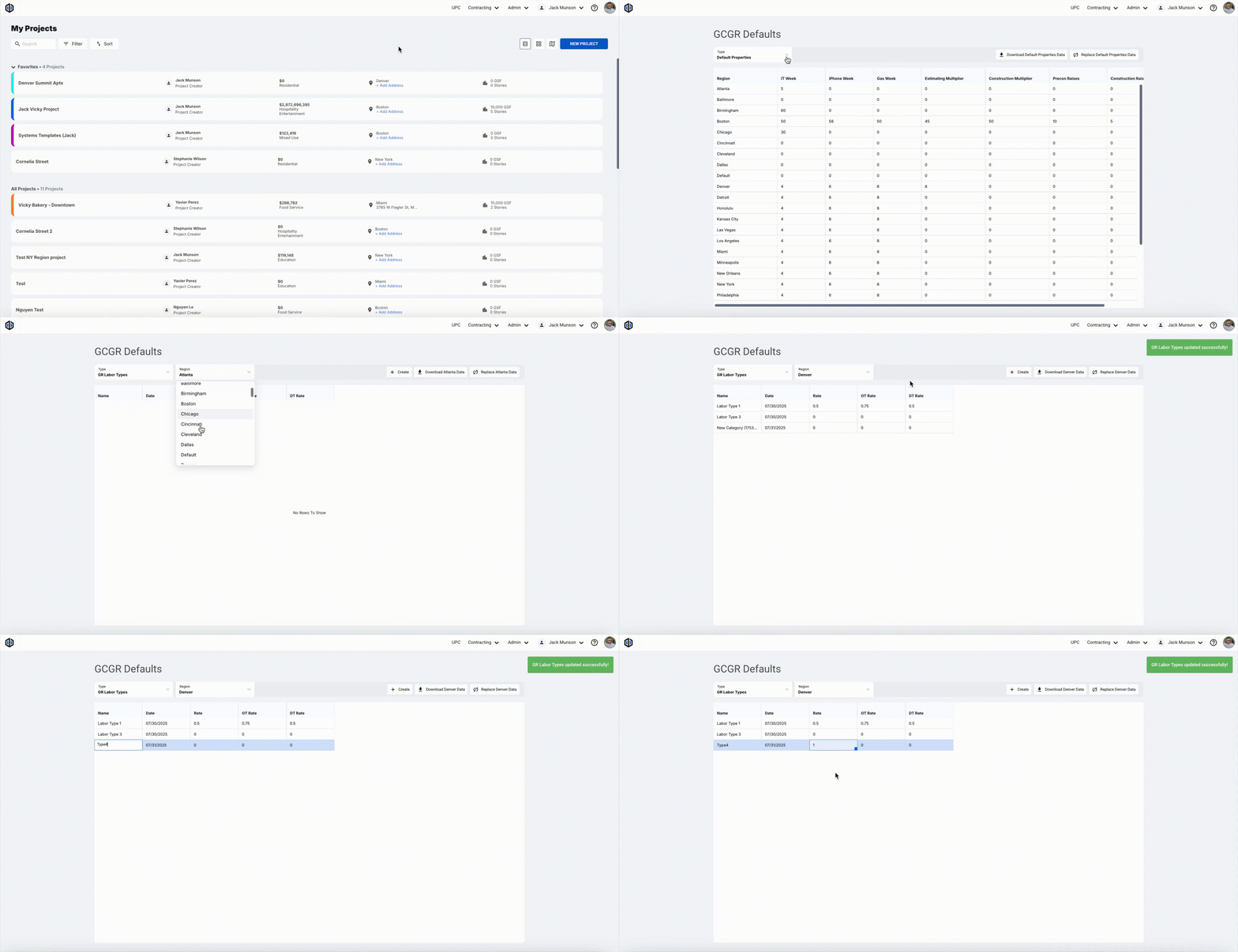
- Under the Admin dropdown located at the top-right of your screen, click on GCGR Defaults.
- Select the GR Labor Types Type in the dropdown.
- Select the Region you would like to create GR Labor Types for.
- Click Create.
-
Double-click into each cell to edit the data.
Pro Tip: If you would like to add a new date for an existing Type, right-click on the type, and select Add New Date for "labor type example" Category. This will create a new GR Labor Type under the existing type with an escalated date of +1 year.

Note: When you edit the name of one GR Labor Type, it will edit the other types that it came from automatically.
How to Edit GR Labor Types:
- Under the Admin dropdown located at the top-right of your screen, click on GCGR Defaults.
- Select the Region you would like to edit GR Labor Types for.
- Double-click into each cell to edit the data or select Download [Region] Data for bulk edits in a CSV file.
- In this file, edit any cell that needs an update, as well as add more types if needed. Save the file.
- To upload the file, click on Replace [Region] Data and either drag the file or find the file to upload.
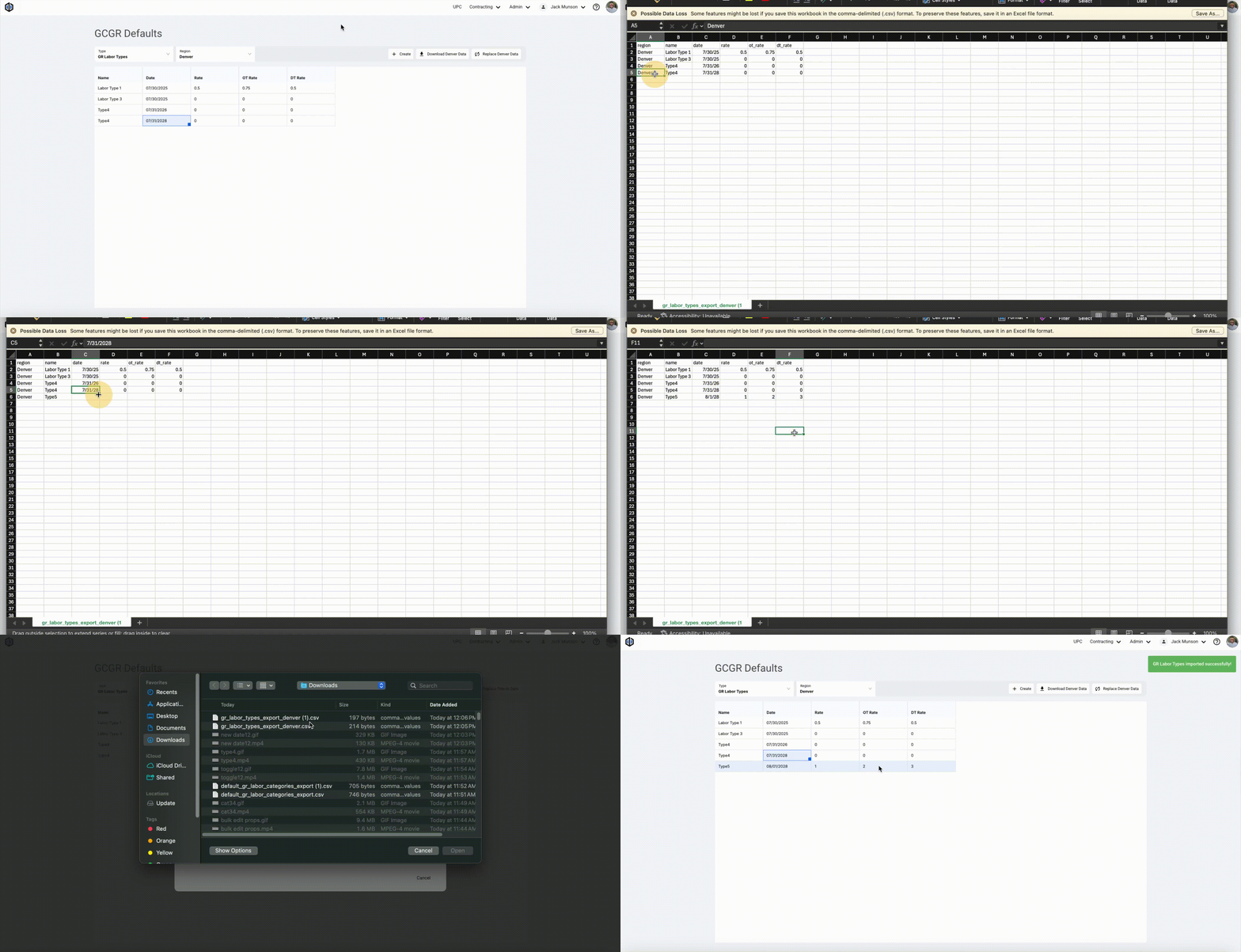
Edit GR Labor Types in Bulk:
- Click Download [Region] Data to export a CSV file.
- In this file, fill out all types required for this specific region's projects. Save the file.
-
To upload the file, click on Replace [Region] Data and either drag the file or find the file to upload.
How to Delete GR Labor Types:
- Under the Admin dropdown located at the top-right of your screen, click on GCGR Defaults.
- Select the Region you would like to delete GR Labor Types under.
-
Right-click each type, and select Delete.
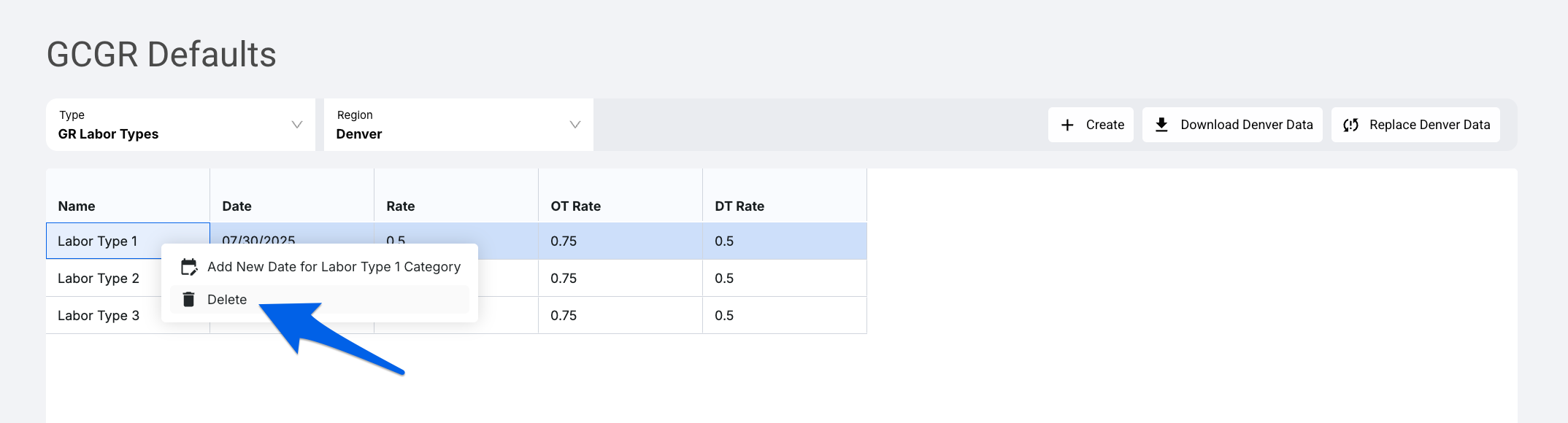
Pro Tip: Use the SHIFT or CTRL/CMD keys to multi-select Types for bulk deleting.
Delete GR Labor Types in Bulk
- Click Download [Region] Data to export a CSV file, which allows for bulk deletions.
- In this file, remove the GR Labor Types you need deleted. Save the file.
- To upload the file, click on Replace [Region] Data and either drag the file or find the file to upload.
Note: The Replace "Default" Data button will override existing data, so make sure all defaults are in the file before uploading.
If you have any further questions, feel free to contact our support team, and we'll be happy to help!