What's New with Alternates
In Ediphi’s Estimates module, we’ve enhanced the way you interact with Alternates. These workflows will transform how your team documents, manages, and tracks decision-making across complex projects, making your life easier.
Our Alternates update focuses on aligning the industry’s expected workflows for Value Management. Before now, alternates were buried within estimate workflows and relied heavily on Excel workarounds, causing duplicated manual effort and cross-referencing of data across siloed areas.
Here are our main areas of focus:
- Streamlined Workflow: Creating and managing alternates is now faster and more intuitive. The redesigned experience makes it clearer in the decision lifecycle, from creating an alternate and adding line items to generating a complete Value Management log, to prevent unnecessary friction.
- Value Management Organization: Value Management Decisions (formerly known as Alternates) are organized by status and other key metrics, giving you a clear, structured view for team discussions and decision-making. Quickly identify what needs attention, prioritize effectively, and move forward with confidence.
- Focused Estimating Views: Estimators can view alternates as a dedicated mini-estimate, providing a clear picture of the full cost impact for any proposed scope change. This update also makes it easy to have focused conversations around options, right where the work is happening.
For all other functionality going over the new Value Management experience, please see our Value Management article.
Here's what to expect with our new Value Management feature, presented visually:

The new Alternates feature is designed to transform how you approach Value Management by moving your Alternates into a new space alongside your Estimates, so you can manage all your Value Management decisions in one place.
Here’s a list of visual changes and improvements that will enhance your day-to-day experience:
- Alternates have been redesigned, moved to their own section, and renamed to Value Management to better align with the industry standard.

- We are introducing VM Decisions (Value Management Decisions) within the Value Management view, which will soon have two types: Alternates and Target Value Options (coming soon).

- In the new VM Decisions list, you have the ability to mark the status of a decision, add notes, view the total cost of a decision, and open a decision to edit. This new list view gives you a great way to review these potential costs in a singular view without having to export outside of Ediphi.

- With the addition of the Grouped By function, you have the ability to group by Creator, Created Date, Type, and Status.

- Each VM Decision will have its own Detailed Summary, Markups, and Schedule of Values view. If accepted, the line items within the VM Decision will flow over to the Base Bid. Keep in mind, this will not include custom VM markups. In the future, there will be an update to Markups to improve this functionality.

- Instead of navigating to the old Alternates tab within the Estimates module to delete an Alternate, you can do so straight from the VM Decisions list via right-clicking, selecting the 3 dots (ellipses) per Alternate, or within a VM Decision via the 3 dots (ellipses) at the top right.

- Your recently visited VM Decisions (formerly known as Alternates) will be accessible on the Side Panel as you are working to easily navigate to and from VM Decisions.

- We made it more accessible and simple to manage your VM Decisions all in one spot. This should look familiar to our other views, where you can group by and do inline edits.

- You have the ability to open VM Decisions by clicking on the hyperlinked ID, making it easy and more efficient to get your work done.

- You are able to change the Status of VM Decisions from 3 different areas: via the Status column, via the green check icon/red x icon on the right-hand side, or from within a VM Decision via the Status dropdown at the top right.

- You can now search for VM Decisions by either the ID or the Title from the search box in the header of the VM Decisions list.

-
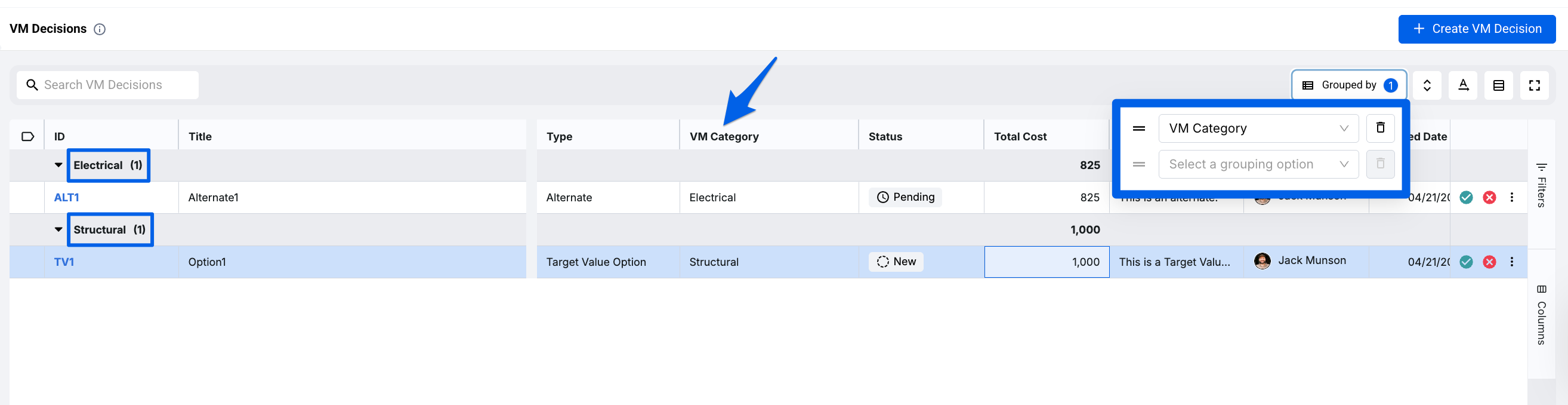
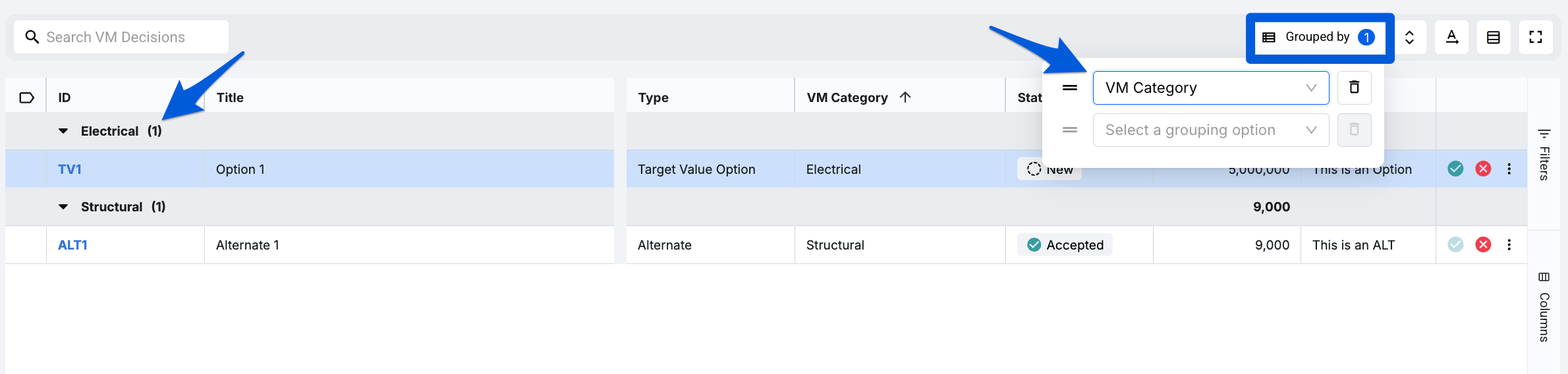
Finding the right data during OAC reviews just got easier. VM Categories let teams quickly filter, group, and review Alternates and Target Value Options in one place.
-
VM Categories will make your job easier when reviewing your VM Decisions grouped by category.
-
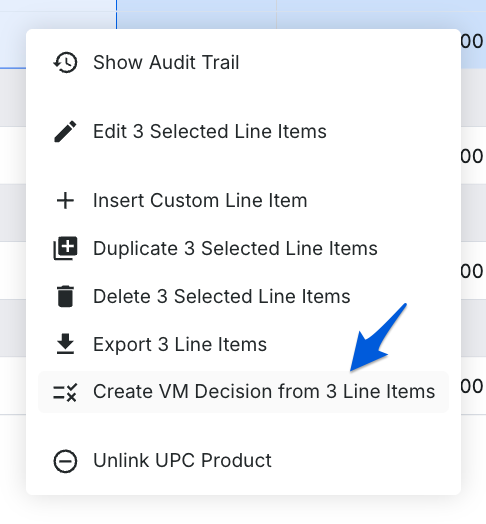
You have the ability to create a VM Decision from Base Bid via right-clicking selected line items.
-
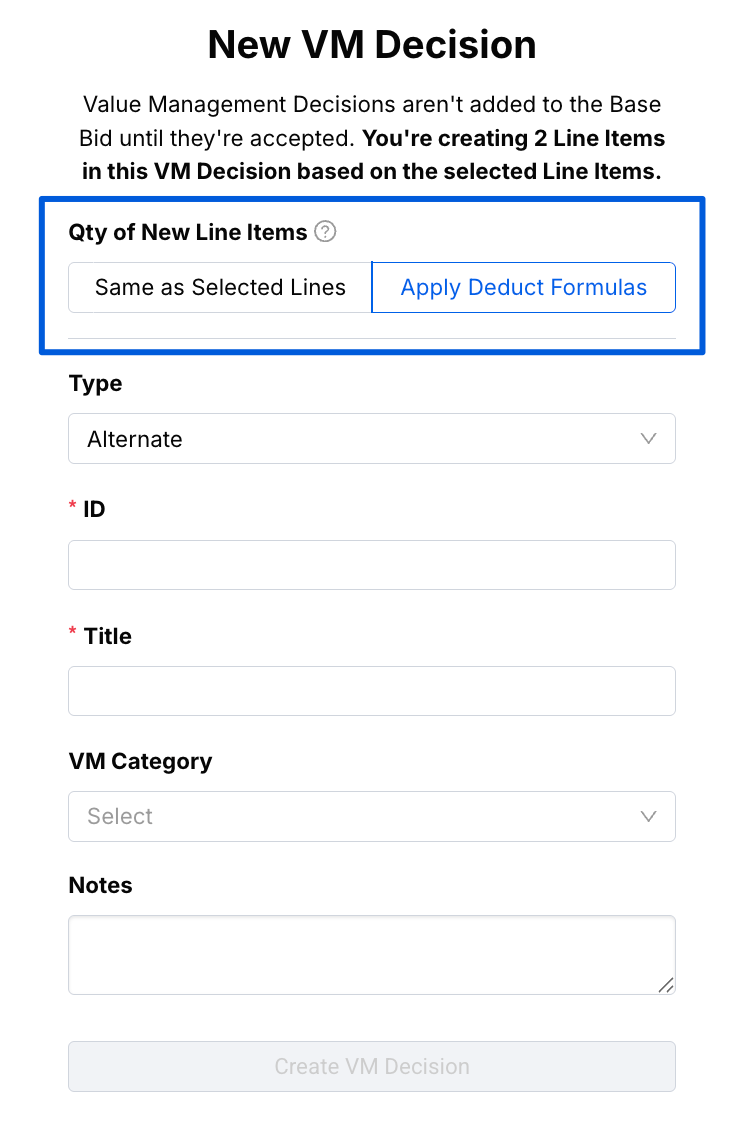
We have introduced a Deduct formula when you duplicate line items into a VM Decision or when creating a new VM Decision from the Base Bid. You are given options to bring over the same QTY as the selected line items or choose to cancel out the QTY by applying a deduct.
-
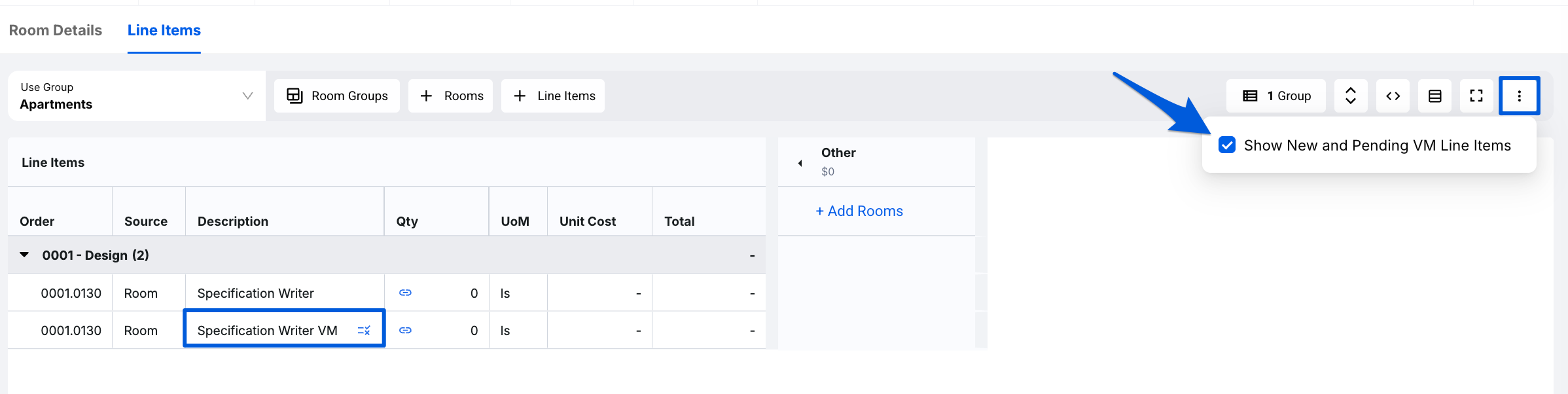
You have the ability to show or hide VM Decisions in the Status of New or Pending within Units, Rooms, and Common Items on the Base Bid. Please see Value Management for more information.
-
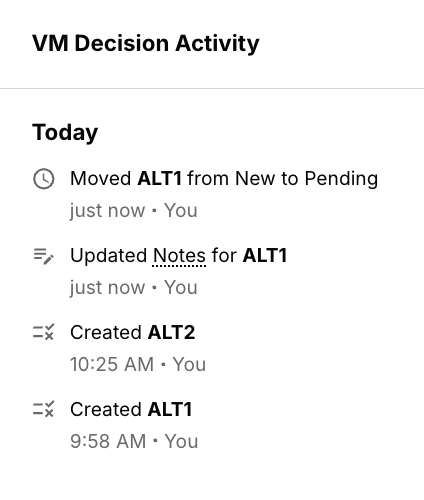
We have a brand new Activity Log for VM Decisions. Newly created VM Decisions and edits to Notes and Status will be tracked here.
If you have any questions, feel free to contact our support team, and we'll be happy to help!