Exporting a Cost Model to an Estimate
Once your cost model is set up and your values are finalized, Ediphi gives you the ability to export it directly into an estimate. This bridges the gap between early-stage conceptual pricing and the detailed estimating workflow, giving your team a structured starting point without having to manually re-enter data.
This exporting feature converts your cost model's current values into a new estimate within the same project. The resulting estimate is structured to reflect the grouping and Use Groups that were active in your cost model at the time of export, giving you a working estimate that mirrors how your cost model was organized.
Please note that this is a one-time export; it creates a new estimate as a starting point. Changes made to the original cost model after export will not automatically update the estimate.
In this article
- Exporting Your Cost Model to an Estimate
- What Gets Brought Over
- Markups
- GCGRs
- Sort Codes and Line Item Order
- Things to Know
- Permissions
- FAQs
Exporting Your Cost Model to an Estimate
- Open the cost model you want to export.
- Make sure your desired grouping is active; the exported estimate will be structured to match it. Note that Use Group is always the top-level grouping.
-
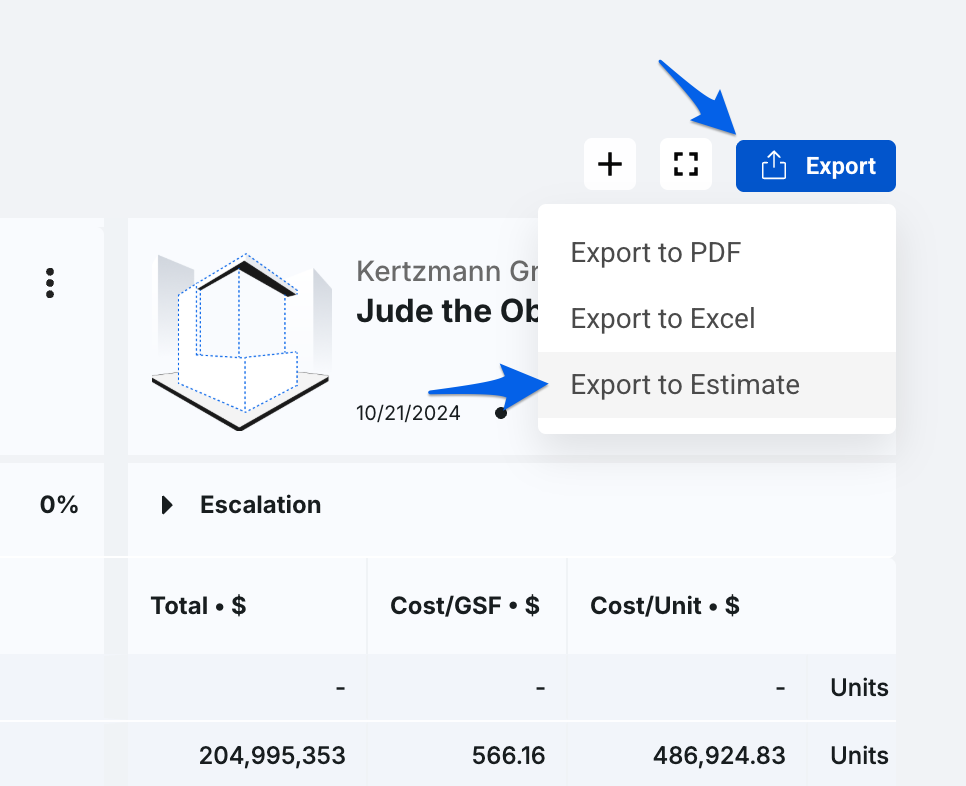
Click the Export button located on the top-right of your screen, then select Export to Estimate.
-
A modal will appear where you’ll be able to create a new estimate. You may also optionally link a GCGR at this step (see the GCGRs section below for details).
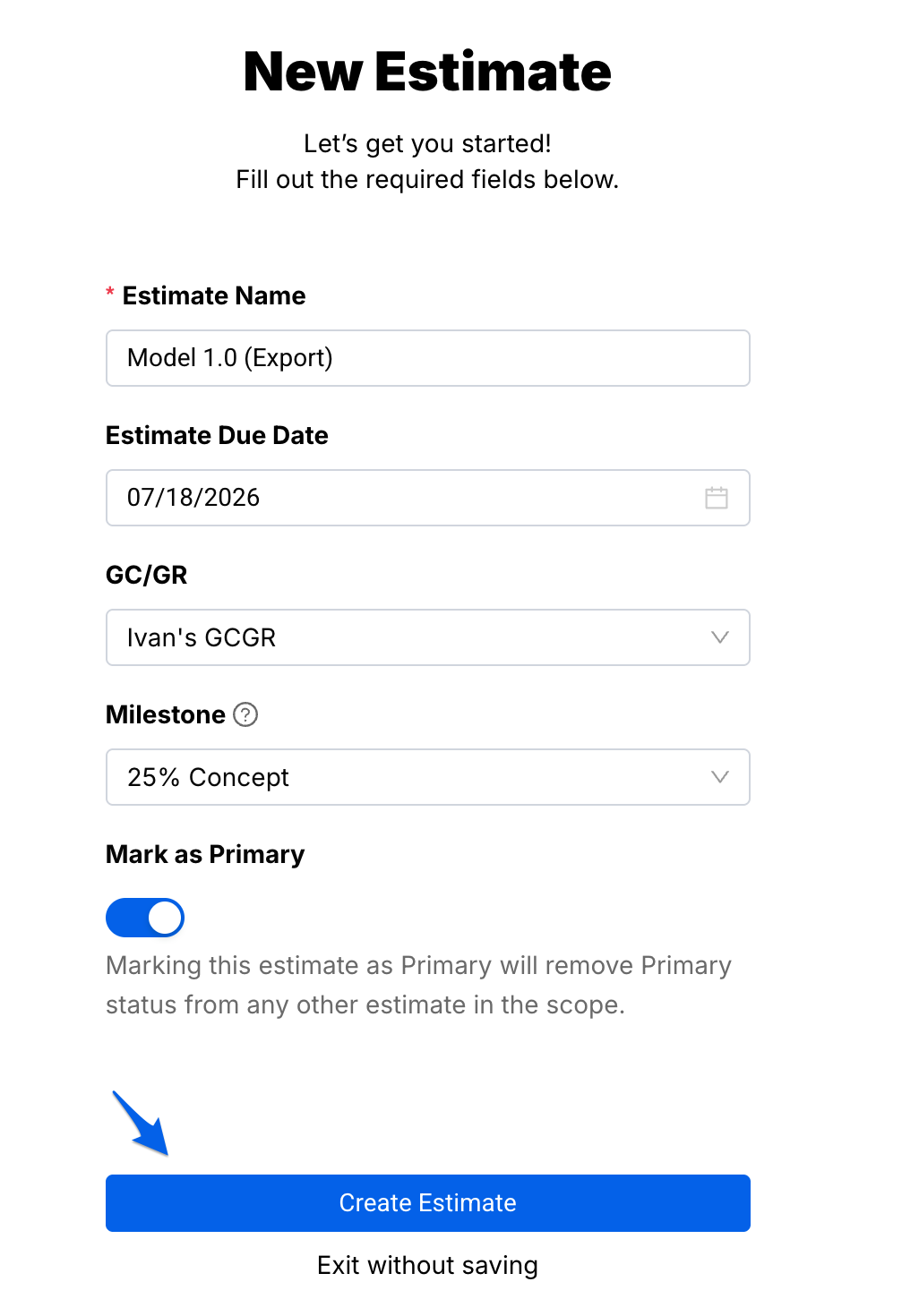
- Click Create Estimate.
You will be taken directly into the new estimate's Detailed Summary view, already grouped to match your cost model.

What Gets Brought Over
The exported estimate is built from your cost model's current presentation. Here is what transfers:
Use Groups
Use Groups in the estimate are created to match those defined in the cost model. If you had filtered the cost model down to a subset of Use Groups at the time of export, only those Use Groups will come through; any that were filtered out are excluded.
Line Items
Each row in the cost model becomes a single line item in the estimate, stored as a lump sum with a quantity of one. The entire cost for that row is carried over as a single value.
- Line item values default to the average cost per square foot derived from the benchmarked estimates in the cost model.
- If you manually overrode a value in the cost model (indicated by a blue dot), that overridden value is what carries over into the estimate, not the benchmark average.
- If you added a net new row in the cost model that wasn't pulled from any benchmark, that row will also come through into the estimate.
By the time data lands in the estimate, there is no distinction between benchmark-derived values and manually overridden ones.
Markups
Markups are handled as follows during export:
- If the cost model has markups defined, the exported estimate will use those markups instead of the project's defaults.
- If the cost model has no markups defined, the exported estimate will fall back to the project's default markups.
Review the markups in your exported estimate after creation to confirm they are reflecting what you expect.
GCGRs
During the export creation flow, you have the option to link a GCGR to the new estimate. If you do:
- The GCGR's markups will be pulled into the estimate.
- Any bid package line items connected to that GCGR will also be included in the estimate.
Note: When a GCGR is linked during export, its values are brought into the estimate as markups and applied on top of any markups that came from the Cost Model. If the exported markups contain the "all above" markups logic in their formulas, they will be applied across all other markup lines which means the individual markup values in the estimate may differ from what you saw in the cost model, not just the grand total.
This is expected behavior. Linking a GCGR breaks the parity between the cost model and the exported estimate by design. If you need the estimate's markup values to match the cost model exactly, we recommend not linking a GCGR during the export creation flow.
Sort Codes and Line Item Order
Line items in the exported estimate are ordered using the sort code of the lowest-level grouping from the cost model.
A couple of things to be aware of regarding sort codes:
- Special characters are filtered out during the conversion.
- Whitespace is collapsed into periods.
For example, a sort code with spaces or special characters (~ $ 22 . 22) in the cost model will appear in a normalized format (22.22) in the Estimate.
Blank sort codes
Some line items may arrive in the estimate with a blank description and no sort code. This is expected in cases where the benchmarked estimates contained line items that were not tied to any sort code within the active grouping (e.g., items inside a Use Group that had no UF1 sort code assigned).
In these cases:
- The line item is given a blank description.
- The sort code field is left empty.
- The item is grouped under a "Blank" category.
Note: In the Detailed Summary view, blank sort code items are grouped at the bottom. This differs from how they appear in Cost Modeling and the SOV, where they surface at the top.
Things to Know
- The export creates a new estimate. your cost model is not modified.
- The exported estimate reflects the cost model's state at the time of export. Future changes to the cost model will not be reflected in the estimate.
- Line items created under the new estimate are not tied to the UPC (meaning, they will all be Custom line items).
- Use Group filtering matters: only the Use Groups visible in the cost model at the time of export will appear in the estimate. Double-check your active filters before exporting.
- Grouping matters: the estimate will be structured to match the active grouping in the cost model. Set your preferred grouping before initiating the export.
- If the grand total of the exported estimate doesn't match your cost model, check whether a GCGR was linked during creation; that is the most common reason for a difference.
- If you have any rows with no Total set, these will not carry over or be reflected in the estimate once they’re exported.
Permissions
The ability to export a cost model to an estimate depends on the role the user has set within the project:
| Role | Can Export Cost Model to Estimate |
|---|---|
| Admin | ✓ |
| Regional Admin | ✓ |
| Project Owner | ✓ |
| Member (Cost Model Write + Estimate Write) | ✓ |
| Member (Cost Model Read + Estimate Write) | ✓ |
| Member (Cost Model Write + Estimate Read) | ✗ |
| Member (Cost Model Read + Estimate Read) | ✗ |
| Member (No Cost Model Access) | ✗ |
FAQs
Will my cost model change when I export it to an estimate?
No. Exporting creates a brand new estimate based on your cost model's current state. The cost model itself is not modified.
If I update my cost model after exporting, will the estimate update too?
No. The export is a one-time snapshot. Any changes made to the cost model after the export will not be reflected in the previously exported estimate. You would need to export again to create a new estimate with the updated values.
Why does my exported estimate have a different grand total than my cost model?
The most common reason is that a GCGR was linked during the export creation flow. GCGRs bring in their own markups and any connected bid package line items, which can cause the estimate total to differ from the cost model.
Why are some line items showing a blank description and no sort code in the exported estimate?
This happens when the source benchmarked estimates contained items that were not associated with any sort code in the active grouping. The items are still brought over but will appear with a blank description and be grouped at the bottom of the Detailed Summary view.
I had some Use Groups filtered out in my cost model. Did they come over?
No. Only the Use Groups that were visible (not filtered out) in your cost model at the time of export will be included in the estimate. Make sure your desired Use Groups are active before exporting.
What does the grouping in my cost model affect in the exported estimate?
The active grouping in your cost model determines how the estimate is structured in the Detailed Summary view, and drives the sort code order for line items. Use Group is always the top-level grouping regardless of what else is selected.
If you have any questions, feel free to contact our support team and we'll be happy to help!