Assigning UPC Products to GCGRs Types/Groups
Note: Only Global Admins have the ability to assign UPC products to GCGRs types/groups within Ediphi.
In Ediphi, Global Admins can assign GCGR Types and GCGR Groups to UPC products for use within the GCGR module. For example, if certain items fall under the Computer Equipment group, you would categorize them as GC (General Conditions). This article provides a step-by-step guide to completing this process.
- Click on the UPC button located on the top-right of your screen. (See our Adding a Product in the UPC article to learn how to add a product to the UPC).
- Under the GCGR Group column, select a group from the dropdown next to your product (required).
- Under the GCGR Type column, select GC or GR from the dropdown next to your product.
Note: The GCGR Type column is required for that product to appear within the GCGR module. Leaving this section "clear" will prevent them from appearing within GCGRs. The GCGR Group column is required in order for GCGR Type to be assigned.
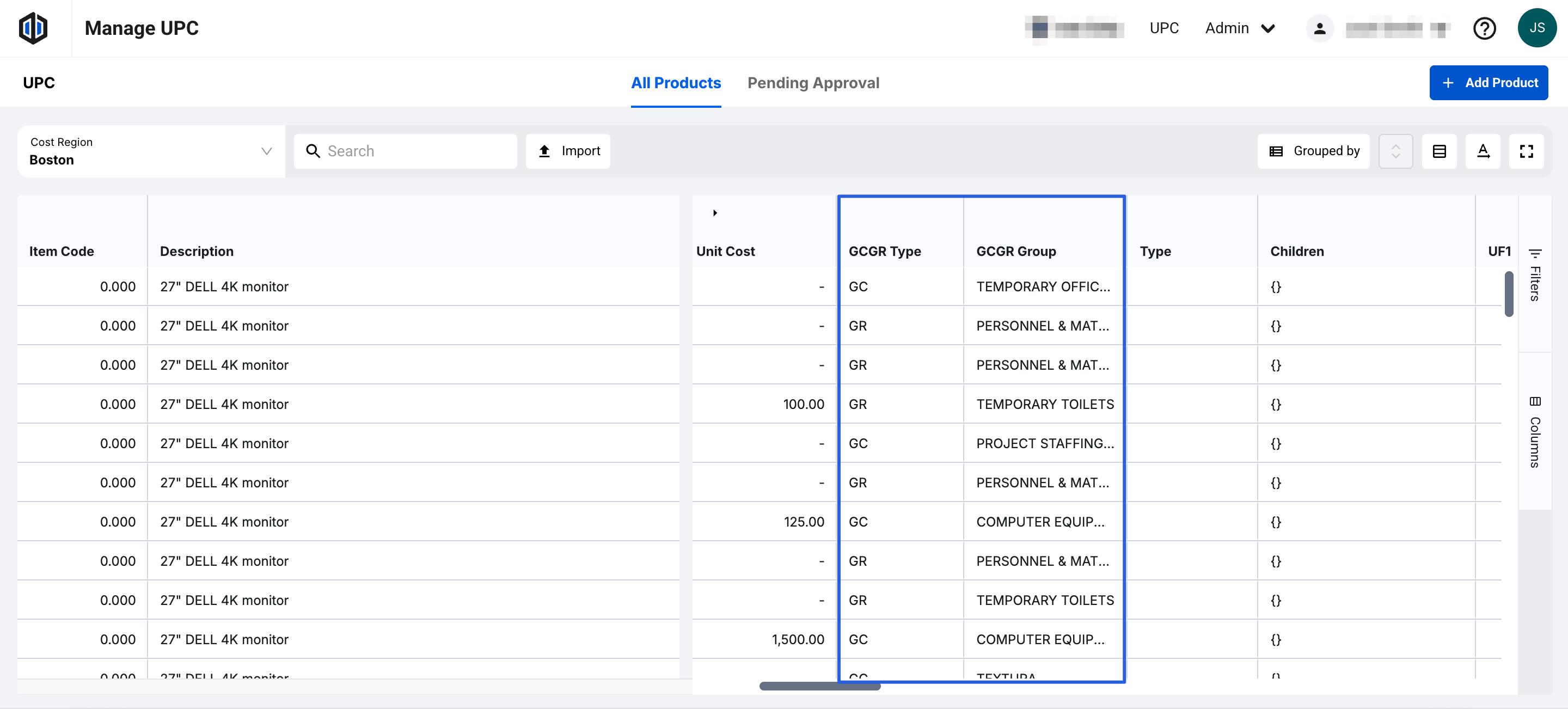
Note: GCGR Groups are created from the GCGR Detail Groups under the Admin dropdown. See this article for more information: Managing GCGR Detail Groups.
After assigning your products to GCGR Types and/or GCGR Groups, you can now go into the GCGRs module to add them here.
- On the left-hand side, select GCs Detail or GRs Detail depending on which type you are working with.
-
Hover over Add Line Items, and select Add from UPC.

- A pop-up will appear showing all available products that have an assigned GCGR Type and/or GCGR Group from the UPC.

Note: By Default, the GCGR Type will filter for GC if you are adding line items to the GCs Detail, or GR if you are adding line items to the GRs Detail. You can also filter by specific GCGR Groups if needed.

- Check the boxes next to the items you wish to add to your GCGRs Detail Line Items.
- Click on Add Selected Products.
- If there are no other line items you wish to add, select Review Products.
- Click on Add Line Items.
- All added line items will now show under their respective Detail tab.
Note: To learn more about the GCs Detail and GRs Detail tabs, refer to our Using GCs Detail and GRs Detail article for more information.
If you have any questions, feel free to contact our support team, and we'll be happy to help!