Navigating Ediphi
There may be certain features or areas in Ediphi where you may be asking, "What is this?" or "How does this work?” We will be covering a few helpful tips in this article to better showcase these areas.
In this article
My Projects
Within My Projects, many features may not be easy to discover without guidance. Here are a few of those features:
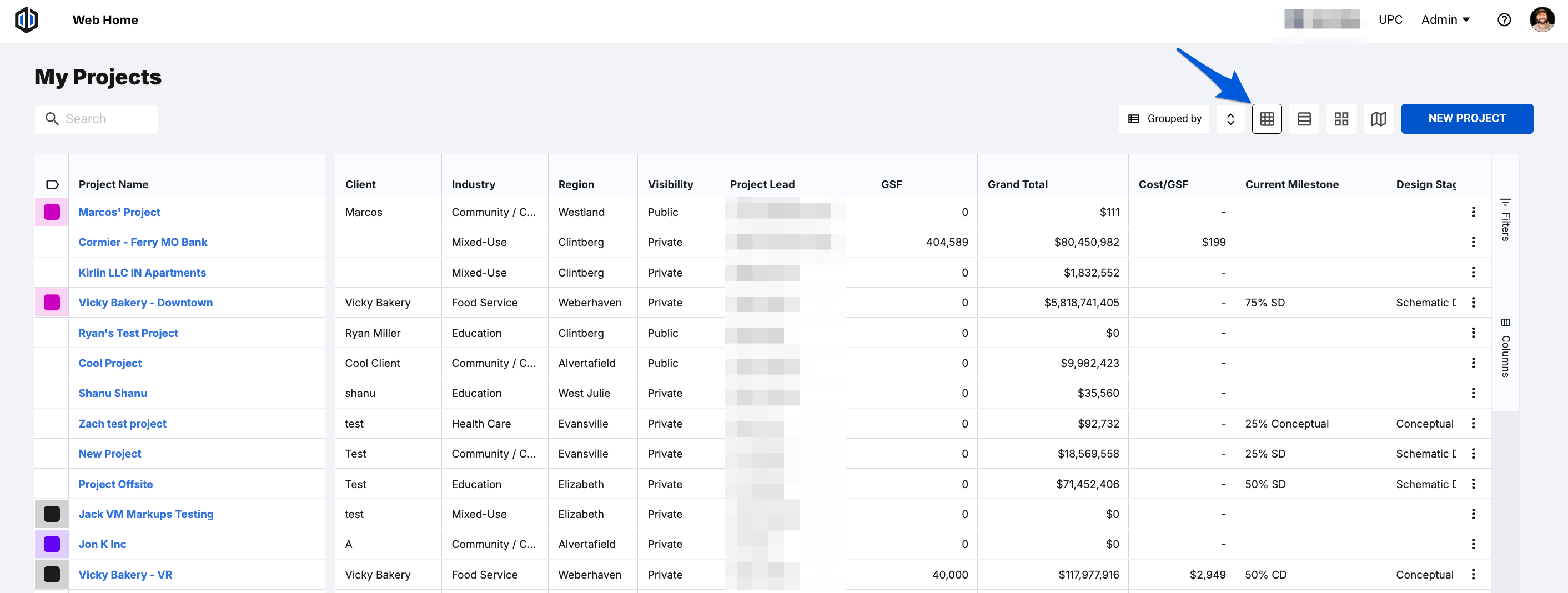
Grid View
Projects are displayed in a table grid, the same way Estimate Line Items do, so you can see more project data at once and group, sort, and filter by any Default or Metadata field.
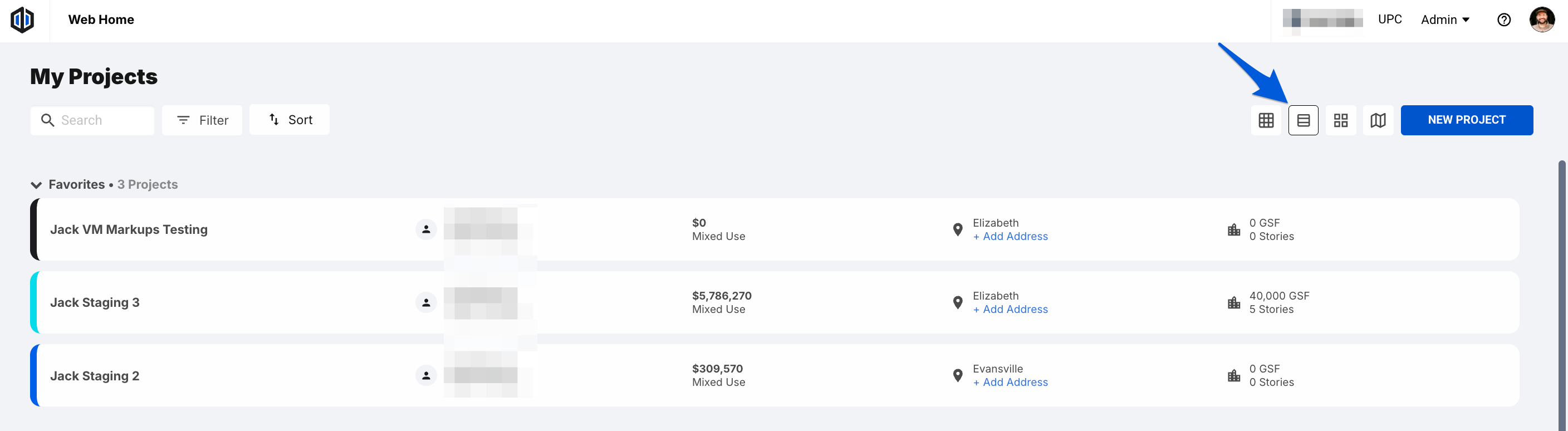
List View
A view of all projects in list form showing their high-level information. You can search, filter, and sort projects here.
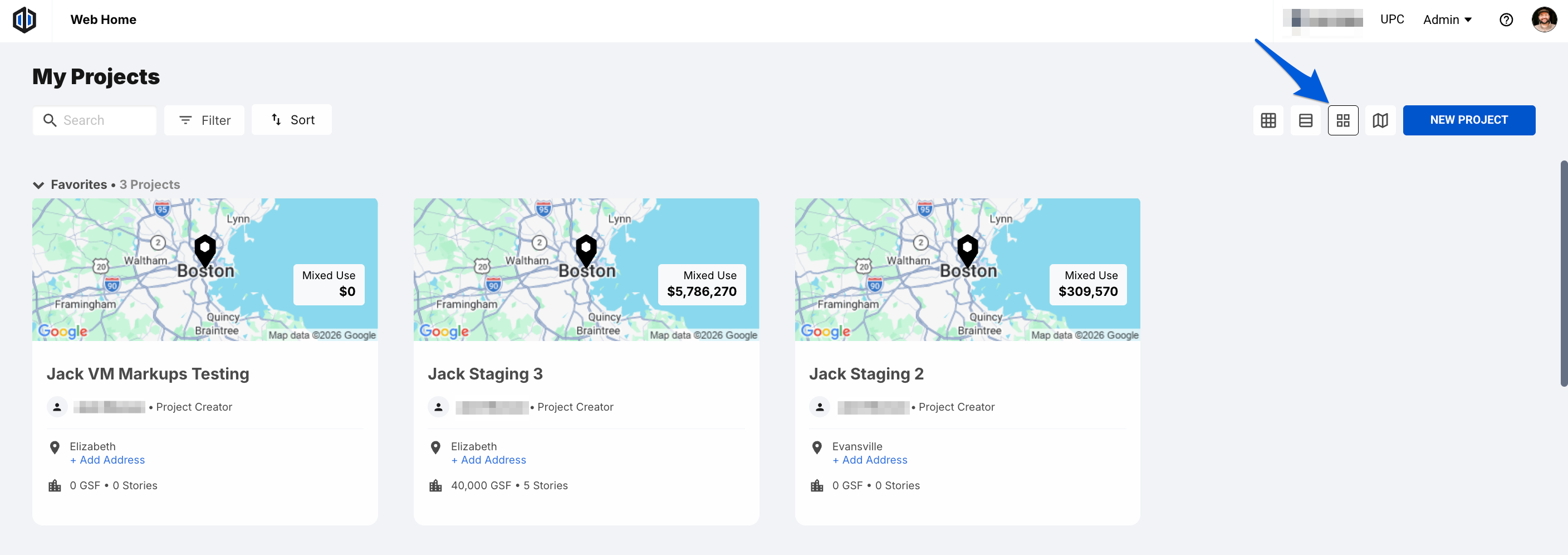
Gallery View
Allows a user to interact with projects in a gallery-based layout that includes map context, offering a more visual experience compared to the standard Grid and List Views.
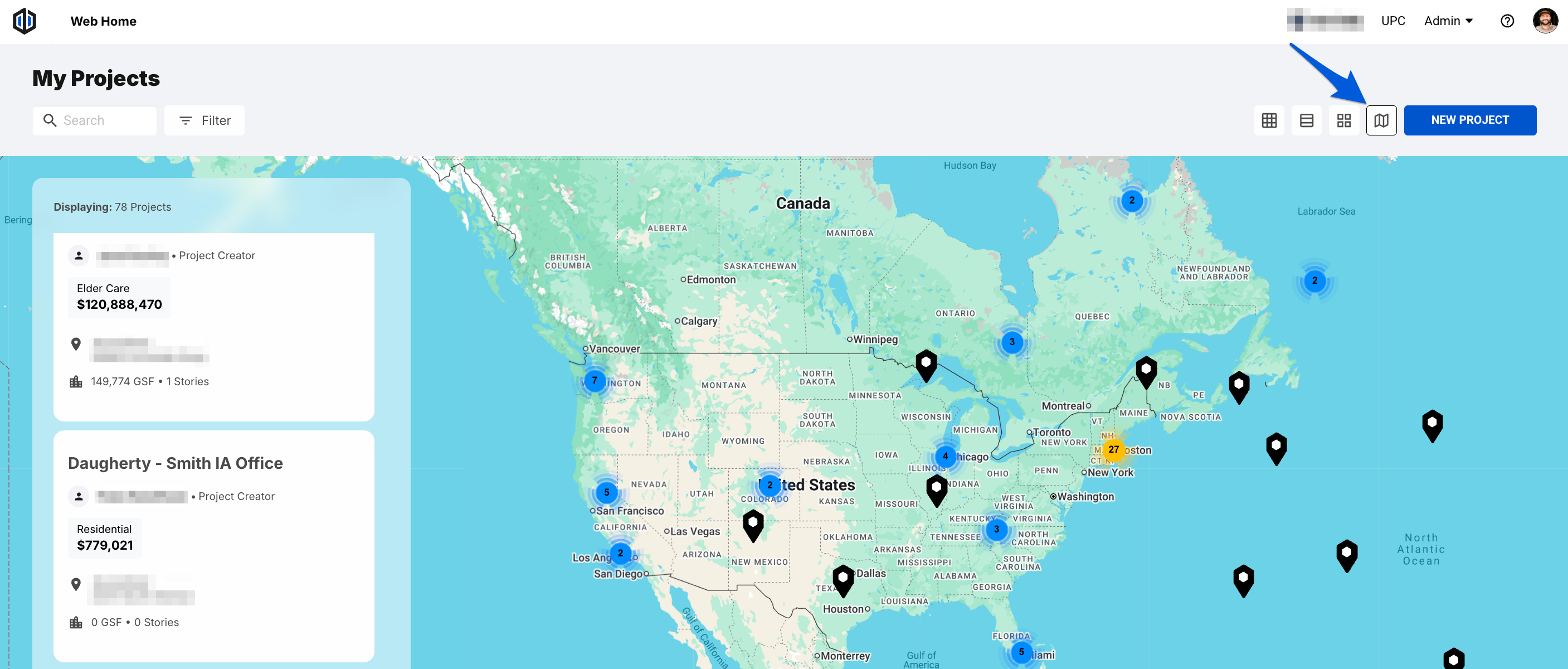
Map View
Users can zoom into a region or part of the country to contextually view projects, allowing for easy comparison and key stats on nearby projects.
Note: Each of these views (minus Recently Viewed in the Grid View) will show projects bucketed into Recently Viewed, Favorites, and then a list of the remaining projects below it.
- Recently Viewed: These projects will appear at the top section of the page, showing a maximum of 4 projects (depending on screen size).
- Favorites: These projects have been marked with a star and will appear under Recently Viewed.
Pro Tip: We save whichever view you used last. If you prefer the List View and used that last upon navigating away, you will see this same view upon return.
Location
Users have the ability to add an address to projects. Once added, the project's location will be shown in each My Projects view.

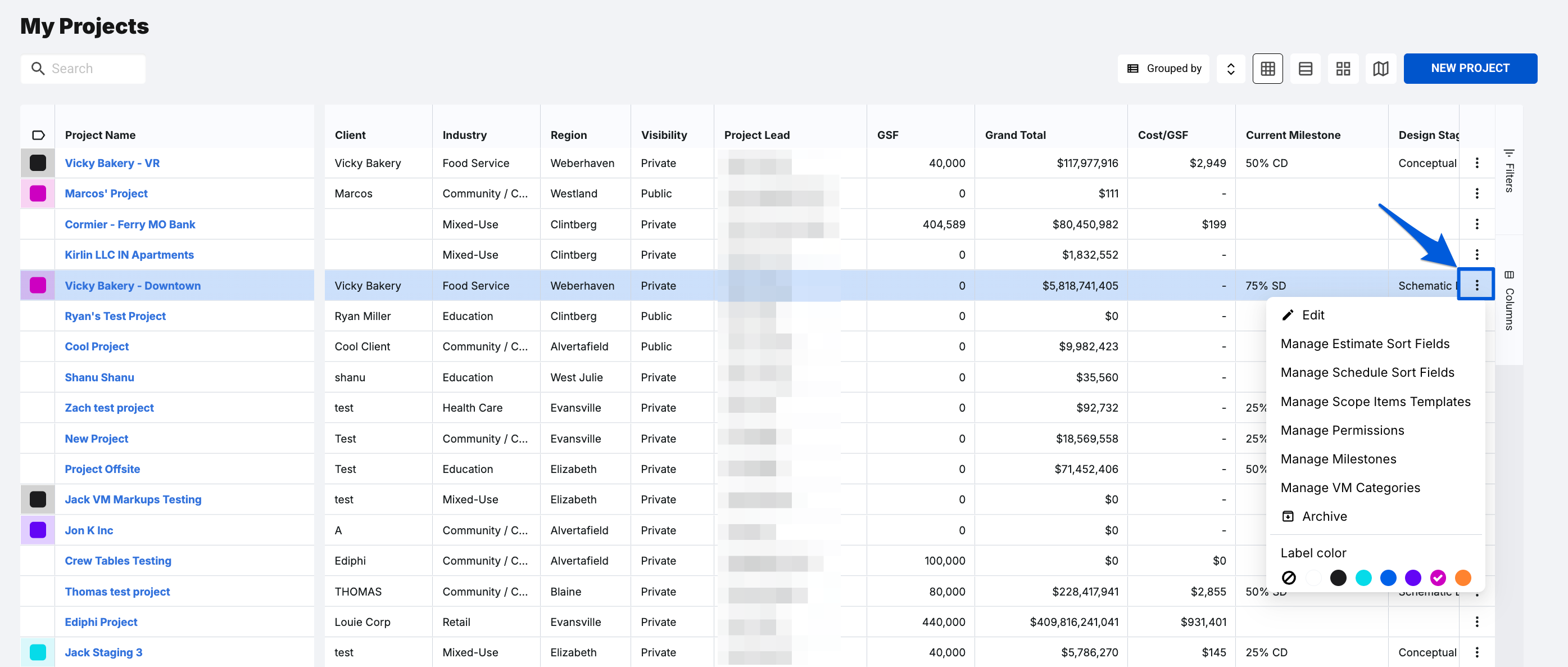
More menu (ellipses)
- Color Coding:
- Color Coding allows you to categorize your projects visually by color, so you can easily differentiate them. For example, you may want to color code projects with the same geographical location, or color by project creator.
- Archiving:
- As a Global Admin or Project Owner, you have the ability to archive projects to clean up the project List View.
- In the Admin dropdown, you have the ability to view all your archived projects in a list and will be able to unarchive projects as needed.
Note: See our Managing a Project article to learn more.
Side Panel
In Ediphi’s Side Panel, you will find all of your areas of work within your project for better accuracy and organization (depending on your permissions).
- Listed Numbers: A number count will appear at the header of each section showing how many of each type exist in your project.

- Hover Actions:
- Reveal Name: Hovering over the lengthy name of a Cost Model, GCGR or Schedule will reveal the full name.

-
"More" Menu (ellipses): Next to each Cost Model, GCGR, or Schedule there is a "more" menu which allows you to take actions on the associated item.
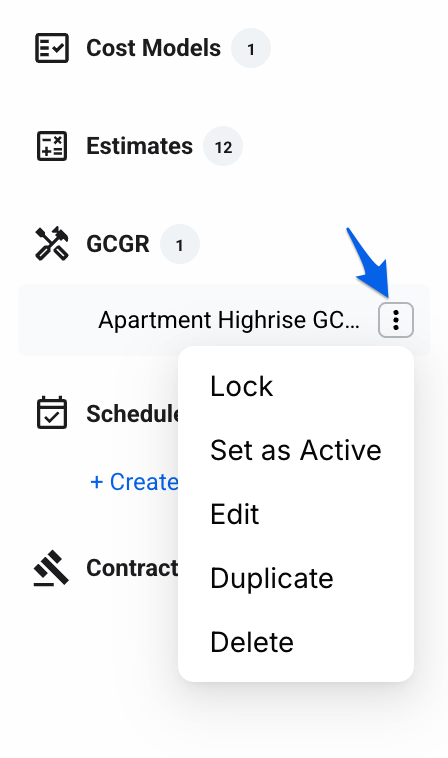
- Add Button: Hovering over each section will reveal a “+” (Add) button to create a new Cost Model, Estimate, GCGR or Schedule.

Expanding the Side Panel
Expanding the side panel will show the full length of any text. This expansion will stay as your default side panel setting when you navigate away from the page and come back.

Note: In order to use the expansion feature, you must first open the Side Panel by clicking on the blue arrow button.

User Visibility
When working across different sections of your project, you can easily see which teammates are viewing or working alongside you in real time, as well as who’s recently been in that section.
Currently available within Cost Models, Estimates, GCGRs, Schedule, and Contracting. This feature:
- Shows which tab your teammates are currently working in, or how long ago they were there.
- Keeps your team aligned, reduces overlap, and makes collaboration more seamless.
- Provides up to 30 days of viewing history.
Pro Tip: If you haven't updated your profile picture yet, now is a great time to do so. Learn how to here!

Project Overview
The Project Overview will serve as your project dashboard containing high-level information for quick and easy insights, as well as the location of our Cost Trendline feature.

- Create Button: At the top right is a blue Create button. This is a quick-create path for Cost Models, Estimates, GCGRs, and Scheduling.

- "More" Menu (ellipses): The "More" Menu will have the same functionality as the My Projects "More" Menu.

If you have any questions, feel free to contact our support team, and we'll be happy to help!