Managing Bid Tabs in Contracting
Note: Only Global Admins and Project Owners can edit, delete, and lock or unlock Bid Tabs.
In Ediphi, a Bid Tab is a specific Bid Package in Contracting. You can add, edit, lock, and delete Bid Tabs from the Schedule of Values (SOV), which opens when you click Contracting. Editing lets you update the Bid Tab's name, Bid Package, and Trade Estimator. Locking a Bid Tab prevents any further edits by other users, including Admins, although it remains visible in read-only mode. Deleting a Bid Tab removes it entirely from Contracting
Pro Tip: You can also create Bid Tabs by exporting them from an estimate. See Exporting Estimate Data to Contracting.
In this article
Add Bid Tabs
You can add multiple Bid Tabs at once.
- In the left-side panel, click on Contracting.
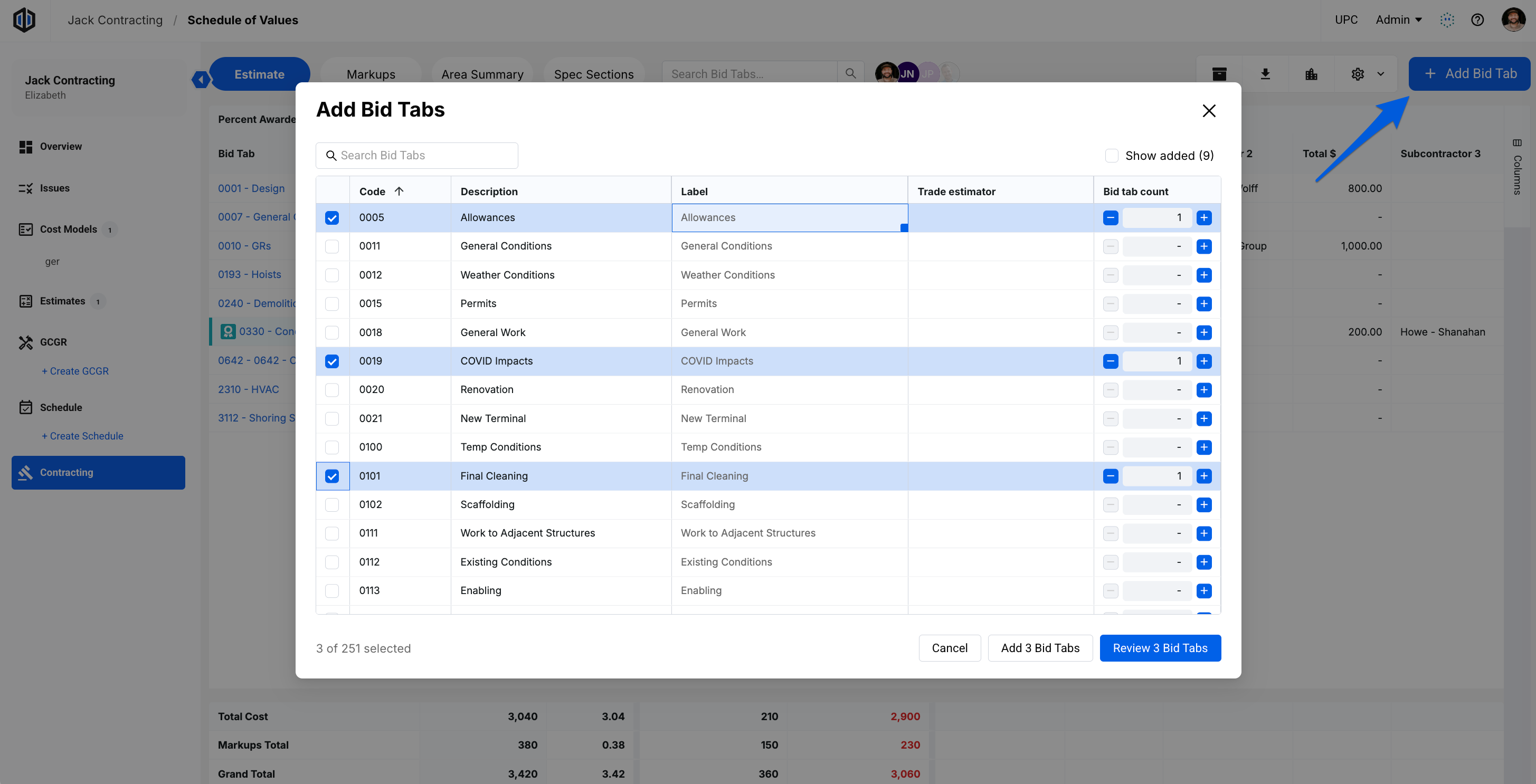
- Click Add Bid Tab. A window opens listing your project's Bid Packages.
- Check the Bid Packages you want to add. For each one, you can also:
- Enter a Label. This becomes the Bid Tab's name. If you leave it blank, the Bid Tab is named after its Bid Package code and description.
- Select a Trade Estimator.
- Use the count to add more than one Bid Tab for the same Bid Package.
- Click Add Bid Tabs to add them right away, or click Review Bid Tabs to check them first. Both buttons show how many Bid Tabs you've selected.
Reviewing before you add: The review step shows one row per Bid Tab. You can edit each Bid Tab's Label and Trade Estimator, or remove a row with the delete icon. Click Back to return to your list without losing your edits, or click Add Bid Tabs to create them.
Pro Tip: Bid Packages that already have a Bid Tab are hidden by default. Click Show added to see them, and add another Bid Tab for the same Bid Package if needed.
Note: Looking to add a new Bid Package in the list to choose from? Global Admins have the ability to create these by adding Sort Codes to the Bid Package Sort Field. See this article for more information: Managing Sort Fields for your Company.
Edit a Bid Tab
- In the left-side panel, click on Contracting.
- Right-click the Bid Tab you wish to edit.
- Select Edit.
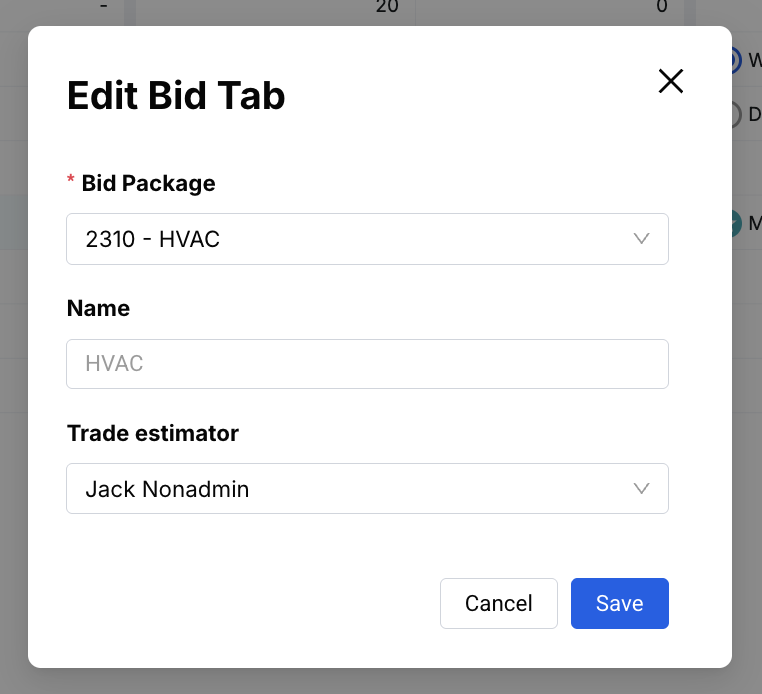
- In the Edit Bid Tab window, update the Name, Bid Package, or Trade Estimator. Name is required. The Bid Package list includes any custom labels.
- Click Save.
Delete Bid Tabs
- In the left-side panel, click on Contracting.
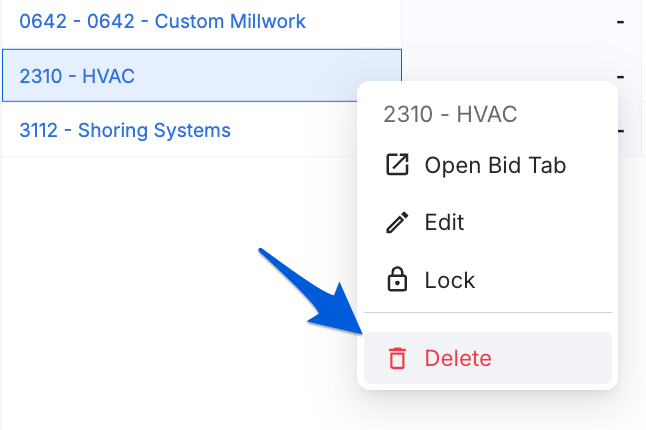
- Right-click the Bid Tab you wish to delete. To delete several at once, select multiple Bid Tabs first, then right-click.
- Select Delete.
- Click Delete Bid Tab to confirm. This can't be undone.
Note: Multi-select only works for deleting. Edit and Lock are done one Bid Tab at a time, or use Lock all Bid Tabs below.
Lock or Unlock a Bid Tab
- In the left-side panel, click on Contracting.
- Right-click the Bid Tab you wish to lock.
- Select Lock.
- Confirm in the pop-up.
Follow these same steps to unlock a Bid Tab. The menu shows Unlock when the Bid Tab is locked.
Lock or Unlock All Bid Tabs
You can lock or unlock all Bid Tabs from Contracting or from your project's settings.
From Contracting:
- In the left-side panel, click on Contracting.
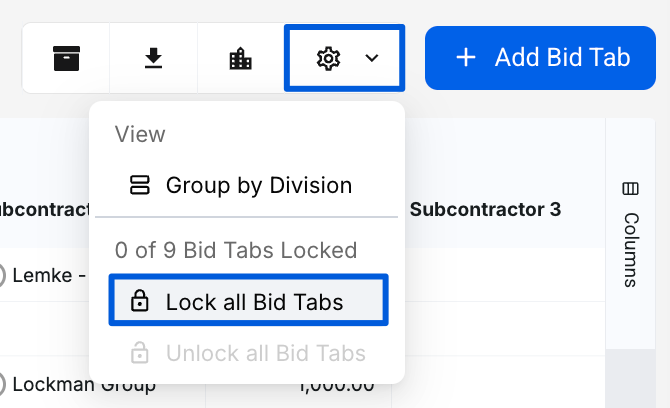
- Hover over the Settings (gear) icon.
- Select Lock all Bid Tabs, then confirm in the pop-up.
Once every Bid Tab is locked, the same menu shows Unlock all Bid Tabs instead.
From your project's settings:
- Open your project.
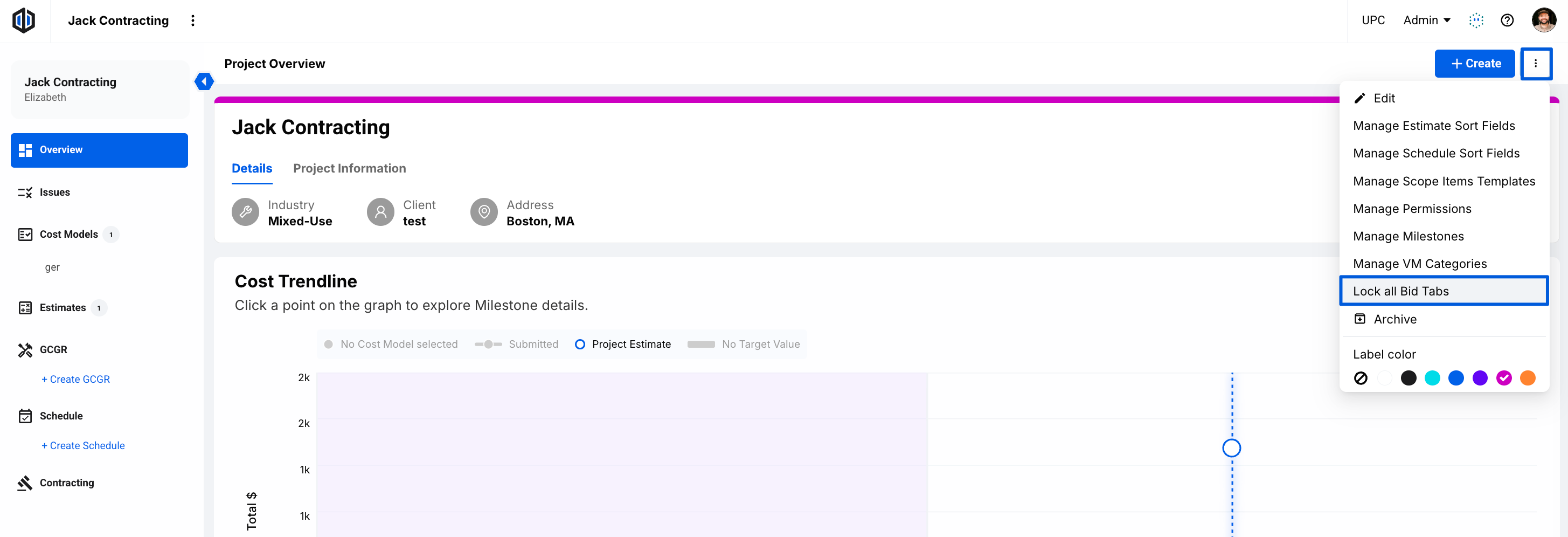
- Click the 3 dots (ellipsis) in the top-right corner, next to the Create button.
- Select Lock all Bid Tabs, then confirm in the pop-up.
Once every Bid Tab is locked, this option changes to Unlock all Bid Tabs.
Note: Lock all Bid Tabs only appears in this menu for projects that have Bid Tabs in Contracting. It's also available from the My Projects page. Hover over the project, click the 3 dots (ellipsis), and select Lock all Bid Tabs.
If you have any questions, feel free to contact our support team, and we'll be happy to help!