Exporting Estimate Data to Contracting
Note: Only Global Admins and Project Owners have the ability to Export Estimate Data to Contracting within Ediphi.
In Ediphi, you can export your estimate's data to Contracting. This includes your Bid Packages and budget, which become Bid Tabs, and your Project details: Use Groups, Markups, and VM Decisions. You choose exactly what to send, allowing you to export in waves and update your Bid Tabs as your estimate changes.
In this article
- Open the Contracting Export Menu
- Export Bid Packages and Budget
- Export Sort Code Custom Labels as Separate Bid Tabs
- Export Project Details
- FAQs
Open the Contracting Export Menu
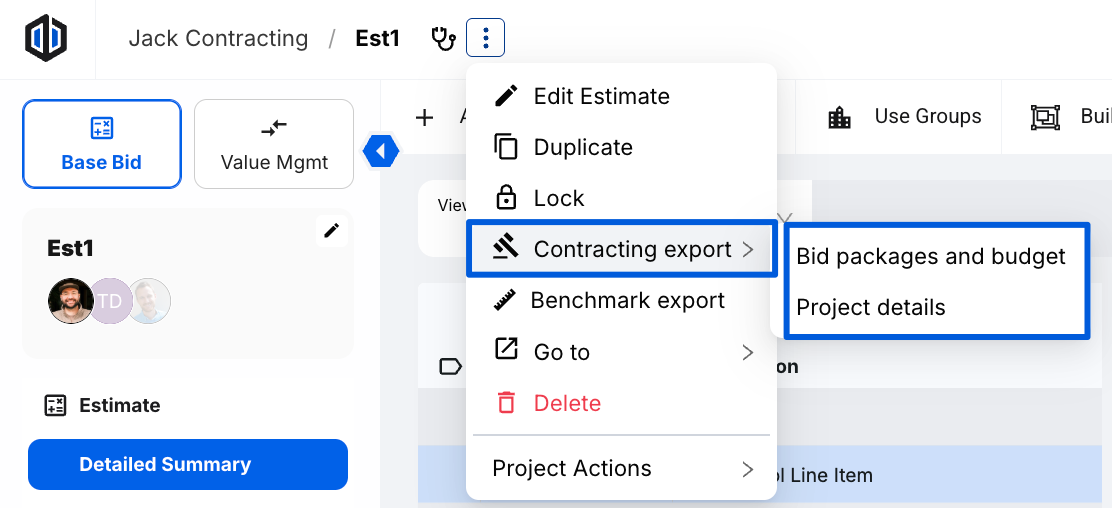
- Under the Estimates module of your project, click the 3 dots (ellipses) icon on the estimate you want to export. You can also open the estimate and use the actions menu in the estimate header.
- Select Contracting export. You'll see two options:
- Bid packages and budget: export Bid Packages as Bid Tabs.
- Project details: export Use Groups, Markups, and VM Decisions.
- Click either option, and a modal will appear.
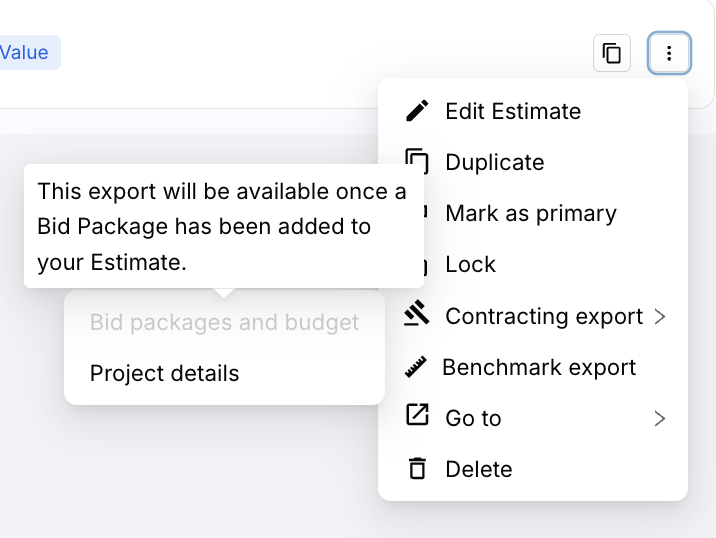
Note: If an estimate has nothing to export for one of these options (for example, a brand new estimate), that option is greyed out. Hover over it to see why.
Export Bid Packages and Budget
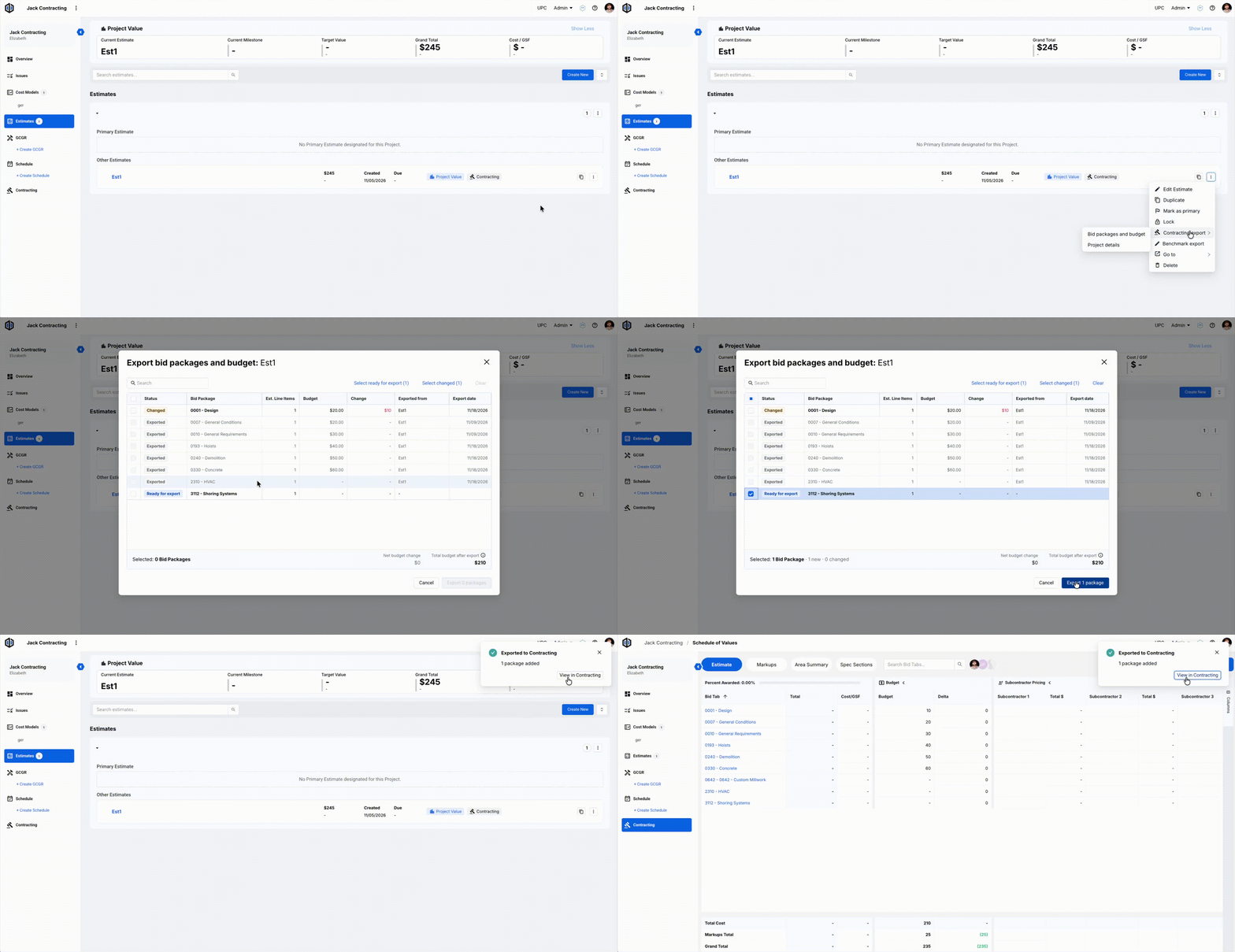
- Open the Contracting export menu and select Bid packages and budget.
- Click on the checkboxes of the Bid Packages you want to send to Contracting.
- Click Export packages.
- A confirmation message shows how many Bid Tabs were added and updated. Click View in Contracting to go to Contracting.
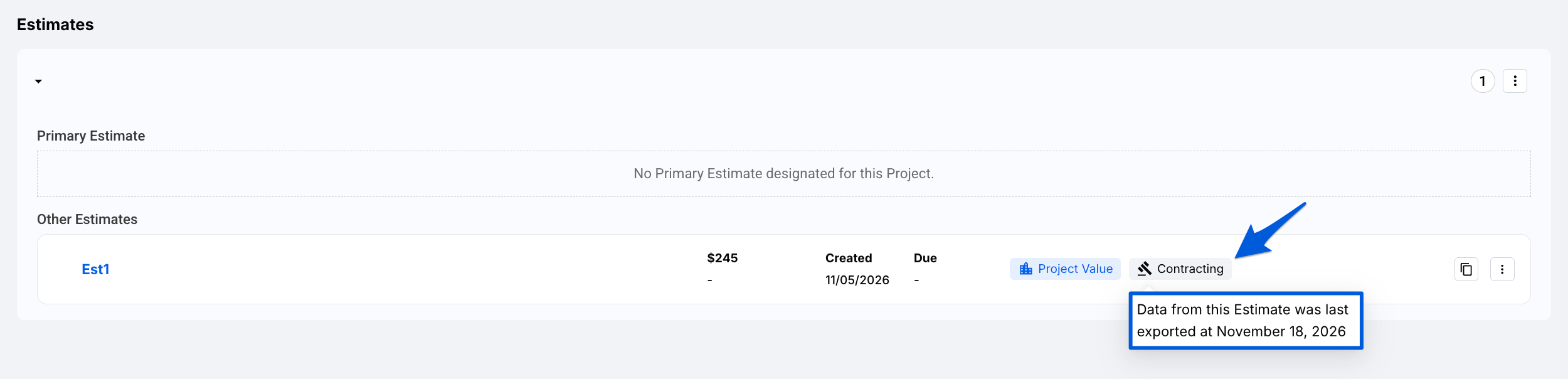
Pro Tip: After exporting, hover over the Contracting tag on the estimate card to see the date it was last exported.
Export Statuses
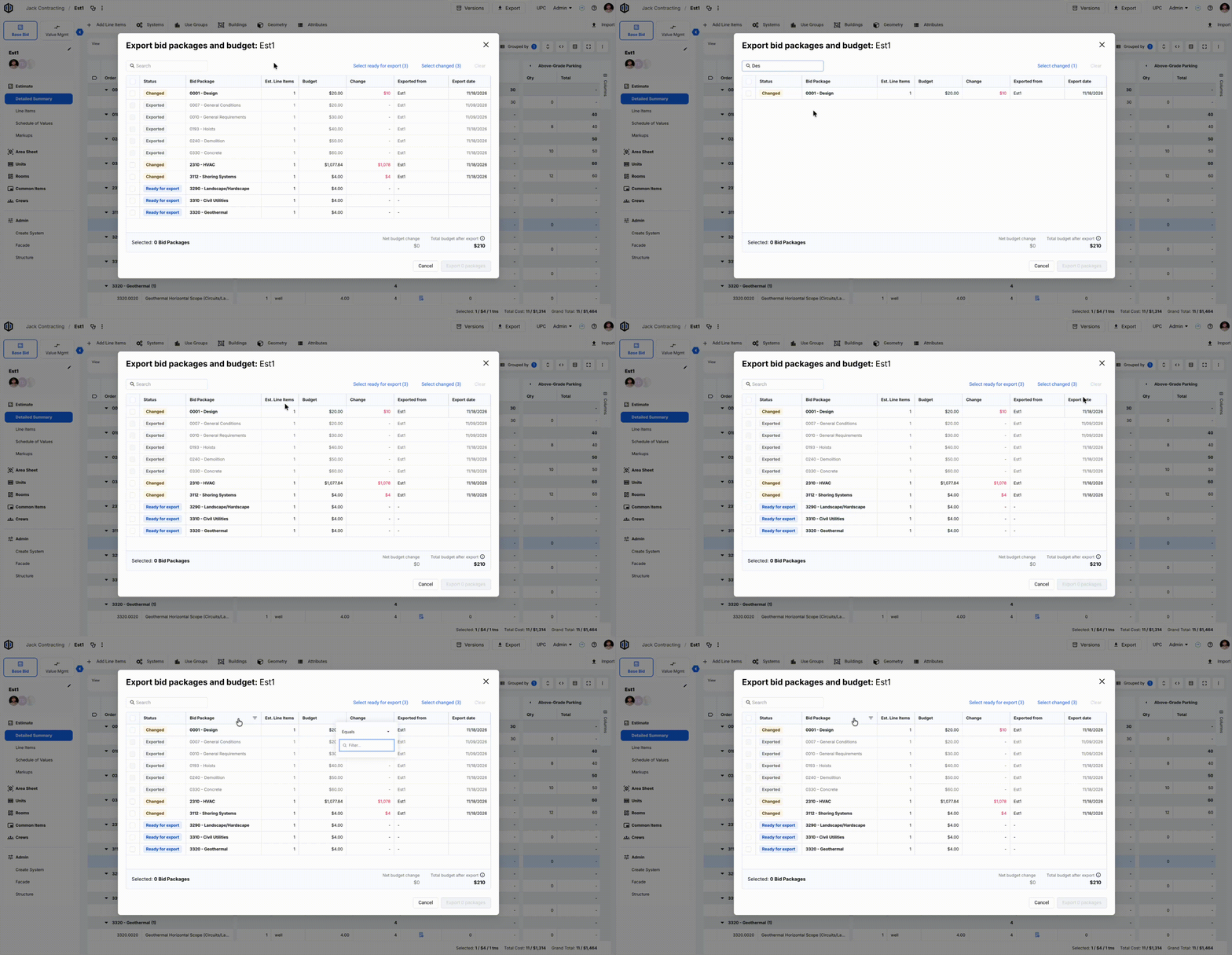
Each Bid Package in the export window shows a status:
| Status | What it means |
|---|---|
| Ready | Not exported yet. |
| Changed | Exported before, but the estimate has changed since. The dollar amount of the change is shown. |
| Exported | Already in Contracting with no changes since the last export. |
| Locked | The Bid Tab is locked in Contracting and can't be selected. |
| Exported from another estimate | This Bid Package was last exported from a different estimate in this project. |
Finding and Selecting Bid Packages
- Use Search to find a Bid Package by code or name.
- Use the quick select options to select everything that's Ready, everything that's Changed, or everything. Quick selects add to your current selection. Click Clear to deselect everything.
- Filter by and sort any column.
- When you're searching, the select-all checkbox only selects the rows that match your search.
Re-exporting Bid Packages
- If you change line items in an estimate Bid Package after exporting it, the Bid Package shows as Changed. Re-export it to update the Bid Tab's budget to match the estimate. This updates the budget only. Your Scope Sheet and bidders aren't affected.
- Bid Packages with no changes are skipped when you export.
- If you export the same Bid Package from a different estimate in the project, the Bid Tab is updated to point to that estimate instead.
- Locked Bid Tabs can't be updated. To re-export one, unlock it in Contracting first.
Export Sort Code Custom Labels as Separate Bid Tabs
Custom labels let you split one Bid Package into multiple Bid Tabs. For example, you can split Concrete into Tower A and Tower B, so each gets its own Bid Tab in Contracting.
- Add your labels to the Bid Package sort code. See Adding Labels to Sort Codes for steps.
- In your estimate's Line Items view, update the Bid Package column on the line items you want to move to a label.
- Open the Contracting export in the Estimate List or within an estimate's settings by clicking on the 3 dots (ellipses).
- Select Bid packages and budget. Each label appears as its own row, with the label on top and the parent Bid Package underneath.
- Select the labels you want, then click Export packages. Each label is created as its own Bid Tab in Contracting.
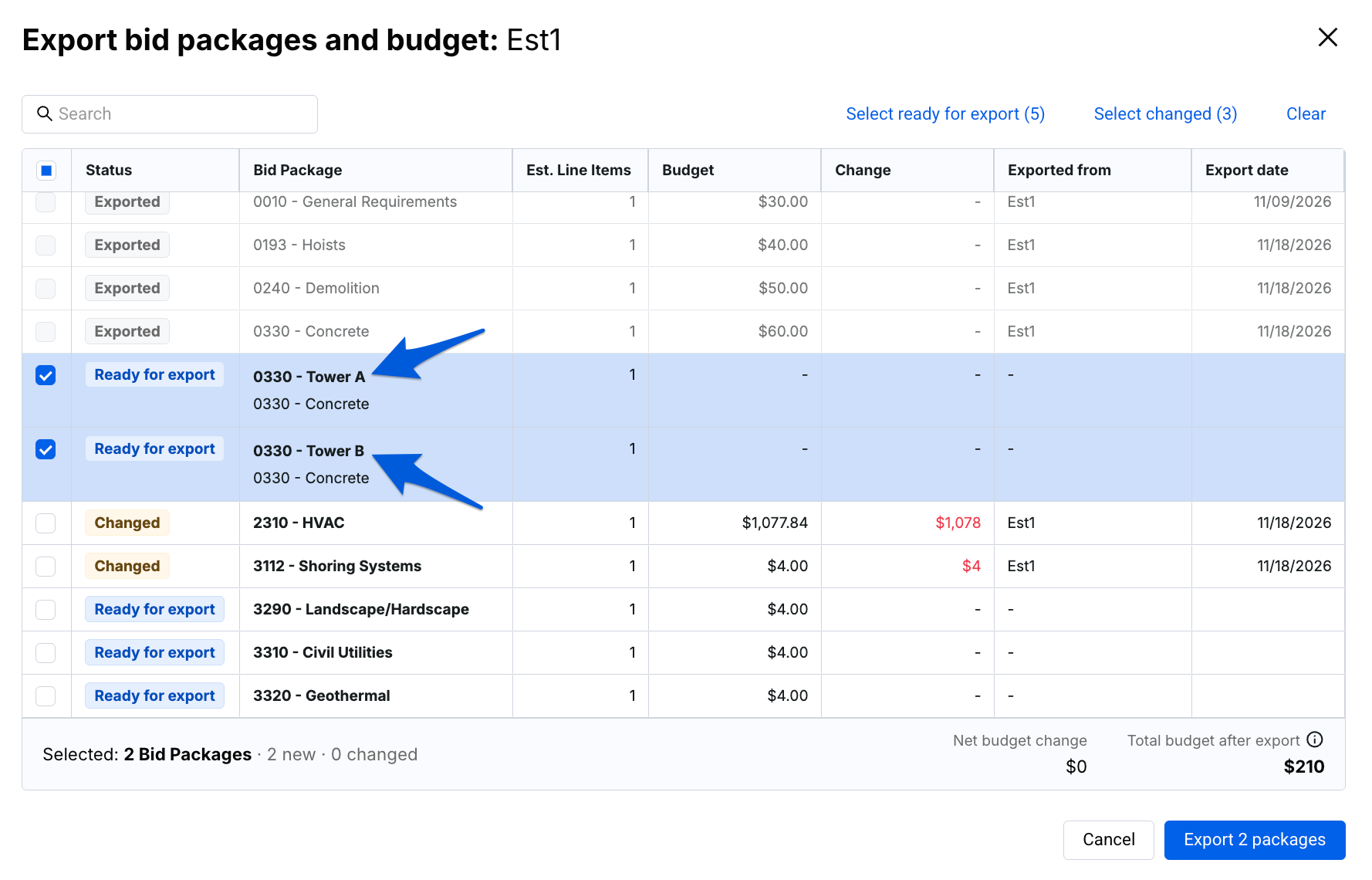
Note: A label won't appear in the export window until it's assigned to at least one line item.
Keep in mind:
- Line items without a label stay in the base Bid Tab. If every line item in a Bid Package has a label, there's no base row to export.
- If you label more line items after exporting, re-export to update. The base Bid Tab's budget goes down, and a new Bid Tab is created for the new label.
- A labeled Bid Tab starts with the same default scope items and vendor contacts as its base Bid Package.
- Renaming a label later doesn't rename its Bid Tab in Contracting. You'll need to edit the Bid Tab name manually.
Export Project Details
- Open the Contracting export menu and select Project details.
- Select the Use Groups, Markups, and VM Decisions you want to export. Each section has a checkbox to select all, and Use Groups and Markups show their totals.
- Click Export items. The button shows how many items you've selected.
- Under each section, expand Already in Contracting to see what's already been exported.
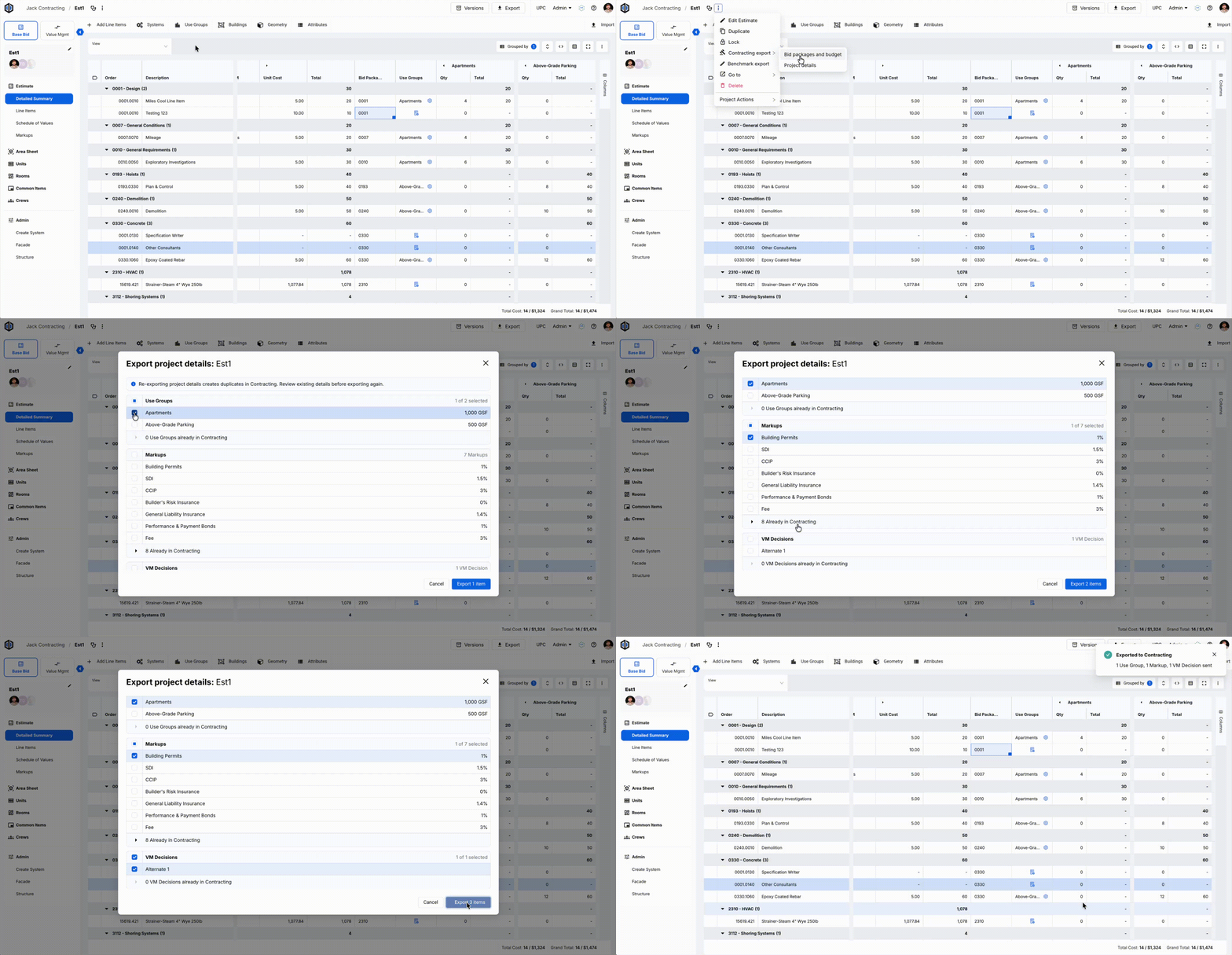
Note: Re-exporting project details creates duplicates in Contracting. Check Already in Contracting before exporting again.
What you can export:
- Use Groups: shown with their GSF and Units.
- Markups: shown with their percentages. GCGR markups, VM Standard markups, and VM Decision markups aren’t listed. If your estimate has a linked GCGR, it’s linked in Contracting automatically. See Markups with Formulas below for how formulas carry over.
- VM Decisions: only accepted Alternates and Target Value Options are listed. Once exported, they appear as a column in the Schedule of Values.
Markups with Formulas
- If a markup's formula references another markup you're exporting at the same time, that reference is kept in Contracting.
- If it references a markup you didn't export, Contracting stores that amount as a fixed number, labeled with the markup's name. Later changes to the referenced markup in your estimate won't carry over.
FAQs
- Can I push changes from Contracting back to my estimate?
No. The Contracting Export only goes one way, from Estimates to Contracting. Re-exporting updates Bid Tab budgets, but changes made in Contracting don't flow back to your estimate.
- If my estimate has a GCGR linked to it, will it come over to Contracting?
Yes. When you export an estimate with a linked GCGR, we'll update the Contracting Markups and link that GCGR automatically. Keep in mind that if you later change the GCGR link in your estimate, it won't update in Contracting; you'll need to adjust that manually.
- Can I add Bid Tabs without exporting them from an estimate?
Yes, you can add Bid Tabs manually in Contracting. See Managing Bid Tabs in Contracting.
- How do I lock or unlock Bid Tabs?
You can lock or unlock a single Bid Tab or all Bid Tabs at once from the Schedule of Values. See Managing Bid Tabs in Contracting.
- What happens to Sort Codes used in my Estimate Markup formulas?
When you run a Contracting Export, Sort Code values in your Estimate Markup formulas are converted into Number values. This keeps the formula working correctly within the Schedule of Values in Contracting. Because Contracting Markups are not linked back to Estimate Markups, any future changes to the Sort Code in your Estimate won't update automatically. You'll need to manually adjust the number value in the Contracting Markup.
If you have any questions, feel free to contact our support team and we'll be happy to help!