Updating Estimate Line Items via Import
In Ediphi, you can update line items already in your estimate by importing a CSV. Instead of editing line items one at a time, export them, make your changes in Excel, and import the file back into the same estimate. Ediphi matches each row to an existing line item by its ID and updates it in place.
Note: Line item IDs must come from the same estimate you are importing into. If an ID belongs to a different estimate, that line item is moved out of its original estimate and into this one. Rows without an ID, or with an ID that no longer exists, are added as new line items. A locked estimate rejects the import, so unlock it first. To import line items into a new estimate, see Importing Estimates into Ediphi.
In this Article
- Preparing Your CSV
- Updating Line Items via Import
- Updating Unit Costs from a Total
- Common Errors & Resolutions
- FAQs
Preparing Your CSV
Start from an export of your estimate. The export includes each line item's ID, which is how Ediphi knows which line item to update.
- Open your estimate.
- Click Export in the top right corner, then select CSV.
- Open the file in Excel and condition it as follows:
- Remove the top two rows so the column headers are in the first row.
- Keep the id column and don't change its values.
- Delete the gcgr and total_cost_text columns.
- Delete the MasterFormat and UniFormat description columns (MasterFormat 1 through MasterFormat 3 and UniFormat 1 through UniFormat 3).
- Rename the MasterFormat and UniFormat code columns to lowercase and remove _code. For example, MF1_code becomes mf1, and UF3_code becomes uf3.
- Each Sort Field exports as two columns: a code column, such as LOD_code, and a description column, such as Level of Development. The import only reads codes, so for each Sort Field:
- Delete the description column (Level of Development).
- Remove _code from the code column's header (LOD_code becomes LOD). The codes stay in this column; only the header changes.
- Keep every Sort Field column, even ones you aren't changing. If you delete a Sort Field column, that Sort Field is cleared on each line item that still has a valid code in another Sort Field column. A blank cell, a misspelled code, or a description in place of a code also clears that Sort Field on that line item, as long as the row has at least one other valid Sort Field code. No error appears in either case.
- Make your changes. Only edit the cells you want to update. Outside Sort Field columns, a blank cell leaves that field unchanged. You can delete rows for line items you don't need to change; those line items stay as they are.
- If you change a component unit cost, such as labor_uc or material_uc, also set total_uc to 0 or enter the new total unit cost. If total_uc has a value, Ediphi keeps it, and the line item's total won't change.
- Save your file as a CSV.

Note: Excel saves a CSV with your values exactly as they're displayed, which can change what imports:
- Number formatting: Set quantity and unit cost columns to General format before saving. Currency symbols and thousands separators break the import: $1,200.00 imports as 0, and 1,200 imports as 1. Rounded decimals lose precision, so totals can drift.
- Leading zeros: Excel drops leading zeros from codes when it opens a CSV, so a Bid Package code like 0010 becomes 10. Ediphi skips codes it doesn't recognize without showing an error, so re-importing those codes clears that Sort Field on those line items, as long as each row has another valid Sort Field code. If any of your codes start with a zero, open the file through Data > From Text/CSV and set those columns to Text instead of double-clicking the file.
You can update the following fields (column header in parentheses): Name (name), Order (order), Quantity (quantity), UOM (uom), Unit Cost (total_uc), the Labor (labor_uc), Material (material_uc), Sub (sub_uc), Equipment (equip_uc), and Other (other_uc) unit costs, MasterFormat and UniFormat codes (mf1–mf3, uf1–uf3), Sort Fields (the Sort Field's Key), and Notes (notes).
Note: GCGR line items in the file are skipped, and changing the quantity of a line item that uses a quantity formula overrides the formula.
Pro Tip: You can add new line items in the same file. Add a row and leave the id cell blank, and Ediphi will create it as a new line item.
Updating Line Items via Import
Pro Tip: Before a large import, duplicate your estimate or create a version, so you have a copy to go back to if you need to roll back your changes.
- Follow the steps in Preparing Your CSV above.
-
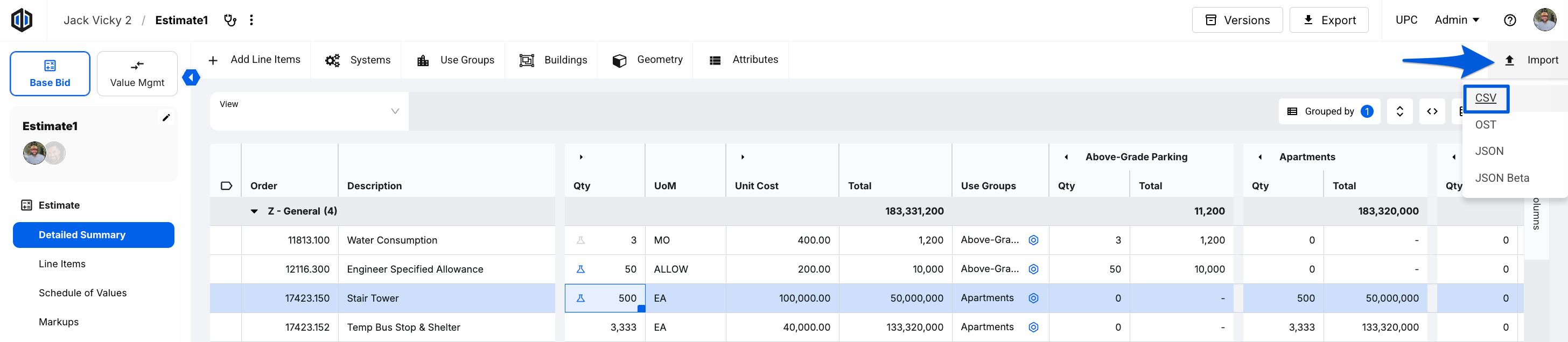
Go back into the same estimate, click the Import button, then select CSV.
-
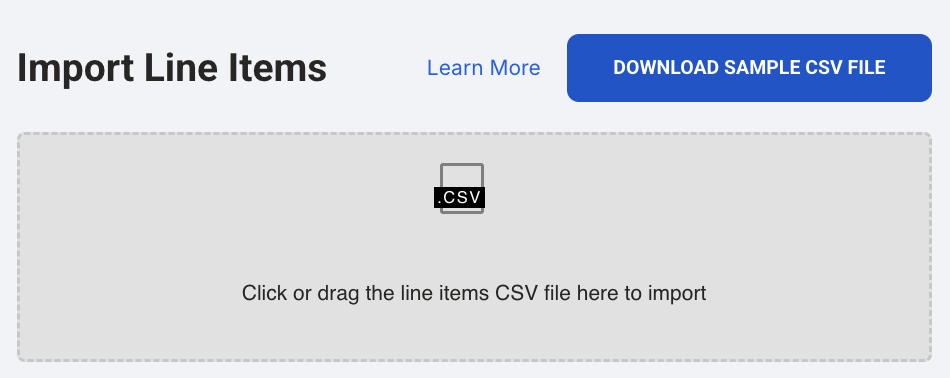
Drag and drop or click to select your CSV for upload.
- Review your estimate. Matching line items now show your updated values, and any rows without an ID appear as new line items.
Updating Unit Costs from a Total
The import accepts unit costs, not totals. If you have lump sum totals, calculate the unit cost for each line in Excel before importing.
- In your conditioned CSV, add a temporary column and enter each line item's total.
- In the total_uc column, enter a formula that divides the total by the quantity. For example, if the total is in column X and quantity is in column Y, enter =X2/Y2.
- Fill the formula down for every row you're updating.
- Copy the total_uc column, right-click, and choose Paste Values so the cells contain numbers instead of formulas. Keep the column in General format so Excel saves every decimal.
- Delete the temporary total column.
- Save your file as a CSV and import it as described in Updating Line Items via Import above.
Note: For lump sum line items, or line items with a quantity of 0, skip the formula. Set quantity to 1 and enter the total in total_uc.
Pro Tip: For just a few line items, type the total directly into the Total cell in your estimate (quantity can't be 0). Ediphi calculates the unit cost from the quantity and keeps the total you typed. This doesn't work on GCGR line items.
Common Errors & Resolutions
- "Invalid CSV format" error mentioning a "column header mismatch"
The top two rows from the export are still in the file. Delete them so the column headers are in the first row, then re-import.
- "Could not import line items. The following sort field does not exist or is not part of the project: [column]"
The column named in the error (shown in lowercase) isn't recognized. Common causes are gcgr, total_cost_text, a description column, a Sort Field column still ending in _code, an MF or UF code column that wasn't renamed (such as mf1_code), or a total column added by hand. Delete or rename the column as described in Preparing Your CSV above. If several columns are affected, the error lists them all.
If it's a Sort Field you meant to include, make sure it exists and is enabled in your project. See Common Errors & Resolutions in Importing Estimates into Ediphi.
- Component unit costs updated, but the total didn't change.
When total_uc has a value, Ediphi keeps it. Set total_uc to 0 or enter the new total unit cost, then re-import.
- Quantities or unit costs imported as 0 or the wrong amount.
Remove currency symbols and thousands separators by setting those columns to General format, then re-import.
- "Line item name is required for row [number]."
Rows without a matching ID are added as new line items, and each new line item needs a name. The row number counts from your first data row, so row 5 in the error is row 6 in Excel. Add a name to that row, or if the row is blank, delete any blank rows at the bottom of your file.
- Blank rows or columns are still in the file ("ghost" data).
Cells below or to the right of your data can look empty but still be saved in the CSV, for example, cells you typed in and then cleared. Blank rows cause the "Line item name is required" error above. It's safe to delete every column to the right of your data and every row under your data. Select them, right-click, and choose Delete (pressing the Delete key only clears the cells), then save and re-import.
- Sort Field values are blank after the import.
A Sort Field column was deleted from the file, or a cell in it was blank, misspelled, missing a leading zero, or held a description instead of a code. Ediphi doesn't show an error for these. Fix the Sort Field columns as described in Preparing Your CSV above, then re-import.
FAQs
- Will the import delete line items that aren't in my file?
No. The import only updates or adds the rows in your file. Line items you leave out stay as they are.
- Will a blank cell erase a value?
No. A blank cell leaves that field unchanged. Sort Field columns are the exception; see Preparing Your CSV above.
- Can I update and add line items in the same import?
Yes. Rows with a matching ID update that line item, and rows without an ID are added as new line items.
- Can I update line items in more than one estimate at once?
No. Each import updates the estimate you import it into. Export and import each estimate separately.
- How do I import line items into a new estimate?
See Importing Estimates into Ediphi.
- How do I delete line items that were added by an import?
Filter your line items by Import Batch, then delete them. Line items added by an import get an Import Batch named with the date and time of that import. Line items it updated keep their original Import Batch, so filtering by that import's batch selects only the line items it added. See Deleting Imported Line Items in Importing Estimates into Ediphi.
- Can I update Use Group allocations through an import?
Yes. Add a column for each Use Group, named with its Label followed by _alloc (for example, Retail_alloc), and enter each line item's percentage. The export doesn't include these columns, so you'll need to add them yourself. For full steps, see the Use Groups Pro Tip in Importing Estimates into Ediphi.
If a row has a value above 0 in any _alloc column, that line item's allocation is replaced with only the Use Groups in that row. Use Groups with no column, a blank cell, or 0 are removed, and so is a proportional preset. To keep a line item's current allocation, leave every _alloc cell in its row blank or 0. Columns that don't match a Use Group are skipped, and no error appears.
- Where do I find a Sort Field's Key?
The Key is set when the Sort Field is created and can be found at the Admin level when editing it. See the Sort Field Pro Tip in Importing Estimates into Ediphi.
- How do I create Sort Fields and Sort Codes in my project?
See Managing Estimate Sort Fields & Codes.
- How do I add or update products in the UPC via import?
See Importing a CSV into the UPC.
If you have any questions, feel free to contact our support team, and we'll be happy to help!