How to Update the UPC
Note: Only Global Admins have the ability to update the UPC in Ediphi.
The UPC (Unit Price Catalog) is one of the most powerful aspects of Ediphi because it allows you to track pricing discrepancies across all of your current projects, and compare them to historical data from past projects by coding each unique product with a standardized name, price, unit of measurement, and Product ID.
In this article
What are the different ways I can update the UPC?
- Manually Update Within the UPC: You can head directly to the UPC to manage existing products or add new ones.

- Exporting UPC Via the Excel Add-In: You can use the Ediphi Excel Add-In to export a particular region’s UPC or the global UPC, condition it, and then re-import.

Updating the UPC
Manually Update Within the UPC
Updating products in the UPC can be done at any time. Here's how to do it:
- Locate and click the UPC button at the top of the page.
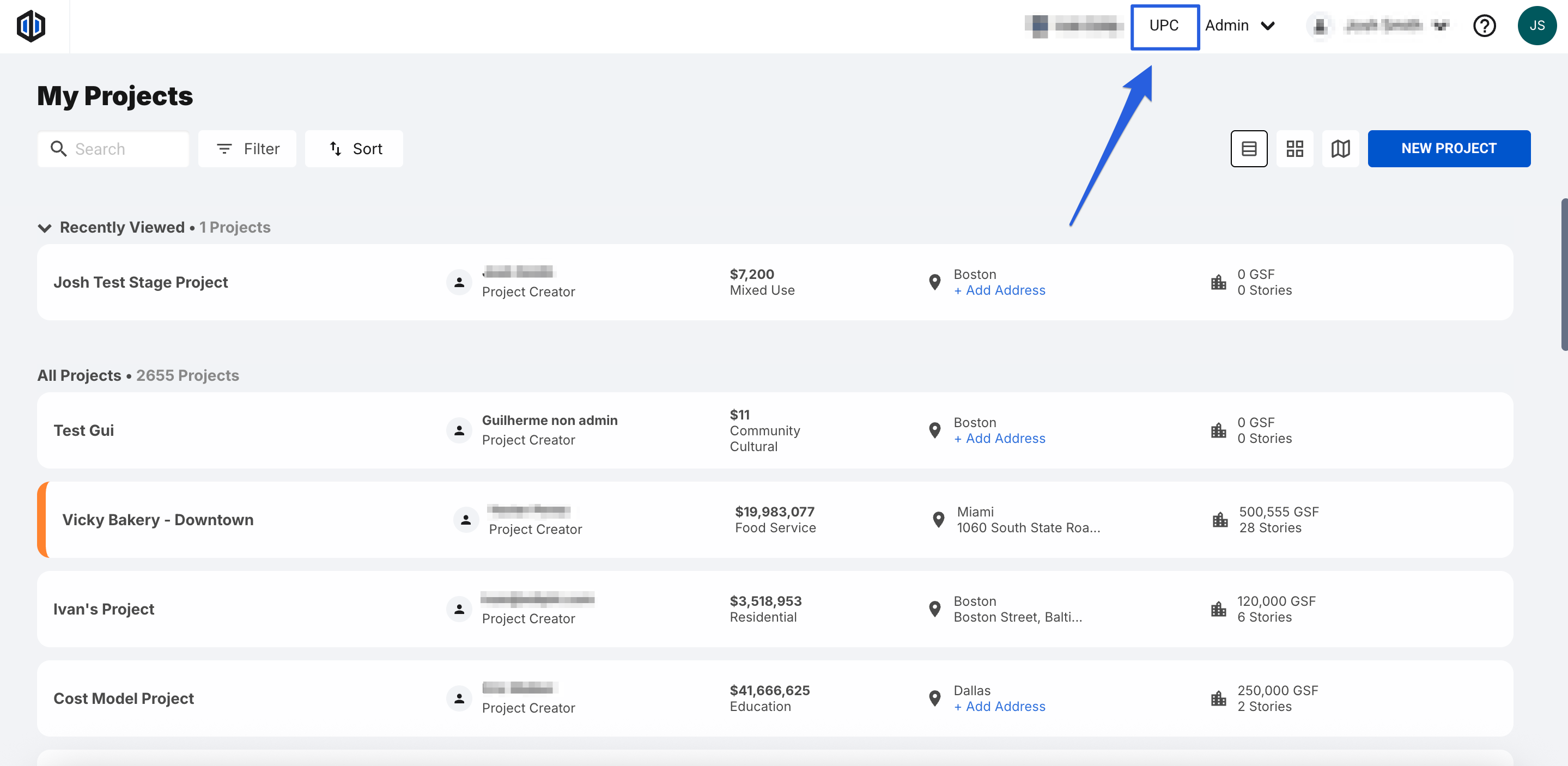
- Once in the UPC, you can use the filters and columns tabs on the right hand side of the screen to easily find products. When ready, click into the cell of any product to make an update. For a more in depth review of how to update the cost and manage your products in the UPC, see our UPC article.

Pro Tip: In order to add costs to a product in the UPC, you will need to select the Region you want to assign costs to first. Once the Region is selected, a Unit Cost column will appear for you to edit (you would need to do this for each Region as needed).

- To delete a product in the UPC, right-click into the cell of any product and a window will appear where you can select the option to Delete Product.

Note: Deleting a product in your UPC will not delete it from estimates where it has already been used.
Using Ediphi’s Excel Add-In (Last Mile)
Updating products in the UPC can also be done using the Load UPC Table feature within the Ediphi Excel Add-In.
- By selecting Load UPC Table, you can export a particular region’s UPC or the global UPC. To load the UPC table, see Using Ediphi's Excel Add-in (Last Mile).

- Once the UPC table is loaded, you can go ahead and condition the file, making any necessary edits.
Note: The very first column called “ID” is a required column. This column communicates with the matching product in the UPC. Do not edit the numbers in this column to ensure your edits correspond to the correct product in the UPC.
It is important to also delete any columns from the file that you will not be updating/making any changes to.

- Once you have conditioned the file by making the necessary updates, go ahead and save a copy of the file as a CSV.
- Head to back to the UPC within Ediphi, and click Import to upload the CSV file.

Note: For information on updating the UPC through imports, see our article on Importing a CSV into the UPC.
FAQs
- What is the UPC?
The UPC (Unit Price Catalog) is Ediphi's central database for tracking the price of all the different products in every scope of work that goes into a project. Ediphi’s UPC allows you to use regionally specific pricing to accurately track these prices. For more information see our UPC article.
- How do I add a new UPC product?
If you’d like to manually create a single product, see Adding a Product in The UPC.
- How can I edit the cost of a product in the UPC?
You can always change the total Unit Cost by first selecting a cost region, then clicking on the Unit Cost cell of the specific product you’d like to edit, changing the value, and pressing Enter. Or you can breakout the unit cost and edit the LMSEO of a line item.
- Do I have to use the Ediphi Add-In to update the UPC?
You do not. You can also update the UPC by creating a temporary project in Ediphi, and exporting the line items from that project to update. See Updating existing items in the UPC via import.
- How can I import a CSV file into the UPC?
See our article Importing a CSV into the UPC.
- How do I request a line item be added to the central UPC?
See our article Request Add To Central UPC.
- What does the “Pending Approval” tab do?
Within Ediphi, Admin users have the ability to approve requested line items be added to the Central UPC. By clicking the Pending Approval tab, all pending requested line items will appear in the list. For more information, see How to Approve a Line Item be Added to the Central UPC.
- How do I view the Historical Pricing of a product?
In order to view Historical Pricing, you can always right click on the specific product, and then click on Historical Pricing. For more information, see What is Historical Pricing?
- Can I have multiple UPCs within one environment?
Not at this time.
- Why does it say that only Admins can access the UPC, but I see non-admin users with a “UPC” option within their accounts?
This due to My UPC. My UPC is a way for users to create and track customized line items. Users can add a product to their UPC, and then use this product on any estimate.
If you have any questions, feel free to contact our support team, and we'll be happy to help!